
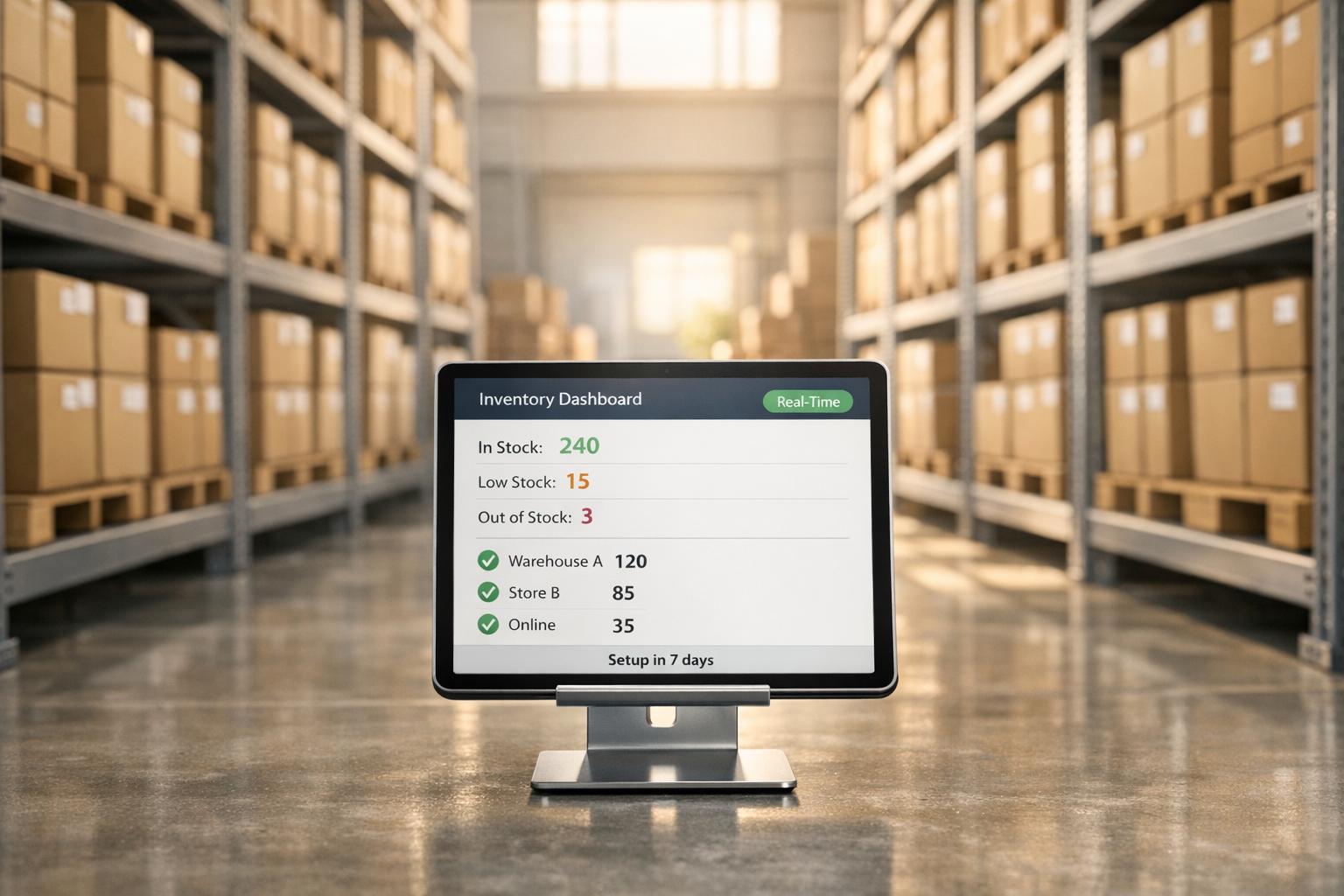
Real-time inventory sync updates your stock levels instantly across systems, eliminating manual data entry and reducing errors. This ensures accurate inventory tracking, faster operations, and better decision-making for businesses, especially QuickBooks Desktop users. By automating tasks like barcode scanning, order updates, and stock movements, you save time, cut costs, and improve efficiency.
Key Takeaways:
- Accuracy: Avoid errors with instant updates between systems.
- Efficiency: Automate workflows like picking, receiving, and cycle counts.
- Cost Savings: Reduce inventory carrying costs by up to 30%.
- QuickBooks Integration: Syncs seamlessly with QuickBooks Desktop, enhancing its limited inventory features.
Set up is quick (about 7 days) and includes onboarding, training, and advanced features like multi-location tracking, lot/serial tracking, and mobile barcode scanning. Tools like Rapid Inventory make integration simple and effective.
For businesses managing inventory, this solution boosts accuracy, speeds up operations, and simplifies decision-making.
Benefits of Real-Time Inventory Sync
Better Accuracy and Fewer Errors
Real-time, two-way synchronization eliminates the need for spreadsheets and manual data entry, which are often the root causes of human error in QuickBooks Desktop. For example, when your warehouse team scans a barcode during receiving or picking, the system instantly checks the item details - like location and quantity - ensuring that QuickBooks reflects the actual inventory levels.
By pairing mobile scanning with regular cycle counts, you can achieve inventory accuracy rates as high as 97%. Automated pick lists further enhance efficiency by guiding staff to the right inventory locations and optimizing their picking routes, helping your warehouse hit 100% picking accuracy. Instead of relying on an annual physical inventory to uncover discrepancies, continuous cycle counts can catch and correct errors as they happen. This level of accuracy not only reduces mistakes but also streamlines your warehouse operations for faster, smoother workflows.
Faster Operations and Automated Workflows
Accurate data is the foundation of faster operations. With real-time sync, QuickBooks Desktop is updated automatically as warehouse tasks - like receiving shipments or picking orders - are completed. This automation eliminates repetitive administrative tasks, freeing up your team to focus on fulfilling orders instead.
Using mobile barcode scanners, staff can efficiently handle receiving, picking, and counting tasks on handheld devices. The system verifies and records each transaction in real time, while optimized picking routes help minimize wasted time searching for items.
Fernanda C, Director of Operations, shared, "Rapid Inventory helps us run our warehouse operations. Easy to use and reliable. Using it since 2015, we especially love the barcode scanning and mobile picking".
Make Better Decisions with Current Data
Real-time sync doesn't just improve accuracy and speed - it also empowers better decision-making. With up-to-date inventory data, you can make smarter purchasing choices based on actual stock levels. If you manage multiple warehouses, real-time visibility allows for efficient inventory redistribution, ensuring you only order what’s necessary. This "just-in-time" approach can help reduce storage costs and improve cash flow.
Having current data also means you can catch potential problems early. For instance, you can identify slow-moving items before they turn into deadstock and take timely action, like discounting or redistributing them. Automated reorder alerts kick in as soon as stock drops to predefined levels, preventing stockouts without requiring constant manual oversight. The end result? Better inventory turnover, fewer write-offs, and more accurate financial reporting in QuickBooks.
sbb-itb-19ed50f
How To Sync WooCommerce and QuickBooks Inventory

Why QuickBooks Desktop Users Need Real-Time Sync


QuickBooks Desktop vs Rapid Inventory Sync Feature Comparison
QuickBooks Desktop Inventory Limitations
QuickBooks Desktop offers basic tools for tracking quantities and calculating costs of goods sold (COGS). But when it comes to handling high-volume or complex inventory workflows, it falls short. One major issue is the delayed updates - inventory levels don’t reflect real-time changes across sales channels. This delay can lead to overselling or late restocking, which can disrupt your operations.
If you need features like lot numbers, serial numbers, or batch tracking, only the Enterprise edition with Advanced Inventory includes them. For businesses managing perishable goods or compliance requirements, relying on spreadsheets or manual processes introduces a higher risk of errors. Additionally, QuickBooks Pro and Premier don’t natively support managing inventory across multiple warehouse locations. This means businesses must manually track inventory across different sites, which is both time-consuming and error-prone.
Another hurdle is manual order processing. While QuickBooks does provide low-stock alerts, you still need to manually create and send purchase orders. This increases the likelihood of human error, especially as your business scales. Without real-time synchronization, double data entry between warehouse operations and QuickBooks can lead to mispicks and discrepancies in your inventory records.
These limitations underscore the need for an integrated solution that works seamlessly with QuickBooks Desktop.
How Rapid Inventory Works with QuickBooks Desktop
Rapid Inventory tackles these challenges head-on by offering an automated, two-way sync that removes the need for manual updates. For example, when your warehouse team scans a barcode during receiving or order picking, the system immediately updates QuickBooks. Similarly, sales orders created in QuickBooks are instantly available on your warehouse team’s mobile devices.
The platform also provides advanced features like lot, serial, batch, and expiration date tracking (FEFO) - capabilities that standard QuickBooks Desktop versions don’t offer. It supports inventory management across unlimited warehouses and specific bin locations, overcoming the single-location limitation of QuickBooks Pro and Premier. With mobile barcode scanning, stock movements are updated precisely in real time, and optimized pick lists help warehouse staff follow the most efficient routes for fulfilling orders.
| Feature | QuickBooks Desktop (Native) | Rapid Inventory Sync |
|---|---|---|
| Sync Frequency | Manual/Delayed | Automatic Two-Way Sync |
| Barcode Scanning | Not Native (Requires Enterprise) | Mobile Barcode Scanning Included |
| Tracking | Basic Quantities | Lot, Serial, & Expiration Tracking |
| Stock Strategy | Basic | FIFO & FEFO Supported |
| Locations | Single Location | Multi-Warehouse & Multi-Location |
| Pick Lists | Paper-based | Mobile & Optimized Route Picking |
Rapid Inventory integrates seamlessly with QuickBooks Desktop Enterprise, Pro, and Premier, as well as hosted solutions like Rightworks (formerly Right Networks), Whizz, Swizznet, and Visory. The implementation process is quick - it typically takes about seven days from discovery to going live, including full data migration. Plus, the Pro plan includes white glove onboarding and training, valued at $600, to ensure a smooth transition.
How to Set Up Real-Time Sync with Rapid Inventory
Installation and Initial Setup
First, ensure you're using QuickBooks Desktop Enterprise, Pro, or Premier. If you're still on QuickBooks Desktop 2020, note that Intuit stopped supporting it on May 31, 2023. Support for the 2022 version will end on May 31, 2025. Running unsupported versions can lead to security risks and migration challenges.
The onboarding process generally takes seven days. During Days 1-3, you'll participate in a discovery demo to create a custom data migration plan. This phase is critical - it’s your chance to standardize SKUs, map fields correctly, and clean up data to avoid sync errors.
To enable inventory tracking in QuickBooks, go to Edit > Preferences > Items & Inventory > Company Preferences. If you're using QuickBooks Enterprise with Advanced Inventory, ensure the feature is activated. This is essential for multi-location tracking and barcode scanning before integration.
Connecting Rapid Inventory to QuickBooks Desktop
Once the initial setup is complete, it's time to connect the systems. This is done via the QuickBooks Web Connector, which enables two-way syncing of items and orders. During Days 4-5 (Staging), set up additional users, warehouses, and locations in Rapid Inventory, and prepare QuickBooks for integration. Ensure you're logged in as an Administrator in Single User Mode to establish the connection.
On Days 6-7 (Go Live), finalize the connection, migrate your data, and train your team. After linking the systems, QuickBooks automatically syncs items and orders to Rapid Inventory. Simultaneously, updates from Rapid Inventory, like picking or receiving, sync back to QuickBooks in real time.
Nicholas G, a business owner, shared his experience: "Onboarding was very smooth... Rapid Inventory with QuickBooks Desktop is exactly what we need to run our company".
If you face issues with the initial license sync, use the "Quick Fix my Program" feature in the QuickBooks Tool Hub. To enhance security, follow a checklist that includes multi-factor authentication (MFA), TLS encryption, and certificate verification for the QuickBooks Desktop integration.
Setting Up Advanced Features
Once your basic sync is operational, you can configure advanced features to optimize your inventory management. For example, enable multi-location tracking by setting up warehouses and bin locations in Rapid Inventory. This is especially useful for overcoming the single-location limitation in QuickBooks Pro and Premier. Activate lot number, batch number, and serial number tracking to keep detailed records and meet compliance standards.
Decide on a stock rotation strategy, such as FIFO (First In First Out) or FEFO (First Expiration First Out), to streamline stock management and reduce waste. Implement mobile barcode scanning for tasks like receiving, picking, counting, and transferring inventory. This ensures real-time accuracy for locations and quantities. Additionally, configure optimized pick lists to guide your team through the most efficient routes in the warehouse.
During the staging phase, prioritize label printing so all items and locations are scannable for mobile use. Set up role-based permissions to protect data during synchronization and activate workflows for inventory assemblies, cycle counting, backorder tracking, and partial shipping/receiving.
Jacob, a CEO who adopted the system, noted: "My team was up and running in a few days. Very straightforward and easy to use".
Testing and Maintaining Your Real-Time Sync
How to Test Your Real-Time Sync
Once you've connected Rapid Inventory to QuickBooks Desktop, it's time to ensure everything works seamlessly. Start by running test transactions to verify the two-way sync. For instance, add a new inventory item in QuickBooks Desktop and check if it shows up instantly in Rapid Inventory. Similarly, process a sales order in Rapid Inventory and confirm that stock levels update in QuickBooks within seconds.
If you're managing inventory across multiple locations, test this setup by transferring stock between warehouses. For example, move 20 units from Location A to Location B using mobile barcode scanning. Then, check QuickBooks Desktop to see if the inventory summary reflects the transfer immediately. This step ensures your warehouse tracking is functioning smoothly across all sites.
Pre- and post-sync checks are essential to avoid inventory mismatches. Compare physical inventory counts with the data recorded in both systems, flagging any discrepancies that exceed 1%. If you encounter problems like delayed updates or missing transactions, use Rapid Inventory's real-time reports and QuickBooks audit logs to pinpoint the issue. Common solutions include restarting the sync connection or performing a manual sync via the QuickBooks Web Connector. Once testing confirms the system is running accurately, you can move on to routine maintenance.
Maintenance Best Practices
After confirming the sync is accurate, adopt consistent practices to keep your system running efficiently.
Schedule weekly cycle counts for high-value items and monthly counts for others using Rapid Inventory's workflow tools. This approach helps maintain accuracy levels around 97% and catches potential errors before they escalate.
Keep an eye on key metrics through Rapid Inventory's dashboard. Aim for a sync success rate above 99%, inventory variance below 1%, and update latency under 5 seconds. Set up automated alerts for backorders and low stock levels to ensure timely reordering and prevent stockouts. Review daily sync logs for errors, and make mobile scanning part of your regular warehouse operations to uphold real-time accuracy across all locations.
Fernanda C, Director of Operations, shared: "Rapid Inventory helps us run our warehouse operations. Easy to use and reliable. Using it since 2015, we especially love the barcode scanning and mobile picking and we've implemented it for all our warehouse operations".
Next Steps
Real-time inventory sync turns QuickBooks Desktop into a full-fledged warehouse management system. Some of the key perks? Up to 30% lower carrying costs, fewer stockouts that could result in lost sales, and 20-50% faster fulfillment thanks to automated workflows. For QuickBooks Desktop users, Rapid Inventory eliminates the hassle of manual data entry altogether.
Ready to put this into action? Setup is quick - less than a week. Start by signing up for a free trial at https://rapidinventory.com and schedule your free onboarding session. The Rapid Inventory team will assist in mapping your QuickBooks data, importing your initial inventory (formatted in U.S. standards like 1,234.56), and configuring the two-way sync through the QuickBooks Web Connector.
To ensure everything runs smoothly, test the sync with a sample sales order - say, $100 or $200 - and confirm that stock levels update instantly in both systems. Begin with mobile barcode scanning at a single warehouse, then expand as your team gets comfortable. This phased rollout helps identify potential mapping issues early while giving your staff time to adjust.
Once you're live, keep things running smoothly by scheduling cycle counts for high-value items and monitoring sync performance. Set up automated alerts for low stock and backorders to stay ahead of inventory issues. Real-time reports provide clear insights into inventory across all locations, allowing you to make better purchasing decisions based on actual demand instead of guesswork. Plus, expert support is always available when you need it.
Rapid Inventory also offers free training and support via email (support@rapidinventory.com) or phone (+1 914-677-1763). You’ll have access to helpful resources like reorder point calculators and stock aging analysis tools. Choose between the Pro plan at $90 per user per month or the Unlimited plan at $900 monthly for larger teams. Both plans include premium onboarding (valued at $1,500) and in-depth training (worth $600). These tools and services will help you streamline workflows and get the most out of real-time inventory management as your business grows.
FAQs
What does “two-way real-time sync” actually sync?
Two-way real-time sync ensures your inventory data stays accurate and up-to-date by automatically synchronizing quantities and other details between QuickBooks Desktop and your inventory management system. This automatic updating streamlines communication between the two platforms and helps minimize the chance of errors.
Will real-time sync change my QuickBooks item costs or COGS?
Real-time sync in QuickBooks ensures that inventory levels are updated instantly. However, it doesn't automatically adjust item costs or Cost of Goods Sold (COGS). To reflect these changes, you’ll need to make manual updates or enable specific settings. Double-check your configuration to maintain accurate cost tracking.
What’s the safest way to roll out barcode scanning without disrupting operations?
To introduce barcode scanning effectively, consider a step-by-step approach. First, confirm that your scanner is compatible with EAN-13 or Code-128 barcodes and integrates seamlessly with QuickBooks Desktop. Activate Advanced Inventory and configure barcode tracking within the system. Begin with a small-scale pilot program to test the setup in a controlled environment.
Make sure your team receives detailed training on using the scanners and the new processes. Keep a close eye on the pilot's progress, addressing any problems as they arise. Once the pilot is running smoothly, gradually expand barcode scanning across your operations, providing continuous support to minimize disruptions and ensure the transition is as seamless as possible.



