
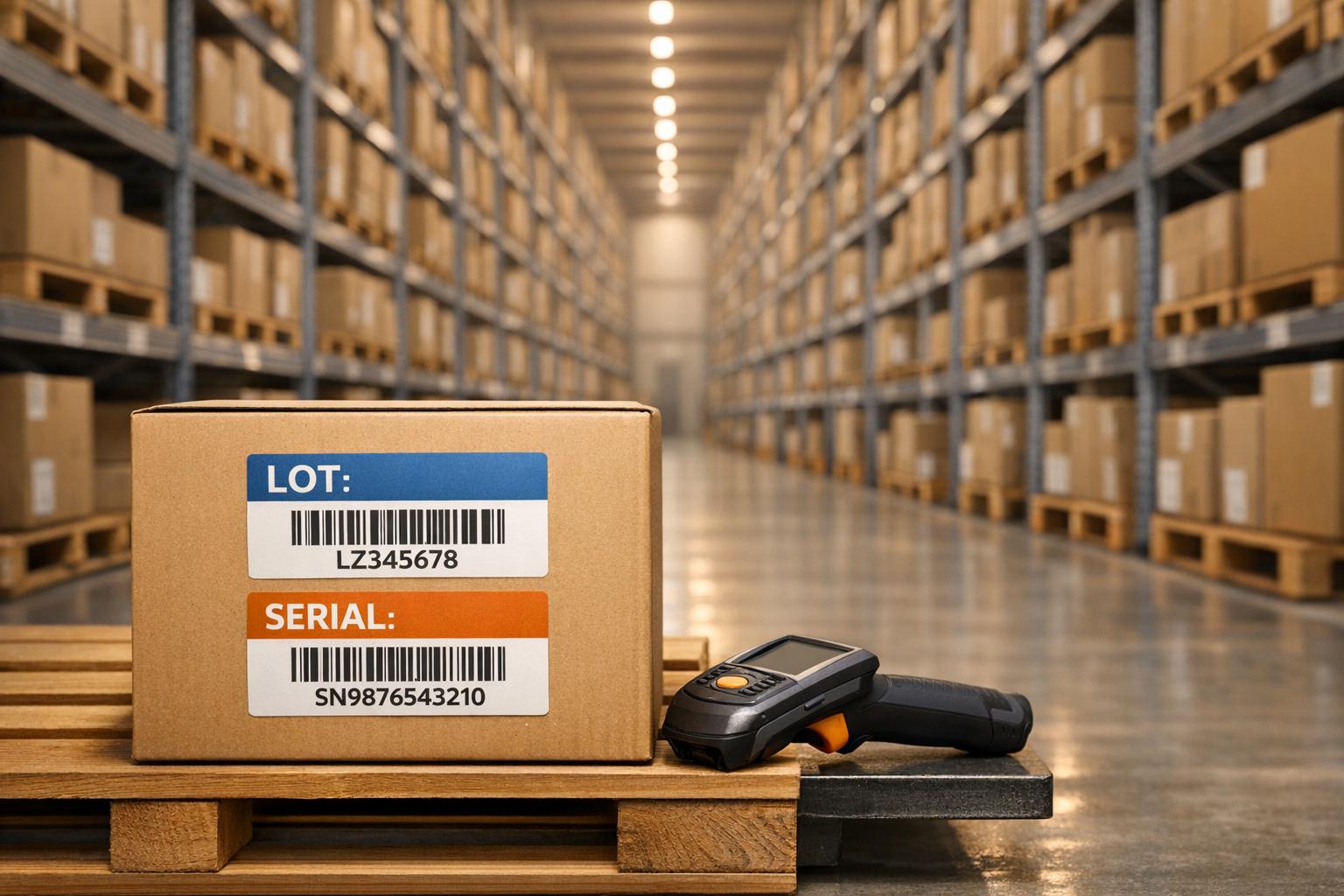
Managing warehouse inventory means more than just knowing stock levels - it’s about tracking the origin and journey of products. Lot and serial tracking systems help businesses achieve this by assigning identifiers to products. Lot tracking groups items with shared characteristics under one identifier, while serial tracking assigns unique codes to individual units. Here's why they matter:
- Faster recalls: Lot tracking reduces the time to identify defective batches, saving up to 50% on recall execution time.
- Regulatory compliance: Industries like food and pharma rely on detailed tracking to meet FDA and USDA standards.
- Fraud prevention: Serial tracking can cut warranty fraud by up to 75%.
- Operational efficiency: Systems like FIFO and FEFO reduce waste and ensure better stock rotation.
Quick Overview:
- Lot Tracking: Best for perishable or low-cost, high-volume items (e.g., food, chemicals).
- Serial Tracking: Ideal for high-value products (e.g., electronics, medical devices).
Both methods improve inventory accuracy, streamline fulfillment, and ensure compliance. Advanced tools like barcode scanning and software integrations (e.g., QuickBooks with Rapid Inventory) make tracking easier and more accurate. The choice between lot and serial tracking depends on your product type, industry regulations, and business needs.
What is the Difference Between Lots and Serial Numbers
sbb-itb-19ed50f
Key Differences Between Lot and Serial Tracking

Lot Tracking vs Serial Tracking: Key Differences and Use Cases
Lot tracking works on a one-to-many relationship - one identifier applies to an entire group of items. On the other hand, serial tracking assigns a unique code to each individual unit. Think of it like this: lot tracking is similar to grouping students by their graduation year, while serial tracking is like giving each student their own ID number.
The visibility each method provides is different too. Lot tracking focuses on batch-level oversight, which is helpful when you need to recall an entire group of items, like a contaminated batch. Serial tracking, however, goes deeper by identifying specific defective units among thousands. This precision can speed up quality issue resolution and limit customer impact.
Another key difference lies in the volume of data each method generates. Serial tracking produces significantly more records. For example, tracking 10,000 serialized units monthly results in 120,000 unique records annually. This data load can affect system performance and operational costs. Lot tracking, in contrast, simplifies data management by using a single identifier for an entire batch, even if that batch contains thousands of items.
"Serial = individual item traceability; lot = grouped item traceability."
When to Use Lot vs. Serial Tracking
Lot tracking is best for products made in large batches, particularly those with expiration dates. Industries like food, pharmaceuticals, cosmetics, and chemicals depend on this method to manage shelf life and handle recalls efficiently. For example, if you’re producing 50,000 vitamin supplement bottles in one run, assigning them a single lot number is both practical and cost-effective.
Serial tracking, on the other hand, works well for high-value items, typically those priced over $100 per unit. Electronics, medical devices, automotive parts, and luxury goods manufacturers often use serial numbers to track warranties, service histories, and deter theft. This level of detail is essential for precise tracking.
Some businesses even combine the two methods. For instance, a pharmaceutical company might use lot numbers for batch-level recalls while applying serial numbers to individual high-value units to enhance tracking and prevent counterfeiting. This hybrid approach balances efficiency with detailed oversight.
Choosing the right method depends on your specific operational needs and product characteristics.
Advantages and Disadvantages of Each Method
Each method comes with its own set of trade-offs, as shown below:
| Feature | Lot Tracking | Serial Tracking |
|---|---|---|
| Traceability Level | Batch/Group level | Individual unit level |
| Data Volume | Manageable; one record per batch | High; a record for every individual item |
| Primary Industries | Food, pharmaceuticals, cosmetics, chemicals | Electronics, medical devices, luxury goods, automotive |
| Recall Efficiency | Efficient for batch-wide issues; targets specific production runs without removing all inventory | Highly precise; identifies single defective units and reduces warranty fraud by up to 75% |
| Warranty Management | Limited for tracking individual units | Essential for validating service and repair history; enables theft prevention and gray market control |
| Labor Intensity | Lower; fewer scans required | Higher; each unit must be scanned |
| Operational Cost | Lower labor and storage costs; scales efficiently with thousands of units | Higher scanning, data entry, and storage costs |
| Regulatory Compliance | Meets batch-level requirements (FDA/USDA) | Meets strict item-level mandates |
"Lot tracking not only drives better customer outcomes, but it also helps businesses improve their compliance with standards and requirements to avoid costly fines from regulatory bodies."
- Abby Jenkins, Product Marketing Manager, NetSuite
Deciding between these methods depends on factors like product value, regulatory demands, and your broader business goals. Each approach offers distinct benefits tailored to different operational needs.
Setting Up Lot and Serial Tracking in Your Warehouse
Getting your system set up correctly is the first step to successful lot and serial tracking, which plays a crucial role in efficient warehouse management.
Configuring Lot and Serial Tracking in QuickBooks Desktop

To begin, you'll need QuickBooks Desktop Enterprise with an active subscription to Advanced Inventory.
"QuickBooks Desktop Enterprise is the only version that has a subscription-based feature called Advanced Inventory. This will enable you to use serial or lot numbers." - MJoy_D, Moderator, QuickBooks Community
Start by heading to the Edit menu in QuickBooks, then click Preferences. Under Items & Inventory, go to the Company Preferences tab and ensure that "Inventory and Purchase Orders" is active. Next, select Advanced Inventory Settings. If this option is grayed out, sync your license data through Help > Manage my License > Sync License Data Online. Once enabled, navigate to the Serial/Lot Number & Expiration Dates tab and activate either serial or lot number tracking (QuickBooks only allows one type per item).
You can also enable the "Make serial or lot number mandatory" setting, which ensures that all transactions include tracking information. Customize which forms - like invoices, bills, or sales orders - display these numbers. For existing inventory, use the Adjust Quantity/Value on Hand tool to assign serial or lot numbers. You can even paste these numbers directly from an Excel or CSV file to save time during setup.
If you're using Rapid Inventory alongside QuickBooks Desktop, the two systems sync seamlessly. This integration ensures smooth data flow for receiving, picking, and shipping processes, while mobile barcode scanning enables real-time inventory updates.
Using Barcode Scanning for Accurate Tracking
Barcode scanning can significantly reduce manual entry errors. Before diving in, confirm that your scanners support EAN-13 and Code-128 formats and are set up to produce a single carriage return after each scan.
QuickBooks' Barcode Wizard makes it easy to generate new barcodes or copy them from custom fields when importing data from Excel. Map each barcode to a unique field, like "Item Name" or "Part Number", so every scan links directly to the correct inventory record. Enable barcode and serial/lot tracking across all transactions - such as purchase orders, item receipts, and invoices - to maintain a complete chain of custody.
For warehouse operations like receiving and fulfillment, mobile scanners are ideal. Meanwhile, USB scanners are better suited for desk-based tasks. If you're using Rapid Inventory, its mobile barcode scanning integrates directly with QuickBooks Desktop, allowing staff to scan lot or serial numbers during key processes like receiving, put-away, picking, and shipping. This ensures instant updates to your inventory records.
Once barcode scanning is fully integrated, focus on maintaining consistent and accurate data entry practices.
Best Practices for Data Entry and Maintenance
Accurate tracking starts with disciplined data entry procedures. Configure your system to require serial or lot numbers for all major transactions, including invoices, item receipts, and inventory transfers. This prevents gaps in your records.
If you're dealing with a large inventory, keep track of serial or lot numbers for new stock while maintaining existing records for older items. Run the Serial/Lot Numbers in Inventory report regularly to spot and fix any discrepancies or errors.
For businesses handling perishable goods, enable expiration date tracking alongside lot numbers. Use the Inventory Expiration Status report to keep an eye on stock nearing its expiration date. Additionally, streamline your item list by ensuring that each product has only one inventory part or assembly - this avoids unnecessary duplication, which can complicate tracking.
When you first enable advanced tracking, QuickBooks may place all items in a temporary site. Use the Transfer Inventory function immediately to assign quantities to the correct warehouse locations. Rapid Inventory can further simplify this process by providing detailed reports on inventory quantities, sales orders, and availability across multiple locations - all synced directly with QuickBooks Desktop.
Advanced Strategies for Lot and Serial Tracking with Rapid Inventory

Rapid Inventory takes lot and serial tracking to the next level, offering tools that go beyond the standard capabilities of QuickBooks Desktop. These advanced strategies are designed to streamline warehouse operations and boost efficiency.
Key Features for Lot and Serial Tracking
Rapid Inventory enhances the basic functionalities of QuickBooks Desktop by introducing features tailored for more complex warehouse needs. It expands the tracking capabilities for QuickBooks Pro and Premier users, offering tools that are typically only available in the Enterprise edition. With its two-way sync, the platform automatically updates items, orders, and inventory actions across QuickBooks Desktop (Enterprise, Pro, and Premier). Plus, it supports both FIFO (First In, First Out) and FEFO (First Expiration, First Out) methods, making it a great fit for managing perishables or products with warranties.
FEFO tracking is particularly useful - it ensures that items with the earliest expiration dates are picked first, helping to minimize waste. The system also provides multi-location visibility, allowing you to track inventory across multiple warehouses and down to specific bin locations. This level of detail goes far beyond what basic QuickBooks setups can offer. To make things even easier, Rapid Inventory generates optimized pick lists that not only locate items but also calculate the most efficient route through the warehouse.
"The pick list automatically optimizes the best route for picking and shows you exactly where to pick inventory." - Rapid Inventory
Optimizing Warehouse Operations with Rapid Inventory
These advanced tools help warehouses run more smoothly by reducing errors and streamlining daily tasks. For example, the cycle counting feature lets you catch mistakes early and maintain accurate inventory records. Regular cycle counts can push inventory accuracy up to about 97%. Real-time reporting adds another layer of efficiency, giving you instant access to data on inventory levels, quantities tied to purchase and sales orders, inventory value, and reorder points - all available online.
The onboarding process is quick and efficient, typically taking just 6 to 7 days. It includes data migration, warehouse setup, and team training. As Jacob, a CEO who uses the platform, shared:
"My team was up and running in a few days. Very straightforward and easy to use."
Another standout feature is the built-in label printing tool, which ensures that all lot-tracked or serialized items are properly barcoded for mobile scanning. This makes inventory management even more seamless.
Pricing starts at $90 per user per month for the Pro Plan, which is ideal for teams of 1–9 users. This plan includes unlimited warehouses, lot and serial tracking, barcode scanning, and a white-glove onboarding service valued at $600. For larger teams, the Unlimited Plan is $900 per month, covering 10+ users and adding perks like a dedicated account manager and custom inventory reports.
Common Challenges and Solutions in Lot and Serial Tracking
Even with the best tools, implementing lot and serial tracking can come with its fair share of hurdles. The upside? Most of these issues have practical fixes that can help your business save time, money, and a lot of frustration.
Minimizing Manual Entry Errors
Manual data entry often leads to mistakes like typos, duplicate records, or inconsistent formatting. These errors can mess up warranties and disrupt audit trails. The solution? Automation. By automating data capture, you can significantly improve accuracy and reduce errors.
One effective method is using scanning solutions. Modern systems now let employees use their iOS or Android device cameras to scan 1D or 2D barcodes directly into the inventory system, so you don’t need specialized hardware. This simple step can boost field data accuracy by 90% compared to manual entry. Another tip: configure your software to require serial or lot numbers for all invoices and receipts. This ensures no incomplete records slip through.
But data entry is just one piece of the puzzle. As your business grows, your tracking system needs to grow with it.
Scaling Tracking Systems as Your Business Grows
A system that works for one warehouse can easily break down when you expand to multiple locations. Basic tools like QuickBooks inventory management software don’t handle multi-location tracking well - they lack automated numbering and advanced barcode integration.
"QuickBooks is powerful for accounting, but it falls short on advanced serial number and lot tracking. That leaves your business exposed to mistakes, operational disruptions, and risks that can erode customer trust." - SOS Inventory
To avoid these pitfalls, invest in software that supports multi-location tracking and provides real-time visibility. Look for features like automated serial and lot number assignment using predefined number series. This helps keep operations smooth during busy times. For more complex setups, choose systems that track internal warehouse movements - like bin-to-bin transfers - on top of inbound and outbound shipments.
Having a reliable system across locations isn’t just about efficiency; it’s also key for meeting industry regulations.
Ensuring Compliance and Traceability
When it comes to compliance, maintaining full traceability is non-negotiable, especially in industries like food and pharmaceuticals. Missing expiration dates or incomplete records can lead to serious safety concerns and hefty fines. For example, the FDA’s Drug Supply Chain Security Act (DSCSA) requires electronic lot tracking for pharmaceuticals from production to patient delivery. Similarly, EU food safety directives demand lot-specific documentation, including harvest dates and processing details.
Real-time tracking can help you stay on top of these requirements. For instance, automated lot tracking systems can cut spoilage rates by 35% in food distribution networks by optimizing shelf life, while businesses often see a 22% reduction in costs through better stock rotation and recall management. Setting up automated expiration alerts and using FIFO (First-In, First-Out) or FEFO (First-Expiration, First-Out) principles can ensure older stock is used first.
"Lot tracking not only drives better customer outcomes, but it also helps businesses improve their compliance with standards and requirements to avoid costly fines from regulatory bodies." - Abby Jenkins, Product Marketing Manager, NetSuite
Conclusion
Lot and serial tracking goes beyond meeting compliance standards - it's a powerful tool for safeguarding your business and earning customer trust. By improving traceability across your supply chain, enabling precise recall management for specific batches, and optimizing inventory with FIFO and FEFO strategies, you can cut down on waste and streamline your operations. In today's market, accurate tracking isn't optional - it's a financial must-have.
"Lot and serial number tracking isn't just a safeguard; it's a competitive advantage." - Thomas Wong
Automation has become critical. Relying on manual systems increases the likelihood of costly errors and operational hiccups. On the other hand, automated tools can slash human error rates by up to 95% and reduce recall tracing times from hours - or even days - to mere minutes. For QuickBooks Desktop users, this means bridging the gaps left by native software, with features like automated numbering, expiration alerts, and real-time visibility across multiple locations. These tools create a streamlined, error-resistant system for your warehouse.
Rapid Inventory offers these solutions and more, with two-way QuickBooks integration, mobile barcode scanning, and built-in FIFO/FEFO picking strategies. It supports lot and serial number tracking across unlimited warehouses while providing the seamless connectivity QuickBooks users rely on. Plus, with free training, onboarding, and support, you can implement these systems without the usual headaches.
Whether you're handling perishable goods, high-value electronics, or pharmaceutical products, the strategies in this guide - ranging from proper setup and barcode scanning to advanced automation and compliance management - equip you with the tools to improve efficiency and stay compliant. The real question isn't whether you should invest in comprehensive lot and serial tracking, but whether you can afford not to. Start building a more efficient and reliable operation today.
FAQs
Should I use lot tracking, serial tracking, or both?
If you need to track products both at the batch level and for individual items, consider using lot and serial tracking together. Lot tracking works well for managing groups of items, such as batches of food or pharmaceuticals. On the other hand, serial tracking assigns a unique identifier to each item, making it perfect for electronics or high-value goods. The choice depends entirely on the level of traceability your inventory requires.
How do I start tracking lots or serial numbers in QuickBooks Desktop?
To start tracking lot or serial numbers in QuickBooks Desktop, you'll need to enable the advanced inventory features first:
- Navigate to Edit > Preferences, and choose Items & Inventory.
- Under Company Preferences, click on Advanced Inventory Settings.
- Check the option for Serial or Lot Numbers to activate this feature.
After activation, you can assign serial or lot numbers during transactions like receipts, sales, or invoices, ensuring accurate and efficient tracking.
What’s the simplest way to reduce lot/serial entry errors?
Automating the process with a lot control system is one of the easiest ways to cut down on errors when entering lot or serial numbers. These systems handle the assignment and tracking of numbers automatically, which removes much of the need for manual input. This not only reduces mistakes but also improves accuracy and streamlines the management of lot and serial numbers.



