
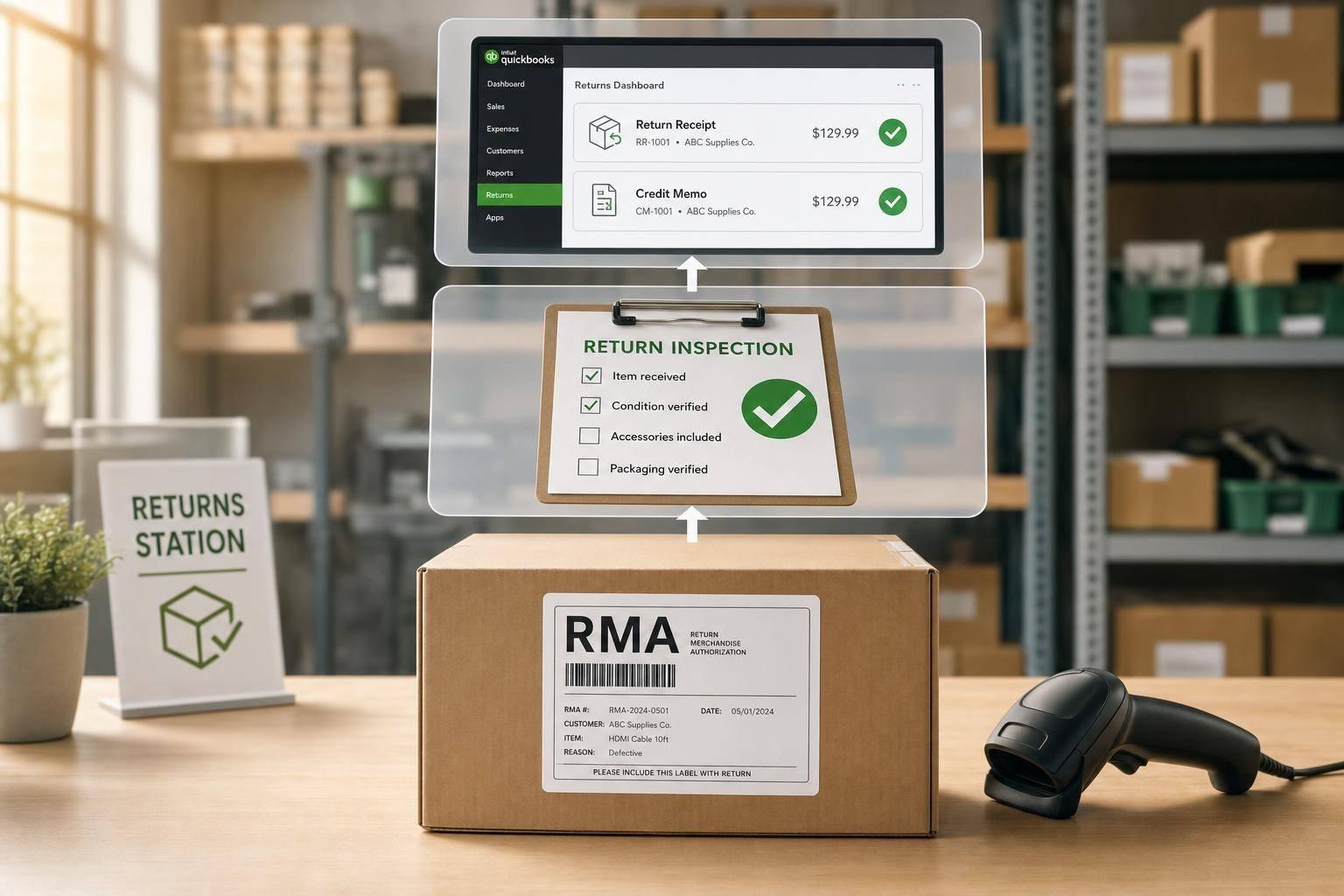
Returns can mess up inventory and accounting at the same time. If I record a return the wrong way in QuickBooks Desktop, I can end up with bad stock counts, off COGS, delayed credits, and money tied up in items that are sitting in limbo.
Here’s the short version:
- I need one return flow from RMA to inspection to final decision
- Each returned item needs a clear status: restock, repair, scrap, recycle, or vendor return
- In QuickBooks Desktop, the entry must match what happened to the item:
- Credit Memo for customer credit
- Refund Receipt for money back
- Inventory Adjustment for damaged or unsellable goods
- Vendor Credit for supplier returns
- Warehouse control matters just as much as bookkeeping
- A few KPIs tell me if returns are under control:
- Return rate
- Cost per return
- Processing time
- Recovery rate
- Inventory accuracy
A return rate of even 5% to 10% can create a lot of extra work if items are not inspected, sorted, and posted the same way every time. And if inventory accuracy drops below 100%, QuickBooks can show stock that I can’t sell.
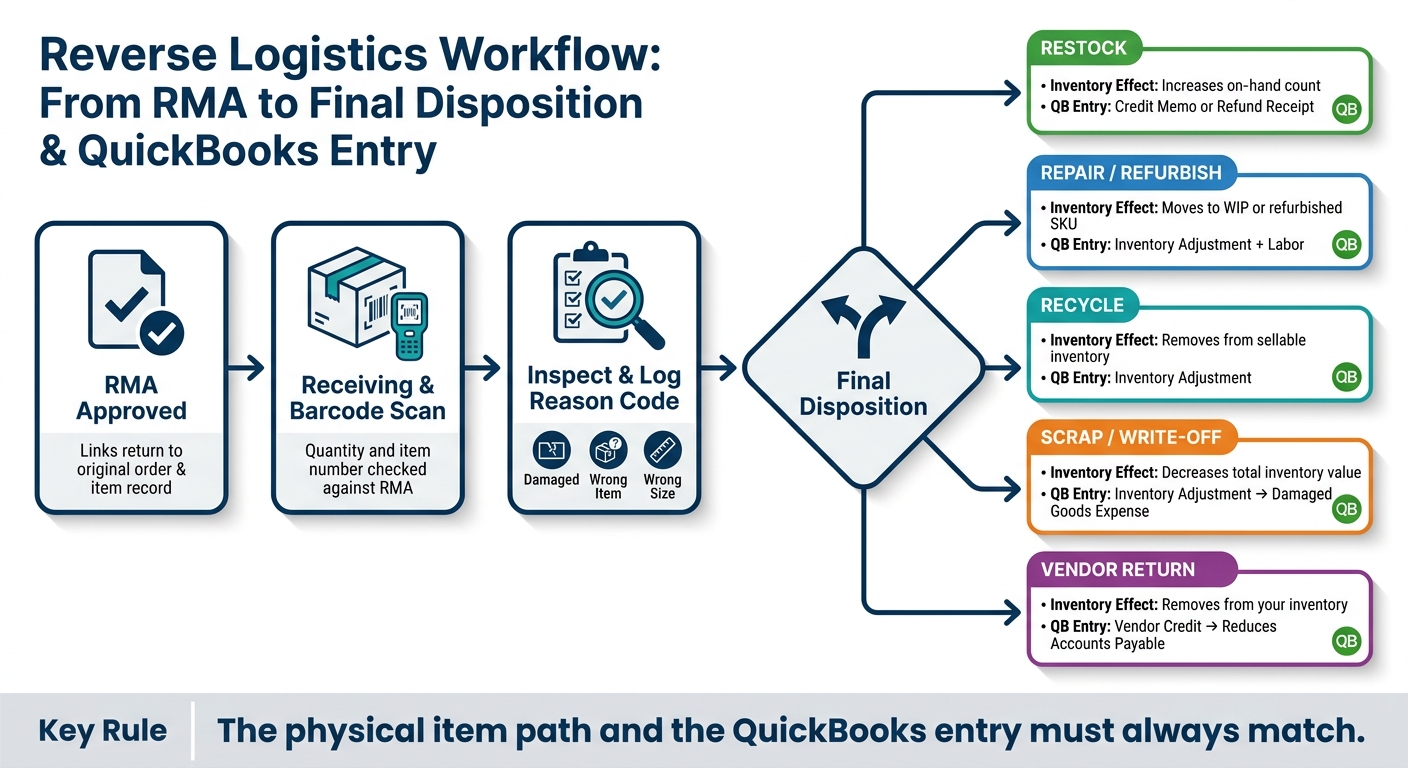
The main idea is simple: the physical item path and the QuickBooks entry need to match. When I keep returned goods in labeled zones, scan them at receipt, and post the right transaction, I keep stock counts, credits, and inventory value lined up.
This article breaks down how I handle returns in the warehouse, what I post in QuickBooks Desktop, and which numbers I watch to keep margin from slipping away.
QuickBooks Inventory Purchase Returns And Vendor Refunds
sbb-itb-19ed50f
How Reverse Logistics Works in a Warehouse
Reverse Logistics Workflow: From RMA to QuickBooks Entry
A clean returns process starts before the box hits receiving. The goal is simple: use one standard workflow from RMA to final disposition.
The Returns Workflow from RMA to Final Disposition
The process starts when your team approves a return and issues an RMA. That RMA links the return to the original order and item record.
When the package arrives, the receiving team checks the quantity and item number against the RMA. Then staff inspect the item and log a reason code such as damaged, wrong item, or wrong size. Those notes do more than explain a single return. They help your team spot repeat problems and improve reporting later.
After inspection, the item moves to its final disposition: restock, repair, recycle, scrap, or return to vendor. That choice affects both the inventory update and the accounting entry in QuickBooks Desktop. Once the item is classified, the return can be recorded in QuickBooks Desktop.
Barcode Scanning, Return Zones, and Inspection Decisions
Barcode scanning at receiving helps staff move faster and make fewer mistakes because each item links back to its RMA and original order.
The layout of the returns area matters just as much. If your return space is messy, unsellable stock can drift into active inventory fast. Clear, labeled zones prevent that and tie each item to the right inventory and accounting result:
- Sellable returns - like-new items ready to restock
- Quarantine - items waiting for inspection
- Repair - items with minor damage that can be fixed
- Scrap - unsellable items to write off or recycle
Disposition Paths and Their Inventory Impact
Each disposition path affects inventory, labor, and cost in a different way.
| Disposition Path | Accounting Impact | Inventory Effect | Typical Use Case |
|---|---|---|---|
| Restock | Minimal; restocking fee may apply | Increases sellable on-hand count | Item is in like-new condition and can be resold |
| Repair / Refurbish | Labor and parts | Moves to a WIP or refurbished SKU | Item has minor damage but can be restored |
| Recycle | May recover some material value | Removes item from sellable inventory | Item is non-functional but materials still have value |
| Scrap / Write-Off | Loss of inventory value | Decreases total inventory value | Item is damaged, defective, or unsellable |
| Vendor return | Credit from supplier; shipping costs | Removes item from your inventory | Item arrived defective from the manufacturer or is under warranty |
These disposition choices drive the QuickBooks Desktop entry that comes next.
Restock gets value back the fastest, but only when the item is actually sellable. Repair and vendor return can still get value back when the product has some life left. Scrap and write-off need a clean QuickBooks Desktop inventory adjustment.
How to Record Returns in QuickBooks Desktop

Once you inspect the item and decide what happens next, record the return in QuickBooks Desktop. The key is simple: the accounting entry should match what happened to the item in the real world.
Customer Returns: Credits, Refunds, and Replacements
Use a Credit Memo when the customer is returning an item and you want to apply that amount to an open invoice or a later purchase. Use a Refund Receipt when you need to send money back right away, whether by cash, check, or card.
Replacements take a little more work. In QuickBooks Desktop, handle them in two separate steps:
- First, record the return
- Then, create a separate Sales Order or Invoice for the replacement item
That split matters. It keeps the return and the new shipment from getting mixed together.
Inventory Adjustments for Restock, Write-Off, and Vendor Return
Not every return should go through a customer credit. If the item can't be sold again, use inventory transactions instead.
Use an Inventory Adjustment for items that come back damaged, defective, or unsellable. Post the offset to an expense account like Damaged Goods or Inventory Shrinkage. That way, the loss shows up where it should.
If you're using multiple inventory sites in QuickBooks Desktop Enterprise or Premier, it also helps to move the item to a dedicated Damage site before writing it off. It keeps your reports cleaner and lowers the chance that someone sells that item by mistake.
For supplier returns, use a Vendor Credit. That records the supplier credit and reduces Accounts Payable.
Table: QuickBooks Desktop Treatments for Common Return Outcomes
| Return Outcome | QuickBooks Transaction Type | Affected Accounts | Inventory Effect | Typical Scenario |
|---|---|---|---|---|
| Restock | Credit Memo or Refund Receipt | Accounts Receivable or Bank; Inventory Asset | Increases on-hand quantity | Item is in resellable condition |
| Write-Off (Scrap) | Inventory Adjustment | Inventory Asset; Damaged Goods or Inventory Shrinkage Expense | Decreases on-hand quantity | Item is returned broken, defective, or unsellable |
| Return to Vendor | Vendor Credit | Accounts Payable; Inventory Asset | Decreases on-hand quantity | Defective item is sent back to the supplier for credit |
| Replacement | Credit Memo + Sales Order / Invoice | Accounts Receivable; Inventory Asset; COGS | Decreases on-hand quantity | Customer receives a new unit in exchange for the returned one |
These entries keep stock, cash, and COGS in sync for the metrics that follow.
Using Rapid Inventory to Control Returns More Accurately
QuickBooks Desktop stays accurate only when return handling is controlled in the warehouse. Rapid Inventory links that process to QuickBooks Desktop Pro, Premier, and Enterprise. That link matters because returns stay accurate only when warehouse activity and QuickBooks entries move together.
Two-Way QuickBooks Sync and Multi-Location Tracking for Returns
Two-way sync sends receiving, putaway, and status updates back to QuickBooks automatically.
On the warehouse floor, multi-location tracking lets you route returned goods to a dedicated return zone or quarantine bin as soon as they arrive. That physical separation keeps uninspected items out of sellable inventory. After a return passes inspection, staff can move it into sellable inventory, and that status update syncs back to QuickBooks. The result is simple: your inventory records show the item’s status at each step instead of relying on a manual change later.
Lot, Serial, FIFO/FEFO, and Barcode Workflows for Reverse Logistics
For warranty claims, recalls, and defect tracking, unit-level traceability matters most. Lot and serial number tracking lets you pull up the history of the exact unit, confirm warranty eligibility, and keep recall responses accurate.
When a returned item is approved for restock, FIFO and FEFO logic place it back into inventory in the right sequence. Older stock moves before newer stock, which supports accurate valuation and stock freshness. On the physical side, mobile barcode scanning helps staff receive and put away returns with fewer mistakes. They scan the item and its destination bin, which cuts data-entry errors during heavy return volume and keeps the digital record matched to what’s actually on the shelf.
The features below map directly to the most common return workflows.
Table: Rapid Inventory Features Mapped to Return Scenarios
| Rapid Inventory Feature | Reverse Logistics Use Case | Accuracy Outcome | Speed Outcome | Recovery Outcome |
|---|---|---|---|---|
| Multi-Location Tracking | Isolating returns in quarantine bins or dedicated return zones | Prevents sellable stock from mixing with uninspected returns | Staff locate items right away for inspection | Only quality items re-enter sellable inventory |
| Lot/Serial Tracking | Managing warranty claims and product recalls | Unit-level traceability of specific units and batches | Removes manual log searches | Confirms warranty eligibility without delay |
| Barcode Scanning | Receiving, inspecting, and putting away returns | Removes manual data-entry errors at receiving | Instant item and bin verification | Faster turnaround to sellable status |
| FIFO/FEFO | Re-stocking approved returns in the correct sequence | Ensures proper cost and expiry sequencing | Automated picking logic handles sequencing | Reduces loss from expired or obsolete stock |
| Cycle Counting | Reconciling return bin inventory without shutting down operations | Maintains inventory accuracy in return zones | Done in small batches on a mobile device | Prevents inventory from going untracked in return zones |
| Backorder Tracking | Allocate approved returns to waiting orders | Matches available supply to the oldest open demand | Cuts the time items sit idle after restock | Speeds up fulfillment on returned goods |
Measuring and Improving Your Returns Process
KPIs That Show Whether Returns Are Helping or Hurting Profit
Once returns are received and recorded the right way, these KPIs show a simple truth: are you getting value back, or letting margin slip away? Track them to see whether returns are eating into profit or pointing to product problems. Five KPIs matter most. Each one helps you judge how well your restock, repair, write-off, or vendor return choices are working.
Return rate (total units returned ÷ total units sold × 100) is the starting point. If one SKU suddenly jumps, that often signals a quality problem, a product page that sets the wrong expectation, or a picking mistake.
Cost per return adds up shipping, labor, and restocking fees for each return you process. This tells you what each returned item is costing your business beyond the original sale.
Processing time, measured in days from receipt to final disposition, shows how long returned goods sit untouched before they are restocked, repaired, or written off. If items linger too long, money gets stuck on the shelf.
Recovery rate (value recovered from returned goods ÷ original cost × 100) shows how much value you win back through restocking, refurbishing, or vendor returns.
Inventory accuracy (physical count ÷ system count × 100) checks whether your QuickBooks records match what is actually sitting in the return area.
Using QuickBooks Desktop and Warehouse Data to Make Better Decisions
QuickBooks Desktop gives you the financial side of the story: sales reports, credit memos, expense data, and inventory valuation. Warehouse data from Rapid Inventory fills in the physical side with timing, location, and disposition detail. Put them together, and you can see which products come back most often, why they come back, and where the process breaks down. That matters because it ties physical item movement to the matching accounting entries.
Use standard reason codes like Damaged, Wrong Item Received, and Size Mismatch so return patterns are easy to report and compare.
A simple way to split the work:
- Use QuickBooks Desktop for financial totals
- Use warehouse scans for timing, location, and disposition data
| KPI | Definition | Data Source | Improvement Lever |
|---|---|---|---|
| Return Rate | Percentage of total units sold that are returned | QuickBooks Sales & Return Reports | Product quality control; better item descriptions |
| Cost per Return | Total shipping + labor + fees per return processed | QuickBooks Expense data + Warehouse labor logs | Streamlined RMA process; automated workflows |
| Processing Time | Days from return receipt to final disposition | Warehouse scan logs; serial number history | Barcode scanning; dedicated return zones |
| Recovery Rate | Value recovered from returned goods vs. original cost | Inventory Adjustment & Valuation Reports | Improved inspection protocols; vendor return agreements |
| Inventory Accuracy | Match between physical returned stock and system records | QuickBooks vs. physical audit; cycle counts | Serialized tracking; barcode scanning |
These metrics help turn reverse logistics from a cost center into a process you can track and control.
FAQs
When should I use a Credit Memo vs. a Refund Receipt?
In QuickBooks Desktop, the right choice comes down to one thing: was the payment already processed?
Use a Credit Memo when you need to reduce or offset a customer’s balance. That’s usually the right move for an unpaid invoice or when you’re giving store credit for a return.
Use a Refund Receipt when the customer has already paid and you need to send money back. Both options can also record returned inventory, which helps keep your stock counts accurate.
How do I prevent returned items from affecting sellable inventory too soon?
Process returned items separately so they aren’t marked as available again until someone has inspected and verified them. That step matters. A returned item might look fine at first glance, then turn out to be damaged, incomplete, or mislabeled.
Mobile barcode scanning helps keep those updates accurate and in real time. Instead of waiting for manual entry later, your team can scan items as they come in and update stock right away.
In QuickBooks Desktop, you can record returns with sales receipts or credit memos, then confirm those records with a physical stock count. Rapid Inventory adds real-time updates and barcode scanning, which helps keep your inventory records and financial records in sync.
Which return KPIs matter most in QuickBooks Desktop?
Focus on KPIs that show product quality, customer behavior, and day-to-day efficiency. Pay close attention to return reports, including the number of items sent back, the costs and fees tied to those returns, and the reasons behind them, like damage, sizing problems, or shipping mistakes.
It also helps to review Inventory Turnover and Sales Order Status reports. These can point to repeat product problems or slowdowns in your process. Rapid Inventory can help with real-time reporting and mobile barcode scanning.



