

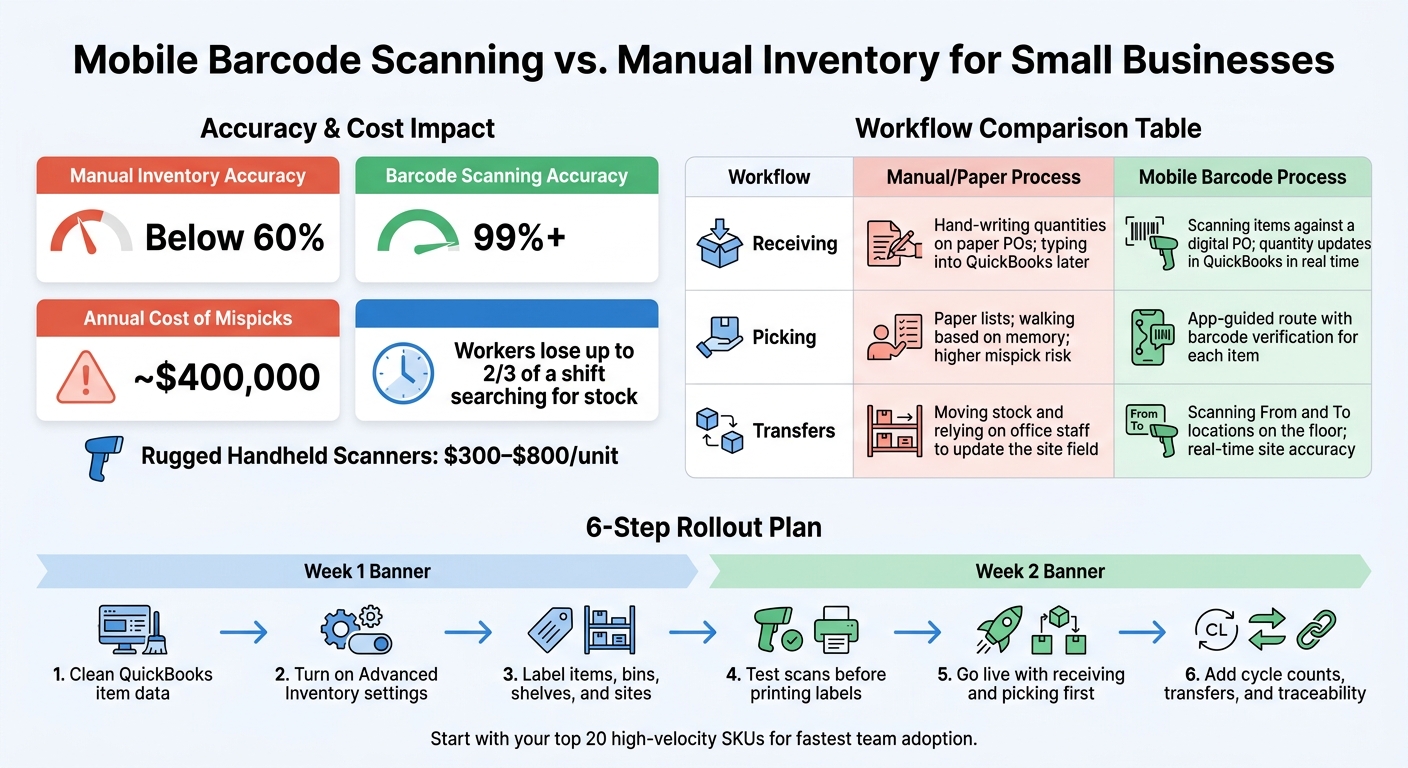
If your team still writes stock moves on paper and updates QuickBooks Desktop later, you're likely working with bad numbers for part of the day. I’d start with one simple rule: scan every item move where it happens. That one change can push inventory accuracy from below 60% with manual work to above 99% with barcode scanning.
Here’s the short version:
- I use mobile devices or handheld scanners to record receiving, picking, transfers, and counts on the floor
- I sync those scans back to QuickBooks Desktop so stock and accounting stay aligned
- I set up barcodes for items and locations, then clean item records before rollout
- I launch in phases: receiving first, picking second, then transfers, counts, lot/serial, and FIFO/FEFO
- I train by role and start with high-volume SKUs so the team learns fast without chaos
A few numbers stand out:
- Barcode scanning can drive accuracy to 99%+
- Mispicks can cost warehouses about $400,000 per year
- Rugged handheld scanners often cost $300 to $800 per unit
- Workers can lose up to two-thirds of a shift just looking for stock
If I were setting this up in a small business, I would keep the plan simple:
- Clean QuickBooks item data
- Turn on the right inventory settings
- Label items, bins, shelves, and sites
- Test scans before printing lots of labels
- Start with receiving and picking
- Add cycle counts, transfers, and traceability after the first workflows are stable
The main point is simple: mobile inventory works best when the setup is clean, the scan rules are simple, and every stock move is recorded at the point of work. Below, I walk through the hardware, software, setup steps, daily workflows, and rollout plan in plain English.
Mobile Barcode Scanning vs. Manual Inventory: Key Stats & Workflows
QuickBooks Enterprise: Mobile Inventory Barcode Scanning

sbb-itb-19ed50f
Core Parts of a Mobile Inventory System
Once mobile syncing is set, the next piece is the stuff people use every day: hardware, labels, and software. A mobile inventory system needs four core parts: QuickBooks Desktop, a mobile device, barcode labels, and sync software. Get those right, and the setup starts on solid ground.
Hardware, Labels, and Barcode Basics
For scanning hardware, most small businesses land in one of two camps. Consumer smartphones are fine for lighter use. Rugged handheld scanners are a better fit for warehouse work, and they usually cost $300 to $800 per unit.
Labels matter just as much as the scanner. Every item, bin, shelf, and warehouse location should have a barcode label that people can scan without hassle. Common barcode formats include Code128, EAN-13, and UPC-A. Keep location names short and easy to spot at a glance. Do the same with SKU naming so records stay clean and workers aren’t left guessing.
Software Features That Support Accuracy and Control
Software handles syncing, access, reporting, and tracking. One setup step that pays off early is role-based user access. Warehouse staff should be able to manage receiving, picking, and transfer workflows without getting into sensitive financial data. In QuickBooks Desktop, that means giving them limited warehouse-only access.
It also helps to use software that shows current stock reports, so managers can check inventory levels without waiting until the end of the day. Tools like Rapid Inventory use a Web Connector to keep QuickBooks Desktop and the mobile platform in sync, with no manual exports or imports. As the operation gets bigger, lot, serial, and bin tracking become more useful because they let teams trace each item from receipt through shipment.
With those core parts in place, the next step is loading item records, locations, and permissions.
How to Set Up Mobile Scanning and Daily Inventory Workflows
With QuickBooks records and permissions in place, the next step is loading item data, locations, and scan rules into the system.
Prepare QuickBooks Desktop and Item Records

Start by cleaning up your QuickBooks Desktop records. If item data is missing or messy, scanning tends to fall apart fast.
Turn on Advanced Inventory in Company Preferences > Items & Inventory. This feature is only available in Enterprise Platinum and Diamond.
Any item you plan to scan must be set up as either an "Inventory Part" or "Inventory Assembly" so QuickBooks can track on-hand counts. Each item also needs its own Item Name or Part Number. That field acts as the anchor for the barcode.
Reorder points matter too. If inventory items don't have reorder points set, automatic PO generation won't work as expected.
Make these record updates in single-user mode and do the cleanup during off-hours. That's the safest time to make changes without people stepping on each other.
Set Up Barcodes, Locations, and User Permissions
Next, bring your barcode data into QuickBooks. Map any barcode values you already have, then create missing ones from part numbers with the Barcode Wizard.
For locations, turn on "Multiple Sites" before you assign bin locations. Set up the sites first, then add bins based on row, shelf, or bin number. That way, pickers can find items without guessing or backtracking.
Before printing a big batch of labels, test a few. Make sure the scanner reads each code cleanly and returns one scan per item. A small test here can save a lot of floor-level headaches later.
For warehouse access, create staff members as Vendors, not standard QuickBooks users, and assign them the Vendor Type "Warehouse user".
Run the Core Mobile Workflows: Receiving, Picking, Transfers, and Label Printing
Start with receiving and picking. These two workflows usually give the fastest accuracy gains and are the easiest for teams to learn first.
During receiving, workers scan items against an open purchase order on a mobile device, and quantities update in QuickBooks in real time. For picking, the app sends workers to the right bin and checks each scan before packing. You can also print replacement labels during receiving or relabeling.
Once those two flows are working smoothly, add transfers and label printing. Transfers use the same scan-to-confirm setup: workers scan the "From" location, then the "To" location, and the system updates site quantities in real time.
Use this workflow map to see the difference between paper-based steps and mobile scanning.
| Workflow | Manual/Paper Process | Mobile Barcode Process |
|---|---|---|
| Receiving | Hand-writing quantities on paper POs; typing into QuickBooks later | Scanning items against a digital PO; quantity updates in QuickBooks |
| Picking | Paper lists; walking based on memory; higher mispick risk | App-guided route with barcode verification for each item |
| Transfers | Moving stock and relying on office staff to update the site field | Scanning "From" and "To" locations on the floor; real-time site accuracy |
Advanced Features for Growth and Better Inventory Control
After the core mobile workflows are live, the next step is to add tighter control over inventory across locations, batches, and count routines. That usually means multi-location stock, traceability, rotation rules, and cycle counts.
Multi-Location Tracking, Lot Control, and Serial Tracking
Multi-location tracking shows stock by site, which helps workers find items faster and gives managers a clear view of where inventory is sitting. Without that visibility, workers can spend up to two-thirds of a shift walking the floor looking for items. That’s a huge drag on labor.
The good part is that these controls build on the same scan-and-sync process already in place. So the team doesn’t have to learn a whole new system. They use one scanning workflow and apply it to more complex stock movements.
Lot and serial number tracking helps with recalls, warranty claims, and compliance audits. It matters even more in regulated fields like food and beverage or aerospace, where teams need a clear chain of custody. In QuickBooks Desktop, this keeps each item tied to a scannable record from receipt through shipment.
That means a team can add tighter traceability without changing day-to-day scanning habits. Once that traceability is set, rotation rules help make sure inventory moves in the right order.
FIFO, FEFO, Cycle Counting, and Real-Time Reporting
FIFO (First-In, First-Out) and FEFO (First-Expiration, First-Out) remove a lot of the guesswork from stock rotation. The app can direct pickers to the oldest stock or the stock closest to expiration, which helps cut waste from expired or obsolete inventory.
Cycle counting lets teams check one area at a time instead of shutting down the warehouse for a full count. That approach can push accuracy above 99% while reducing the need for full physical counts.
Real-time reporting gives managers live on-hand, allocated, and backorder data. So purchasing decisions come from current numbers, not stale counts.
Taken together, these features help cut search time, improve traceability, reduce waste, and keep inventory data current.
Next, roll these controls out in phases so the team can adopt them without disrupting daily work.
Implementation Roadmap and Final Takeaways
Roll Out in Phases and Train Your Team
Once your core scan-and-sync workflows are working, roll out the rest in phases. A common mistake small businesses make is trying to turn on everything at once.
That usually backfires. Receiving gets messy, picking slows down, and counts drift.
A phased rollout keeps receiving, picking, and counting steady. A simple two-week plan works well: clean item data first, then train the team and go live. In week one, focus on the groundwork. Clean up your QuickBooks item list, assign logical SKUs to each item variation, and label bins and shelves with names that match your digital locations. Keep location names simple, like "Back Shelf A."
Week two is for launch. Label your top-priority stock, train staff on receiving and picking, and run your first cycle counts.
This phased approach keeps disruption low, makes training easier, and limits mistakes when something goes wrong.
Train one role at a time, starting with receiving and picking. Begin with your top 20 high-velocity SKUs. That gives the team an early win and a smaller set of items to get right before you expand. It also helps people build muscle memory without feeling swamped.
Post short job aids with screenshots at each workstation so staff can self-correct fast.
Conclusion: Where Small Businesses Should Start
After the pilot works, expand only when the team is consistent. Before you touch any software, decide what success looks like. Fewer mispicks? Faster receiving? Better stock visibility across locations? That goal should guide every step after that.
Then keep the plan simple:
- Clean your item and location data first
- Standardize labels and scanning workflows
- Pick a mobile tool that syncs well with QuickBooks Desktop
- Add lot tracking, FIFO/FEFO, and multi-location control only after core scanning is working the same way every time
Manual inventory often stays below 60% accuracy. Barcode scanning can cut data-entry errors by up to 99%. For a small business watching every dollar, that kind of payoff matters.
Scan every physical move at the point of work.
FAQs
What do I need before starting mobile inventory?
You don’t need an expensive IT department or complex hardware. In most cases, you just need:
- a smartphone
- a reliable Wi-Fi or data connection
- your current inventory list
Before you begin, clean up your inventory data. Remove duplicates, standardize item names, sort items by location, and set consistent SKU names and storage labels.
It also helps to give your team clear roles and simple login access. That way, people know what they’re responsible for, and getting started doesn’t turn into a mess.
How long does a small business rollout usually take?
A small business mobile inventory rollout can take less than an hour for a simple setup or 30 to 60 days for a more involved one.
Some systems are ready to use in under an hour. Others need several weeks to fit into your day-to-day work. The biggest factor is usually how much you need to set up, connect, and train for.
A good way to keep things moving is to start with the items your team uses most. That gets the system into daily use fast and helps people learn the new workflow without getting overwhelmed.
When should I add lot tracking or FIFO/FEFO?
Add lot tracking and FIFO or FEFO when your business needs tighter traceability and better inventory accuracy. This matters most in food and beverage, pharmaceuticals, chemicals, and cosmetics, where expiration dates, audits, and recalls can’t be treated lightly.
With Rapid Inventory, mobile pick lists direct staff to the right bins and lots. That helps cut shipping mistakes, reduce waste from expired products, and keep inventory rotation on track.



