
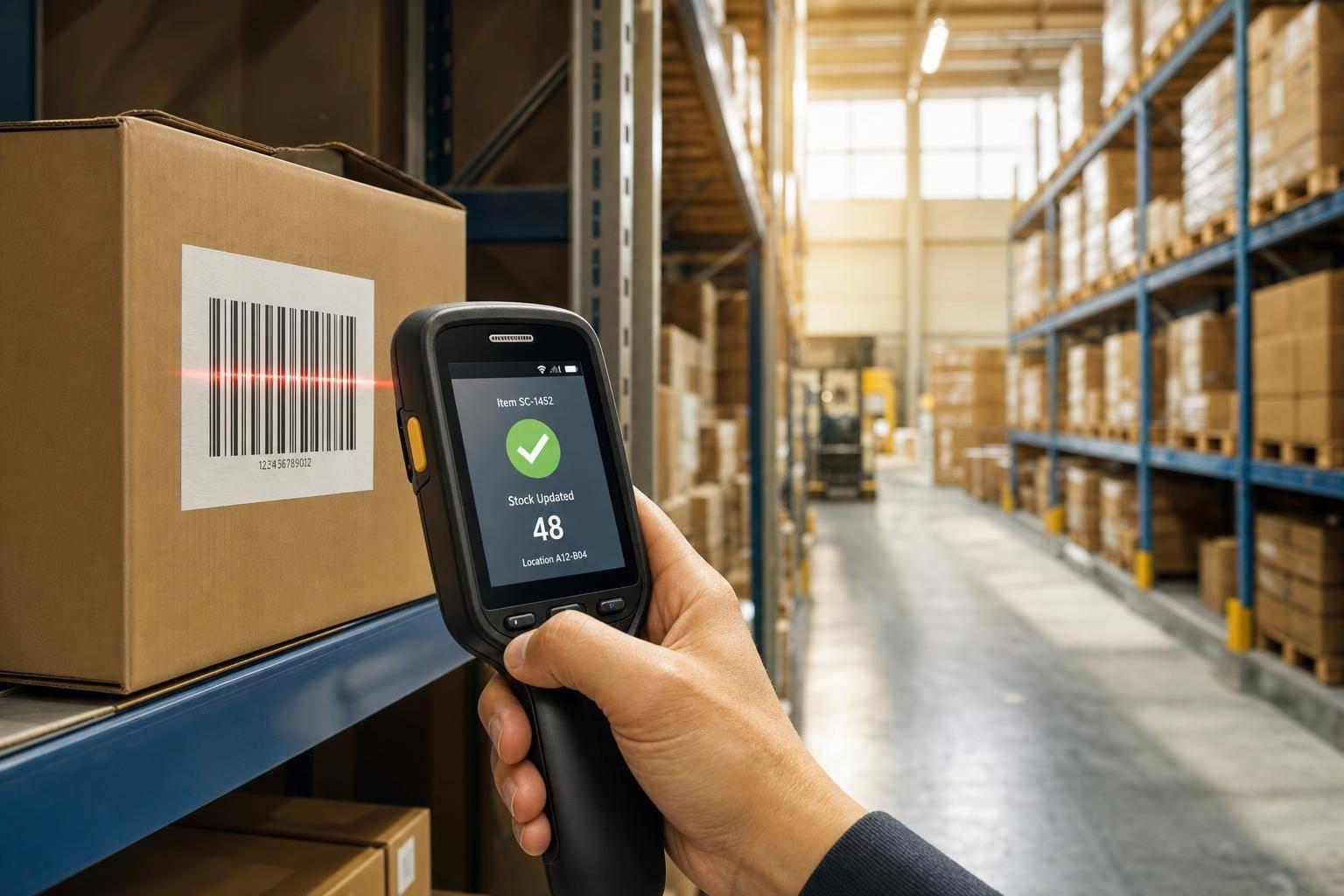
If inventory updates happen after the work is done, your numbers are already behind. I’d sum up the fix like this: scan items as they move during receiving, put-away, picking, transfers, and cycle counts so QuickBooks Desktop stays closer to what’s on the shelf.
Here’s the short version:
- Manual entry creates lag. That lag leads to stockouts, phantom inventory, and bad purchasing calls.
- Barcode scanning updates inventory at the point of work. Staff scan at the dock, shelf, bin, or packing station instead of writing notes and typing them in later.
- Scanning also checks the work. It can stop the wrong SKU, wrong bin, wrong lot, or wrong quantity before the move is posted.
- Cycle counts work better with mobile scans. Instead of shutting down for a full count, teams can count small sections during normal shifts.
- The biggest gains usually show up in four places: receiving, picking, transfers, and cycle counts.
- For QuickBooks Desktop users, two-way sync matters. It keeps floor activity and accounting records closer together during the day.
- The numbers are hard to ignore: one study cited in the article found 65% of nearly 370,000 inventory records were inaccurate, average inventory accuracy is about 83%, and barcode-based systems can improve data-entry speed by 43%, reach 98.5% scan accuracy, and cut human input errors by 72%.
A fast side-by-side view:
| Area | Manual process | With barcode scanning |
|---|---|---|
| Receiving | Items are logged later | Quantities update when received |
| Put-away | Bin data is typed by hand | Item and location are scanned together |
| Picking | Paper lists and manual checks | Device checks item and bin on the spot |
| Transfers | Location balances update late | Source and destination scans post right away |
| Counting | Full counts interrupt work | Small rolling counts fit into normal shifts |
If I were starting from scratch, I’d do three things first: label every SKU and bin, clean up QuickBooks Desktop item data, and start with receiving plus cycle counts before adding picking and transfers.
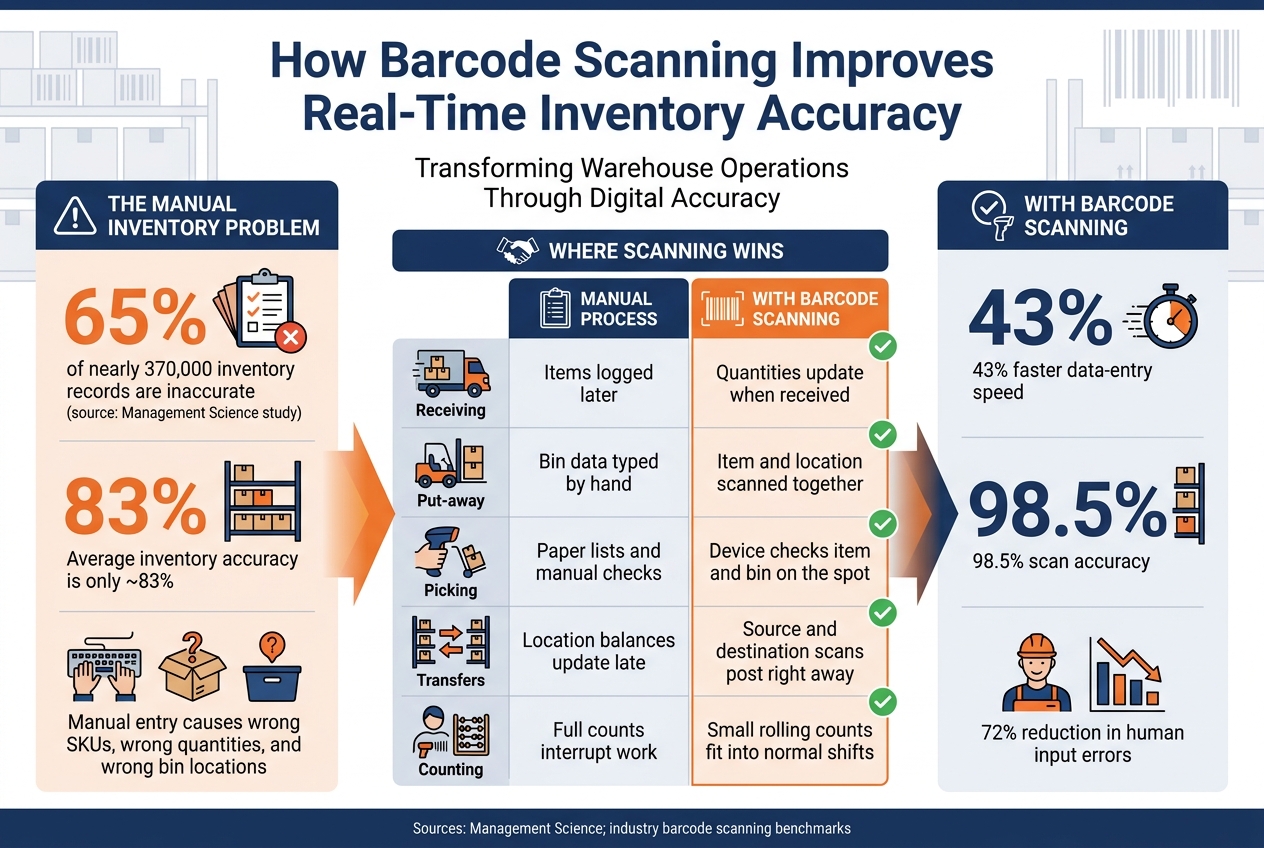
Barcode Scanning vs. Manual Inventory: Key Stats & Accuracy Gains
Warehouse Scanner ROI: Accuracy, Speed & Payback Data
sbb-itb-19ed50f
Manual inventory problems that hurt real-time accuracy
The main problem is simple: manual updates happen too late.
Delayed updates lead to stockouts and phantom inventory
Real-time inventory breaks the moment the system is updated after the stock move. If receiving and shipping are entered late, QuickBooks Desktop stops matching what’s actually on the shelf. A buyer might reorder too early because the receipt still hasn’t been logged. On the flip side, the system may show stock as available even though it already shipped. That’s phantom inventory.
For U.S. businesses using QuickBooks Desktop to manage cash flow, that mistake hits fast. Decisions based on old numbers can lock up cash in extra stock or leave customers waiting for orders that can’t go out. Once updates fall behind, every inventory call that follows is built on stale data.
Manual data entry causes quantity, item, and location errors
Manual entry leads to the same kinds of mistakes over and over: wrong SKUs, wrong quantities, and wrong bin locations. A Management Science study of 37 stores found that 65% of nearly 370,000 inventory records were inaccurate. That kind of error slows fulfillment and turns QuickBooks Desktop reconciliation into a headache.
One wrong digit in a SKU can send someone digging through a chain of problems. Was the shipment picked wrong, received wrong, or labeled wrong? A bad bin location creates a different mess: the item is in the building, but no one can find it when it’s time to pick. That wastes labor, leads to duplicate purchasing, and frustrates customers.
Barcode scanning cuts out the need to retype item, quantity, and location data. The answer isn’t more cleanup later. It’s getting the data right at the point of movement.
Full physical counts disrupt operations and still leave gaps
Annual or semiannual counts slow down or stop receiving, picking, and shipping. And even with all that work, gaps often remain. Items move during the count, entries are still typed in by hand, and some locations get missed. Average inventory accuracy is about 83%.
Periodic counts find drift late. They don’t stop it from coming back. That’s where mobile barcode scanning helps: it records inventory changes when they happen, not hours or days later.
How mobile barcode scanning fixes these problems in real time
Mobile barcode scanning fixes the gap by recording each inventory move when it happens, not hours later at the end of a shift. That keeps quantities, locations, and item data up to date. In plain English: it fixes the three problems above - delayed updates, bad entries, and count drift - by scanning at the point of work, before mistakes pile up.
Scans record inventory changes at the shelf, dock, and packing station
When a shipment arrives, workers scan the purchase order and each item or pallet as it comes off the truck. Quantities update at once. So if a sales rep checks stock at that same moment, they see the correct on-hand number - not yesterday’s count.
The same thing happens at every other handoff. During put-away, the worker scans the item and the destination bin. During picking, they scan each item against the open order. During transfers between locations, both the “from” and “to” locations are scanned and recorded right there on the floor. The system posts the transaction at once, with no lag and no rekeying.
Recording the move is only part of the job. The other part is making sure the move is correct before it goes through.
Barcode validation blocks wrong items, quantities, and locations before they post
Scanning doesn’t just record - it checks. Before a transaction is saved, the system compares the scanned barcode with what’s expected: the right SKU for the order, the right bin for the put-away task, and the right lot for a FEFO pick. If something doesn’t match, the device flags it on the spot and blocks the move until the right item or location is confirmed.
That front-end check is what helps keep data clean in QuickBooks-connected workflows. A mistake caught at the shelf is a lot easier to fix than an accounting adjustment, a mis-shipment, or a customer dispute later.
The same scan-and-check flow also makes counting less of a mess throughout the year.
Cycle counts replace catch-up counting with year-round control
Instead of stopping work to count everything in one big push, barcode-based cycle counting breaks the job into smaller scheduled sections - by aisle, bin range, or item category - during normal shifts. Workers scan item and location barcodes, enter or confirm quantities on a mobile device, and the system posts adjustments right away. Large variances are flagged at once, while the cause is still easier to trace.
This keeps accuracy high all year without overtime-heavy “inventory weekends.”
The barcode workflows that improve real-time inventory the most
Scanning at the point of work pays off when the workflow is set up the right way. The biggest gains usually show up where inventory changes hands most often.
| Workflow | Before Barcode Scanning | With Mobile Barcode Scanning |
|---|---|---|
| Receiving | Manual PO entry; lag between dock arrival and system update | Immediate quantity updates and bin assignment via item and location scans |
| Picking | Paper pick lists; high risk of mispicks or pulling from the wrong bin | Barcode validation confirms the right item and bin before the order moves on |
| Cycle Counting | Full physical counts that disrupt operations and still leave gaps | Rolling counts by aisle or bin during normal shifts, and post adjustments immediately |
| Transfers | Manual logs for moving stock between locations; balances lag behind reality | Instant location and balance updates across warehouses and vans via source and destination scans |
Start with receiving, picking, transfers, and cycle counts. Those are usually the spots where a bad number turns into a bigger mess fast.
Receiving and put-away update quantities and locations right away
Scan each item when it arrives. Then scan the destination bin during put-away. That way, quantities and locations update right away instead of hours later.
It sounds simple, but this step does a lot of work. It helps stop stock from being placed in the wrong bin, which is one of those small errors that can throw off picking, replenishment, and counts down the line.
Picking, shipping, and transfers improve accuracy across locations
During picking or shipping, the device checks the scan on the spot. If someone scans the wrong item or the wrong location, it gets flagged right away. That quick check cuts down on mispicks and wrong-bin picks before the order moves any further.
Transfers use the same scan-and-confirm flow. The worker scans the source bin, the item, and the destination bin. Because of that, balances across warehouses, stockrooms, or vans stay current without a manual cleanup at the end of the day.
Lot, serial, and cycle count workflows improve traceability and control
Scanning lot and serial numbers at receipt, then again at pick, creates a clear record of what was received, where it was stored, and what was shipped. If there’s a recall or a warranty claim, that record makes it much easier to trace the exact lot or serial number fast.
Cycle counting helps keep live records current without stopping work. Instead of shutting everything down for a full physical count, workers can scan items during scheduled counts by aisle or bin during normal shifts. If the system finds a quantity variance, the issue gets flagged while the cause is still easier to track down.
How Rapid Inventory supports QuickBooks Desktop barcode workflows

Once the barcode steps above are in place, Rapid Inventory takes those scans and pushes them into live QuickBooks Desktop updates. It connects mobile barcode scanning with QuickBooks Desktop, so warehouse work stays in sync with the company file instead of sitting in limbo until someone keys it in later.
Two-way QuickBooks sync keeps inventory and accounting aligned
When a worker scans a receipt, finishes a pick, moves inventory between locations, or posts a cycle count, that transaction syncs back to QuickBooks Desktop. Rapid Inventory’s two-way QuickBooks sync helps keep inventory quantities and accounting records aligned throughout the day.
Mobile scanning and location tracking support real warehouse activity
Rapid Inventory lets staff scan at the point of work from any web-connected device, so receiving, put-away, picking, and transfers update in real time. That means balances stay current across warehouses, stockrooms, and other locations as items move from one place to another.
FIFO, FEFO, lot, serial, and reporting features support tighter control
For companies that need to rotate stock by age or expiration date, Rapid Inventory supports both FIFO (first in, first out) and FEFO (first expired, first out) picking methods. Paired with lot and serial tracking at receipt and pick, this gives teams better traceability and stronger recall readiness.
Managers also get live reports on stock levels, backorders, and order status, which makes it easier to see what’s happening right now instead of piecing it together after the fact.
Conclusion: Where to start to get real-time inventory gains
Manual inventory methods leave a gap between what happens on the floor and what shows up in the system. That gap leads to stockouts and phantom inventory. Barcode scanning closes it by recording each movement right where the work happens: at the dock, on the shelf, or at the packing station.
The biggest wins usually show up in receiving, picking, transfers, and cycle counts. Barcode-based systems can increase data-entry speed by 43%, hit 98.5% scanning accuracy, and reduce human input errors by 72%.
To get those gains, start with the basics:
- Label every SKU and location with durable, easy-to-scan barcodes.
- Test a small set of mobile devices or handheld scanners and make sure they scan well at normal working distance.
- Clean up QuickBooks Desktop data first, including item names, descriptions, units of measure, and inventory accounts.
After that, begin with receiving and cycle counts. Track one metric. When the pilot is steady, add picking and transfers. Rapid Inventory supports phased rollouts with mobile scanning, two-way QuickBooks sync, and free training and support.
FAQs
How does barcode scanning work with QuickBooks Desktop?
Barcode scanning links your scanner and software with QuickBooks Desktop, so inventory updates happen automatically instead of through manual entry.
With Rapid Inventory, each scan logs receiving, picking, and transfers through two-way sync. That means your physical inventory records and QuickBooks stay updated in real time.
What should I set up before rolling out barcode scanning?
Before you roll out barcode scanning, do a full physical inventory count first. That gives you a clean starting point. From there, pick scanners that match your setup, read the barcode types you need - like EAN-13 or Code-128 - and are set to send a carriage return after each scan.
In QuickBooks Desktop, turn on barcode support in Advanced Inventory Settings. Make sure warehouse locations and item labels are clear and easy to read. Then connect a tool like Rapid Inventory for two-way syncing, and train your team so they can scan items correctly and keep inventory data up to date in real time.
Which inventory workflows should I automate first?
Start with the workflows that create the most mistakes, eat up the most time, or are hardest to track. Go after your biggest pain points first instead of trying to automate everything in one shot.
A smart place to begin is with high-value or fast-moving items. Use barcode scanning for receiving, picking, and cycle counts. If you use QuickBooks Desktop, Rapid Inventory can help automate data entry and improve real-time accuracy across locations.



