
If you still use paper logs and later data entry, you’re paying for it in mistakes, extra labor, and bad inventory counts. In many warehouses, manual picking sits around 85% to 95% accuracy, while barcode scanning can push that to 98% to 99.5%+. It can also cut receiving errors by up to 90%, lower picking errors by 67%, and move output from 12–18 orders per labor hour to 18–30.
Here’s the short version:
- Manual receiving leads to miscounts, skipped items, and late inventory updates.
- Manual putaway puts stock in the wrong bin and makes items hard to find.
- Manual picking and packing lead to wrong shipments, rework, and return costs of $15–$25 per mis-pick.
- Manual cycle counts take longer and often miss the root problem.
- Barcode scanning records each move at the point of work, so QuickBooks Desktop stays current without double entry.
- For QuickBooks Desktop users, the setup usually comes down to three things: clean item data, mobile scanning devices, and staff training.
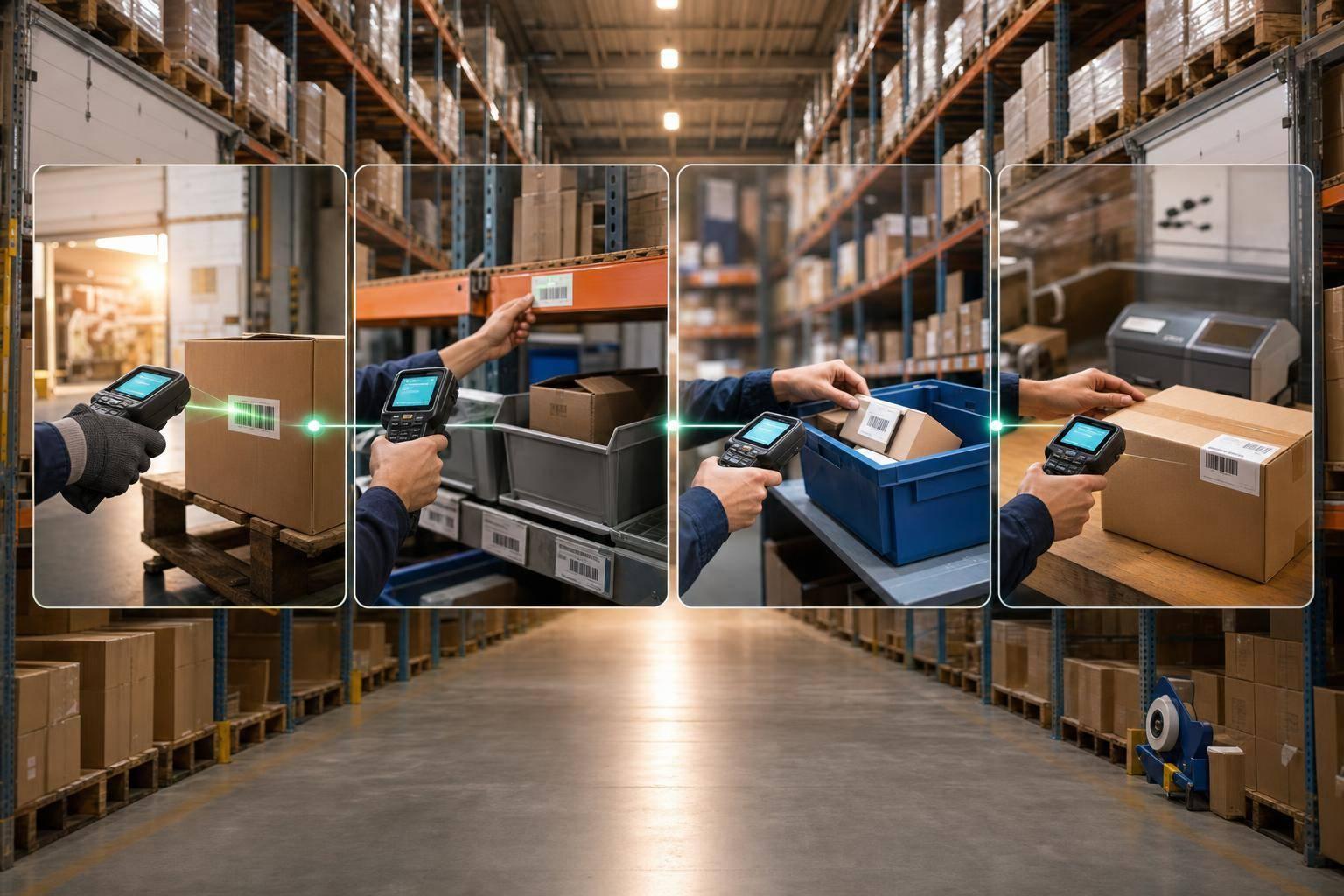
A simple way to think about it: scan at receiving, scan at putaway, scan at picking, and scan at packing. That gives you tighter counts, fewer shipping mistakes, better lot and serial tracking, and less cleanup at the end of the day.
| Area | Manual workflow | With barcode scanning |
|---|---|---|
| Receiving | Paper counts and later entry | Counts recorded at the dock |
| Putaway | Items placed in the wrong bin | Bin scan checks location |
| Picking | Visual checks and paper lists | Item and quantity verified by scan |
| Packing | Errors caught late or not at all | Final scan before shipment |
| Cycle counts | Slow manual tallies | Smaller, more frequent count checks |
If I had to sum it up in one line: barcode scanning helps warehouses cut errors, save labor time, and keep QuickBooks Desktop aligned with what’s on the shelf by using inventory management software.
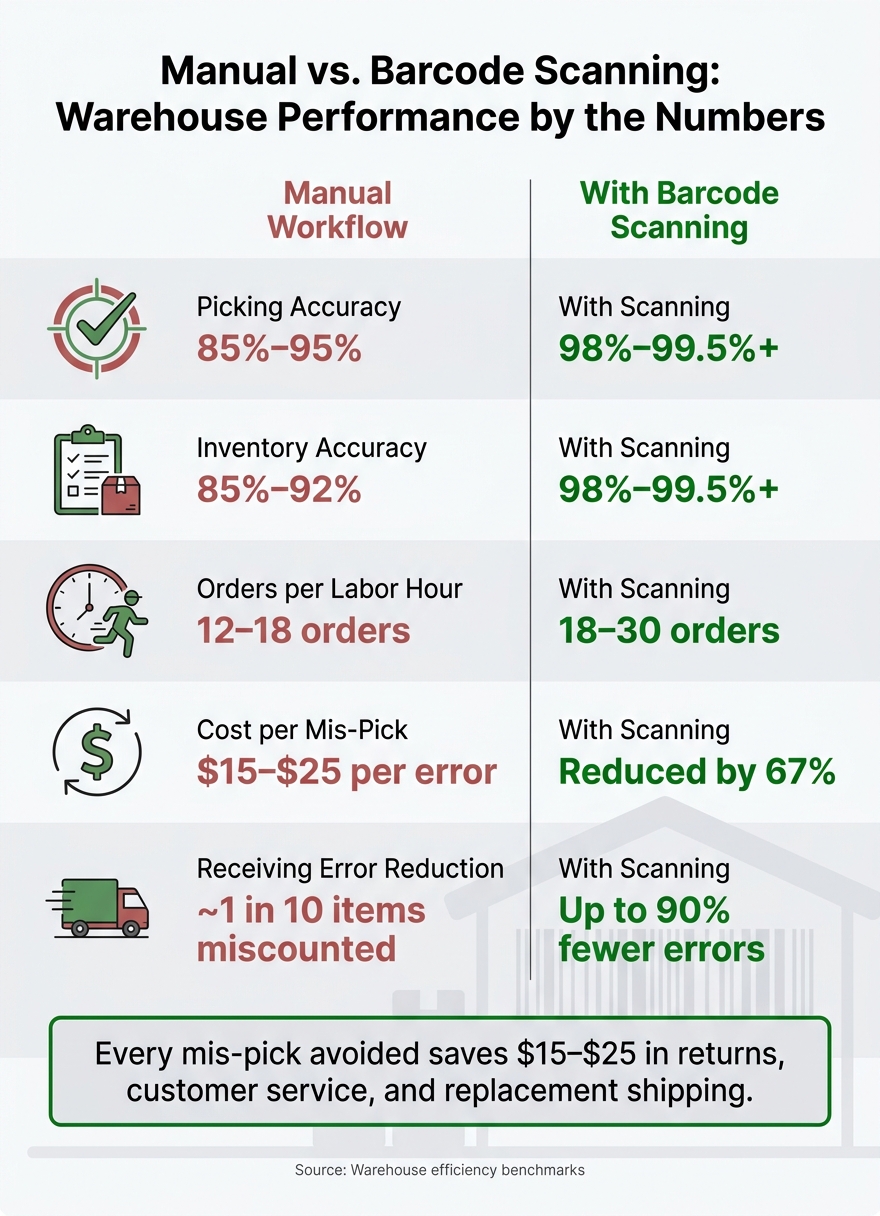
Manual vs. Barcode Scanning: Warehouse Performance by the Numbers
Pick, Pack, and Ship Process - Demo with iOS Wireless Barcode Scanners [Step-By-Step]
sbb-itb-19ed50f
The Main Problems With Manual Warehouse Workflows
Manual workflows slow things down and mess up data across receiving, picking, packing, and inventory updates. The trouble usually starts at the first touch and then snowballs.
Slow Receiving, Putaway, and Inventory Updates
When a shipment shows up, a worker counts boxes by hand, writes quantities on paper, and later someone keys that same data into QuickBooks Desktop. That’s a lot of handoffs for one simple task. And every handoff opens the door to mistakes. Warehouse teams that depend on manual counting miscount roughly 1 in every 10 items.
The fallout hits fast. Items end up in the wrong bin because there’s no scan-guided putaway. On-hand counts in QuickBooks Desktop stay behind until someone updates them by hand. Then purchasing teams place reorders based on numbers that were wrong to begin with. That’s how you end up with backorders, too much stock, or product sitting in a bin while QuickBooks Desktop says there’s zero on hand.
Picking Errors, Rework, and Extra Travel Time
Manual picking usually means workers follow paper pick lists and rely on visual checks to confirm the item and quantity. That sounds simple, but it’s one of the easiest ways to ship the wrong product. Each mis-pick costs between $15 and $25 in return handling, customer service time, and replacement shipping. Across dozens of orders per day, that adds up fast.
The problem isn’t just the direct cost. Manual workflows also eat up labor time. Workers make extra trips between racks and packing stations to recheck items or fix mistakes. It’s the kind of waste that doesn’t always jump off the page, but you feel it all day on the warehouse floor. Under manual conditions, that lost time cuts throughput to 12–18 orders per labor hour.
Poor Visibility, Stock Discrepancies, and Traceability Gaps
Paper-based systems don’t give you bin-level visibility. If inventory gets misplaced or a quantity is off, there’s usually no clean way to trace what happened without stopping everything for a physical recount. That’s how false stockouts happen: the system shows zero available, but the product is still sitting somewhere on a shelf.
Manual lot and serial tracking also slows recalls and makes expiration-sensitive inventory harder to control. And when there’s a recall, a short shipment, or a customer dispute, paper records often leave teams guessing instead of giving a clear answer.
These are usually the first pain points barcode scanning fixes. It cuts out delays by recording each inventory movement the moment it happens.
How Barcode Scanning Improves Warehouse Workflows
Barcode scanning clears up a lot of the friction in warehouse work by recording each move right where the work happens. Instead of passing paper from one person to another, workers confirm each step once. Scan at the dock, the bin, and the packing table, and QuickBooks Desktop updates right away. That changes the day-to-day flow of every core warehouse task.
| Workflow | Problems Without Scanning | Improvements With Barcode Scanning |
|---|---|---|
| Receiving | Manual miscounts, skipped items, and delayed data entry | Instant recording of quantities, SKUs, and lot numbers at the dock |
| Putaway | Misplaced inventory and no location verification | Scan the bin label before putaway to confirm the right location |
| Picking | Wrong items or quantities pulled; high rework costs | Real-time verification against orders prevents errors |
| Packing | Shipping errors | Final scan catches errors before the box is sealed |
| Cycle Counting | Slow, error-prone manual tallies | Fast, frequent counts performed during active operations |
| Replenishment | Poor visibility into stock moves and traceability gaps | Accurate tracking of transfers, lot/serial numbers, and FIFO/FEFO rules |
Faster Receiving, Putaway, and Real-Time Inventory Updates
At receiving, a single scan at the dock records the SKU, quantity, lot number, and expiration date on the spot. No handwritten notes. No later transcription. No end-of-shift data entry pileup. On-hand counts change immediately, so purchasing teams work from current numbers instead of yesterday’s snapshot.
Putaway follows the same logic. The worker scans the item and then the bin label. The system checks the match right then and there, or flags a mismatch before the item lands in the wrong spot. That one check goes a long way. It helps stop the classic problem where inventory appears in QuickBooks Desktop but isn’t actually on the shelf, and it cuts count gaps between the warehouse floor and QuickBooks Desktop.
More Accurate Picking, Packing, and Cycle Counting
Scan-based picking is simple: scan the location, scan the item, then confirm the quantity. If something is off, the scanner alerts the worker at once, before the wrong item makes its way to packing. That matters because errors get more expensive the farther they travel.
Teams that switch to scan-based picking often see a 20% to 40% improvement in picking productivity. Inventory accuracy can also climb to 98% to 99.5%, versus 85% to 95% with manual methods.
Packing gets a safety check too. A final scan before sealing the box can catch the wrong item, the wrong quantity, or the wrong order while there’s still time to fix it.
Cycle counting also becomes much easier to manage. Instead of stopping work for a full physical count, teams can scan smaller inventory sections during normal hours. That means high-value items can be checked more often without bringing the warehouse to a halt.
Better Replenishment, Traceability, and Workflow Control
Every transfer and replenishment move is logged the moment it happens. Lot numbers, serial numbers, and expiration dates are recorded during receiving and picking, so FIFO and FEFO are enforced by the system instead of relying on someone to remember the rule during a busy shift.
For QuickBooks Desktop users, Rapid Inventory adds mobile barcode scanning, lot and serial tracking, FIFO/FEFO, backorder tracking, and real-time reporting with two-way QuickBooks sync. That keeps warehouse activity in step with QuickBooks Desktop and cuts out double entry. Next comes setup: clean data, mobile devices, and staff training.
How to Implement Barcode Scanning in a QuickBooks Desktop Warehouse

Once the workflow gains are clear, the next step is rollout. The good news? You don't need to replace QuickBooks Desktop or rebuild the warehouse to get barcode scanning up and running.
At a practical level, the rollout comes down to three things: clean data, connected devices, and staff training.
Set Up Clean Item, Location, and Barcode Data First
Before anyone scans anything, your item records need to be clean. That means standardized SKUs, consistent units of measure, and barcode values tied to active QuickBooks Desktop items. If that data is messy, scans won't map the way they should.
You'll also want to define your warehouses and locations ahead of time. Then make sure every location has a printed label that staff can actually scan on go-live day. It sounds simple, but this is where a lot of setups stumble.
QuickBooks Desktop's Advanced Import utility lets you update item lists in bulk through Excel, which can speed up cleanup by a lot. And if your barcode values already live in another system, you can create a custom field like "Barcode2" to import that data before mapping it in QuickBooks.
Once item and location data are cleaned up, the hardware setup and sync process get much easier.
Choose Mobile Devices and Connect Them to QuickBooks Desktop
For basic receiving and transaction entry, use a scanner that sends each scan as one entry. That's often enough for simpler setups.
For mobile work like picking, transfers, and cycle counting across the warehouse floor, use a web-based platform that keeps those moves synced with QuickBooks Desktop in real time. Rapid Inventory syncs mobile scans to QuickBooks Desktop in real time and supports receiving, picking, transfers, and cycle counting without manual re-entry.
In plain English: staff scan on the floor, and QuickBooks stays up to date without someone typing the same information twice.
Train Staff and Start With the Workflows That Matter Most
Start with receiving and picking. These are usually the two areas where manual work causes the most mistakes, and they're often the fastest places to see early gains. After those workflows are running smoothly, expand into cycle counting and inventory transfers.
Update your SOPs before training starts so scanning steps are built into the process from day one. Also check that location labels are clear, easy to read, and consistent across the warehouse. If labels are confusing, training gets harder fast.
Rapid Inventory includes free onboarding, training, and support, which helps reduce the load on your internal team during the switch.
A simple way to divide ownership:
- Inventory/accounting: data cleanup
- Warehouse manager: location labeling
- IT: device setup
- Warehouse lead: staff training
After launch, track accuracy and labor data to see whether scanning is improving results.
How to Measure Results and Keep Improving
After rollout, the job shifts from setup to proof. You need to see whether the process is getting faster and more accurate.
Start by setting a baseline before go-live. Pull your current numbers for picking accuracy, receiving time, labor hours per order, inventory accuracy, cycle count variance, and backorders. Then track those same KPIs every week for the first 90 days. After results settle down, move to monthly tracking.
The comparison matters. Without a baseline, it’s hard to tell if scanning is fixing the problem or just changing how the work looks on paper.
Manual picking usually lands between 85% and 95% accuracy, while barcode scanning can move that into the 98% to 99.5%+ range. Receiving errors can drop by as much as 90% when scan verification is required, and picking errors can fall by 67%. That’s not small. Every mis-pick you avoid saves about $15 to $25 in return processing, customer service, and replacement shipping. Those numbers help confirm labor savings and make bottlenecks much easier to spot.
| KPI | Before Scanning (Baseline) | After Scanning (Target) |
|---|---|---|
| Picking Accuracy | 85%–95% | 99%+ |
| Inventory Accuracy | 85%–92% | 98%–99.5%+ |
| Dock-to-Stock Time | Baseline | Up to 50% faster |
| Orders per Labor Hour | 12–18 | 18–30 |
| Return Rate (Errors) | 3%–5% | Under 1% |
Use Reporting Data to Refine Warehouse Processes
Once you can see the numbers, you can start fixing the workflow with less guesswork. Scan data shows where work slows down and helps managers get to the root cause instead of treating the symptom.
Scan timestamps are a good example. They show exactly where time is being lost between receiving and putaway. So if dock-to-stock time is still dragging after go-live, you don’t have to wonder where the hold-up is. The timestamps point to it.
Mispick reports help in the same way. If the same SKUs keep showing up in error reports, the issue may not be training at all. It may be look-alike items stored too close together or bins that need clearer labels. In that case, the fix is physical separation or relabeling.
Variance reports can also tell you a lot. If cycle count variance stays high, those reports can help trace the problem back to receiving mistakes, mixed bins, or bad unit-of-measure conversions. For replenishment, real-time scan data lets you restock based on actual min/max levels instead of gut feel. That means forward pick faces can be refilled before they hit zero. Real-time visibility also helps cut phantom stock and reduce backorders.
Rapid Inventory’s real-time inventory reports give managers direct visibility inside their QuickBooks Desktop environment, so they can act on the data without waiting for end-of-day reconciliation.
A simple weekly habit goes a long way:
- Review the top five inventory discrepancies each week
- Assign one owner to each root cause
- Close the loop before the next count
That weekly review helps keep accuracy tight as order volume grows.
FAQs
How much can barcode scanning reduce warehouse errors?
Barcode scanning can cut warehouse errors to almost zero. In many cases, error rates drop to as low as 1 in several million scans.
That’s a huge step up from manual entry, where error rates usually land around 1% to 3%. Put simply, typing leaves a lot more room for slipups. Scanning doesn’t.
What do I need to set up barcode scanning in QuickBooks Desktop?
Enable barcode in Advanced Inventory under Edit > Preferences > Items and Inventory > Company Preferences. Then open the Barcode Wizard to assign barcodes, either by copying existing data or generating new ones.
Your scanner should support formats like Code 128 or EAN-13. It also needs to use USB keyboard wedge mode and send a single carriage return after each scan.
After that, run a few test scans to make sure items enter the right way and sync with QuickBooks Desktop.
Which warehouse workflows should I automate first?
Prioritize receiving, putaway, and picking first. These are high-impact workflows where barcode scanning can deliver fast ROI.
Start with receiving to validate incoming goods against purchase orders. Then automate putaway to confirm storage locations in real time. After that, improve picking with guided scanning to boost speed and accuracy.



