
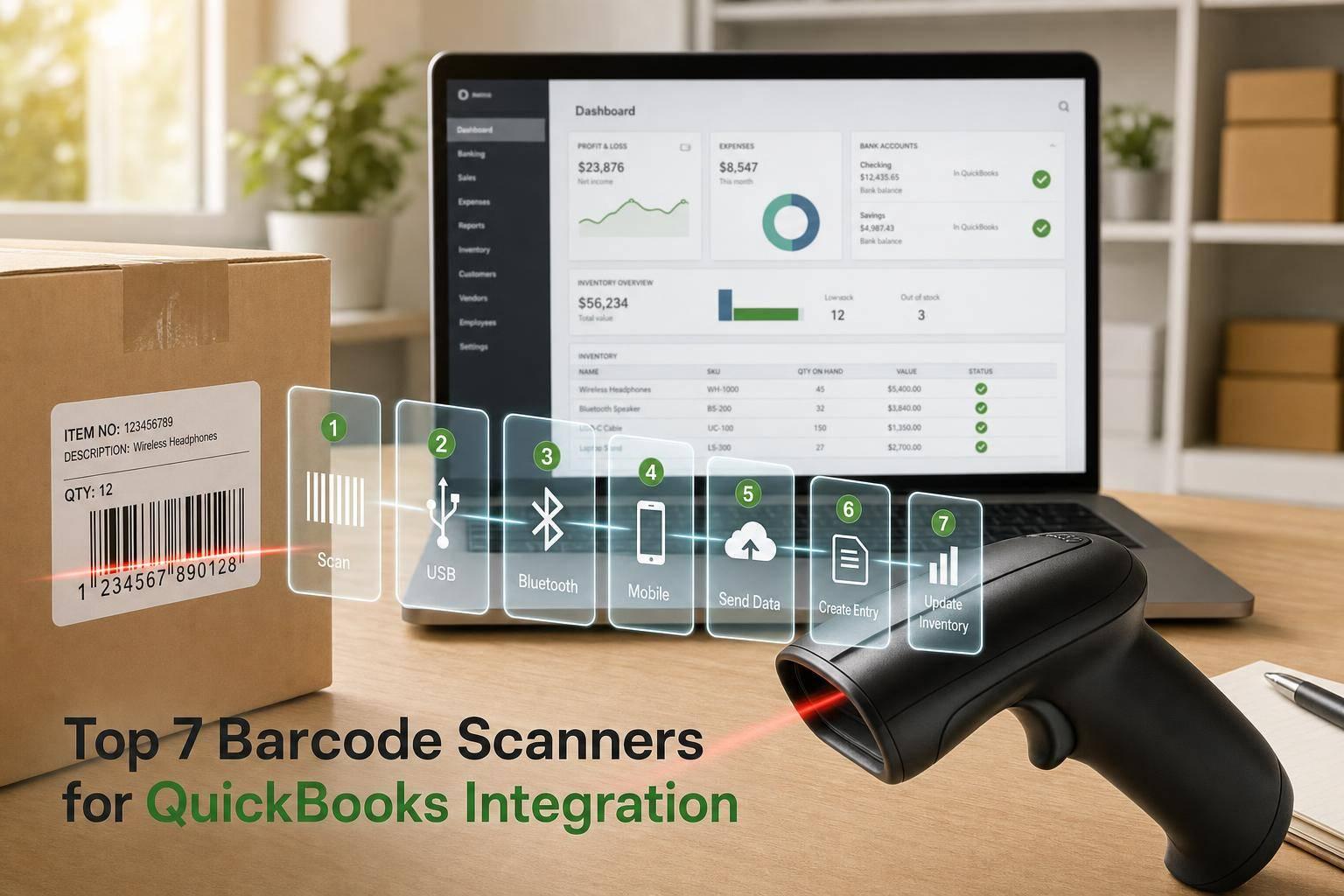
If you use QuickBooks Desktop, the right scanner comes down to 3 things: barcode type, connection, and where your team scans.
I’d sum up the full article like this:
- Use a USB scanner if you scan at one Windows PC
- Use Bluetooth or 2.4 GHz wireless if staff move around shelves, docks, or packing areas
- Use a 2D scanner if you scan QR codes, Data Matrix, or PDF417
- Set the scanner to add Enter after each scan so QuickBooks moves to the next line or field
- Use a mobile computer plus inventory management software for QuickBooks Desktop if your team scans during receiving, picking, transfers, or cycle counts away from a desk
The article reviews 7 scanner options across fixed desks, stockrooms, and mobile warehouse use:
- Zebra DS2208 - corded 1D/2D scanner for desk use
- Honeywell Voyager 1250g - corded 1D scanner for simple workstation entry
- Socket Mobile S700 - Bluetooth 1D scanner for light mobile use
- WoneNice USB Laser - low-cost 1D USB scanner for basic entry
- NADAMOO Long-Range Wireless - 1D wireless scanner with long range for back rooms and docks
- Inateck BCST-50 / BCST-73 - 1D/2D wireless scanners for mixed barcode use
- Zebra TC21 / TC26 - Android mobile computers for scan work done away from a PC
A few numbers stand out:
- Prices run from about $50 to $375 for most handheld scanners
- Long-range wireless can reach up to 328 ft. indoors
- Bluetooth models are often around 33 ft.
- Some mobile scanners support 1D and 2D, while budget desk models are often 1D only
If I were choosing fast, I’d do it this way:
- Lowest-cost desk setup: WoneNice or Honeywell Voyager 1250g
- Best desk setup with 2D support: Zebra DS2208
- Best for stockroom distance: NADAMOO
- Best for mixed barcode types: Inateck BCST-50 or BCST-73
- Best for mobile warehouse tasks: Zebra TC21 or TC26 with inventory software
Barcode Scanners for QuickBooks Desktop Enterprise

sbb-itb-19ed50f
Quick Comparison
| Scanner | Barcode Type | Connection | Best For | Price |
|---|---|---|---|---|
| Zebra DS2208 | 1D + 2D | USB | Desk or counter | $95.50–$208.40 |
| Honeywell Voyager 1250g | 1D | USB | Fixed workstation | $60–$132 |
| Socket Mobile S700 | 1D | Bluetooth | Light mobile scanning | $245–$375 |
| WoneNice USB Laser | 1D | USB | Basic low-volume entry | Varies |
| NADAMOO Long-Range Wireless | 1D | 2.4 GHz wireless | Stockrooms and docks | $50–$70 |
| Inateck BCST-50 / BCST-73 | 1D + 2D | Bluetooth / 2.4 GHz / USB | Mixed barcode use | $90–$150 |
| Zebra TC21 / TC26 | 1D + 2D | Wi‑Fi / cellular | Mobile warehouse work | Varies |
Bottom line: if you only need scan-to-field entry, a basic USB or wireless scanner may be enough. If you need scan-based receiving, picking, lot tracking, or counts, the article points to mobile tools like Rapid Inventory to handle the workflow after the scan.
What QuickBooks Desktop Needs From a Barcode Scanner
QuickBooks Desktop is brand-neutral. It doesn’t care who made the scanner. It just needs the right data and the right keystrokes. From there, the job is simple: match those requirements to the scanner type that fits your setup.
Barcode Formats QuickBooks Desktop Accepts
QuickBooks Desktop works with scanners that read EAN-13, Code 128, UPC-A, UPC-E, EAN-8, and Code 39, and append Enter after each scan.
That last part matters more than many people expect. If the scanner reads the barcode but doesn’t send an Enter keystroke, the workflow can feel clunky fast. You scan, then still have to hit a key by hand. That defeats part of the point.
Many scanners ship with only a small set of symbologies turned on by default, so check that the barcode types you use are enabled. In QuickBooks Desktop, the barcode value must match what’s stored in Item Name/Number, Manufacturer's Part Number, or a custom barcode field.
USB and Bluetooth Modes That Work With Windows PCs
Most desktop scanners use USB HID keyboard emulation. In plain English, that means the scanner acts like a keyboard on Windows and sends scanned characters straight into the active QuickBooks field.
Bluetooth keyboard mode works the same way, just without the cable. The catch? The cursor still has to be in the right QuickBooks field. And in most cases, only one host device can be paired at a time.
A simple way to think about it:
- USB fits a single workstation
- Bluetooth fits staff moving around a stockroom
Carriage Return and Scan Suffix Settings
For line-by-line entry, add an Enter suffix after each scan. Use Tab only if your workflow needs to move across fields instead of down a list.
Most scanners let you change this by scanning a setup barcode from the manual. It’s a small setting, but it can make the difference between a smooth workflow and one that feels like a workaround.
Basic Field Entry vs. Warehouse Manager Workflows
Basic scan-to-field entry does exactly what it sounds like: it types data into QuickBooks.
Warehouse software goes further. It can add guided receiving, picking, counts, and sync. That’s the line between a simple scanner setup and a more structured warehouse workflow.
With that groundwork in place, the scanner list below focuses on models that fit QuickBooks Desktop workflows.
1. Zebra DS2208 Corded 2D Barcode Scanner
For a basic scan-to-field QuickBooks Desktop setup, the Zebra DS2208 is the clearest desktop choice. It’s a corded 2D imager that connects by USB and types straight into the active QuickBooks Desktop field. Put your cursor in a QuickBooks field, scan the code, and the barcode data shows up there - just like a USB keyboard on Windows.
The scanner reads UPC/EAN, Code 128, and Code 39 for standard product SKUs. It also handles QR Code and DataMatrix, which helps if you’re scanning QR or DataMatrix labels used for receiving or internal item tags.
One small feature makes a big difference in day-to-day use: it can append Enter after each scan. That keeps desktop entry moving from field to field without extra keystrokes.
In terms of range, it scans standard UPC labels from about 0.5 in. to 14.5 in. That makes it a solid fit for a desk or checkout counter. It’s powered directly by USB, so there’s no battery to charge or swap out. That’s why it works best in a fixed spot rather than for walking around.
For durability, the DS2208 has an IP52 rating and can handle drops of up to 5 ft. onto concrete.
In the U.S., prices usually run from about $95.50 to $208.40, depending on the bundle and seller.
2. Honeywell Voyager 1250g Laser Barcode Scanner
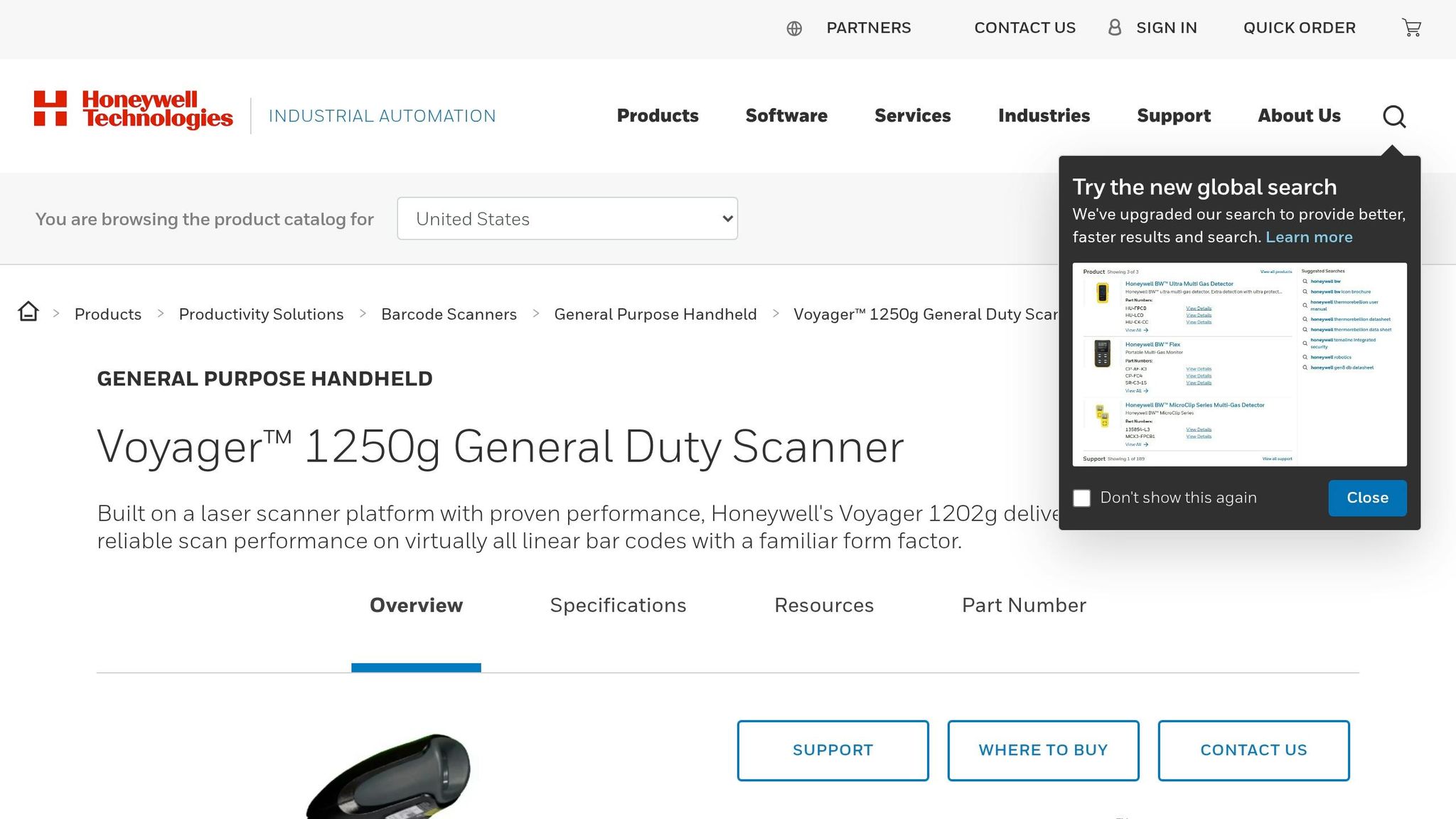
The Honeywell Voyager 1250g is a corded 1D laser scanner built for fixed Windows workstations. In USB keyboard mode, it sends each scan straight into QuickBooks Desktop as if you typed it on the keyboard. That makes setup pretty simple for single-station use. If you're entering items one line at a time, set it to append Enter after each scan.
This model reads common 1D barcode formats, including:
- UPC-A/E
- EAN-8/13
- Code 128
- Code 39
- Code 93
- GS1 DataBar
It does not read QR codes or other 2D barcodes. So if your workflow leans hard on QR labels, this isn't the right fit. But for plain barcode item entry, it does the job well.
On performance, the scanner reads standard 13-mil barcodes from as far as about 17.6 inches away. It also uses CodeGate, which helps with more precise targeting before you send the scan. Add the optional stand, and you can use it for hands-free presentation scanning too.
For durability, the Voyager 1250g carries an IP41 rating and is tested to survive 30 drops from 5 feet onto concrete. Honeywell includes a 5-year limited warranty. In the U.S., pricing usually falls between $60 and $132, depending on the seller and bundle.
3. Socket Mobile SocketScan S700 Bluetooth 1D Scanner
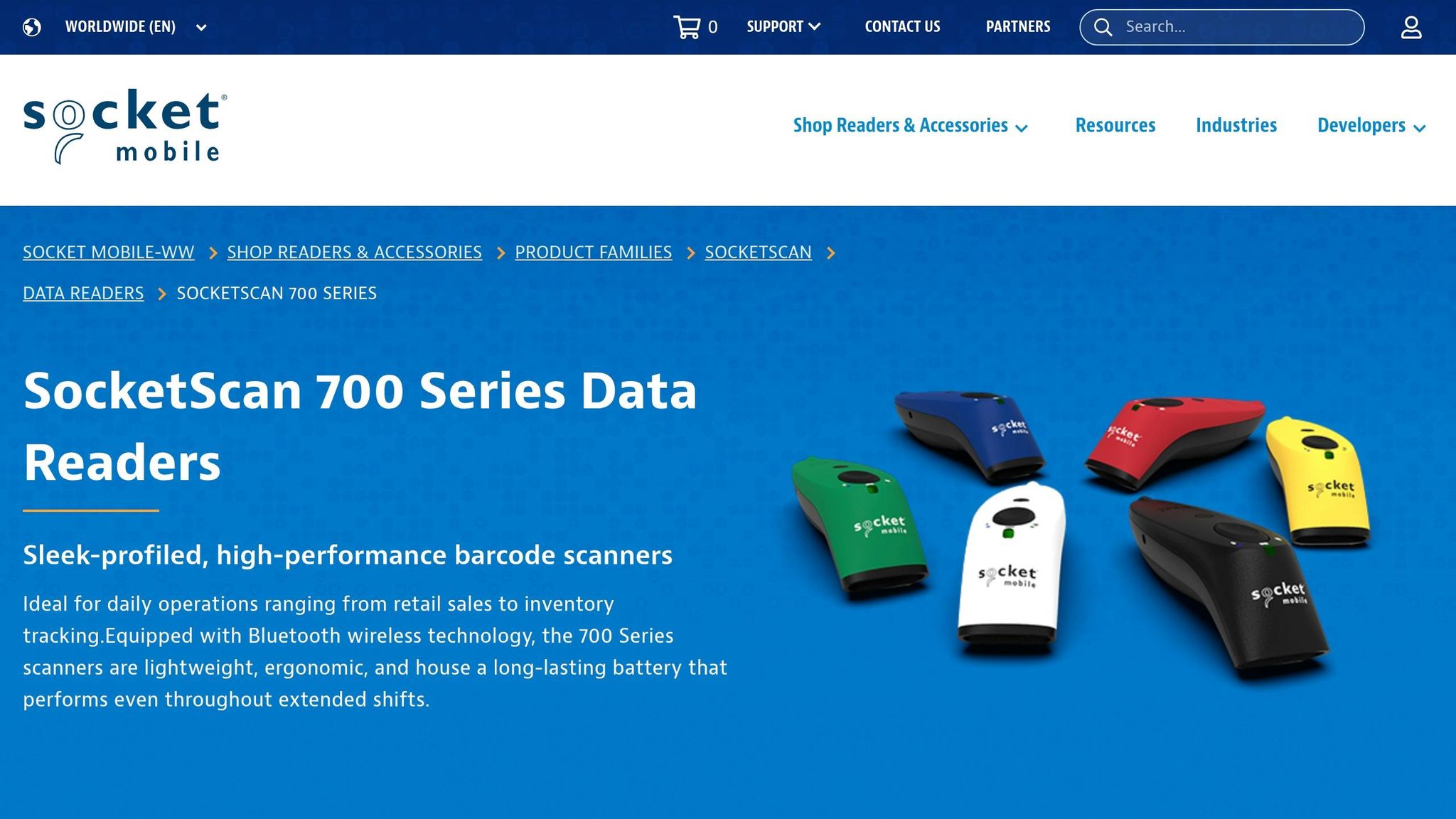
The SocketScan S700 is a small Bluetooth 1D scanner that pairs with Windows PCs over Bluetooth. In Basic Mode, it enters scanned data straight into the active QuickBooks Desktop field. If you add an Enter suffix, the cursor moves forward after each scan. That setup works well for mobile 1D scanning in QuickBooks Desktop.
It supports common 1D barcode formats, including UPC, EAN, Code 39, Code 128, and GS1 DataBar. It does not read QR codes or other 2D barcodes, so it makes more sense for SKU and item-label work than for spaces that use a mix of barcode types. Put simply, its big selling point is wireless movement, not 2D scanning.
For range, the S700 offers up to 33 ft of wireless use, which suits light stockroom work. It can scan 1D labels from about 1.4 in to 16.1 in away. The built-in 2,000 mAh NiMH rechargeable battery is rated for about 80,000 scans, or about 9 hours of active use on one charge. That extra freedom usually means paying more than you would for a basic corded scanner.
In the U.S., resellers list the S700 at about $245 to $375, depending on the version and any bundled accessories. The draw here is simple: cable-free scanning in a pocket-sized device.
4. WoneNice USB Laser Barcode Scanner
If you use QuickBooks Desktop at a fixed station and need the lowest-cost path to barcode input, the WoneNice USB Laser Barcode Scanner makes a lot of sense. It’s a corded USB plug-and-play scanner that works as a basic scan-to-field tool.
It reads common 1D barcodes and scans at up to 200 scans per second, which is enough for day-to-day entry work in a small business or retail setup. That said, this is better for light daily use than tough backroom work. The laser can have trouble with curved labels, like those on jars, and the body isn’t built for rough warehouse use.
Use it when your workflow is simple: flat 1D labels, a checkout counter or desk, and lower-volume entry. It’s a budget pick for small shops that need basic 1D scanning, not 2D codes or heavy inventory work.
5. NADAMOO Long-Range Wireless 1D Barcode Scanner
The NADAMOO Long-Range Wireless 1D Barcode Scanner is a good fit for teams that need more distance than Bluetooth usually gives. It uses an RF connection through a USB receiver, so it stays linked even when staff scan far from a desk. For QuickBooks Desktop users who work in stockrooms, loading docks, or back aisles, that extra reach matters. Its 433 MHz USB receiver works at about 328 feet indoors and up to 1,312 feet in open air.
With QuickBooks Desktop, setup is pretty simple. On Windows, the scanner acts like a USB keyboard, so you don’t need a QuickBooks driver. Plug in the USB receiver, place your cursor in the right QuickBooks Desktop field, and start scanning. It can also add a carriage return after each scan, which moves the cursor ahead on its own and helps speed up repetitive entry.
For barcode support, it reads common 1D inventory formats such as UPC/EAN, Code 39, and Code 128, along with related symbologies. One thing to note: this is a 1D-only scanner. It does not read QR codes, Data Matrix, or PDF417 labels.
Another handy feature is batch storage mode. The scanner can store up to 100,000 barcodes, which helps when teams do cycle counts or work in areas where they want to scan first and sync later.
In the U.S., the usual street price is about $50 to $70, which puts it in a solid middle range for small warehouses and back-of-store use.
If you need more than basic scan-to-field input, the next section looks at software that adds mobile inventory control.
6. Inateck BCST-50 or BCST-73 2D Wireless Bluetooth Barcode Scanner
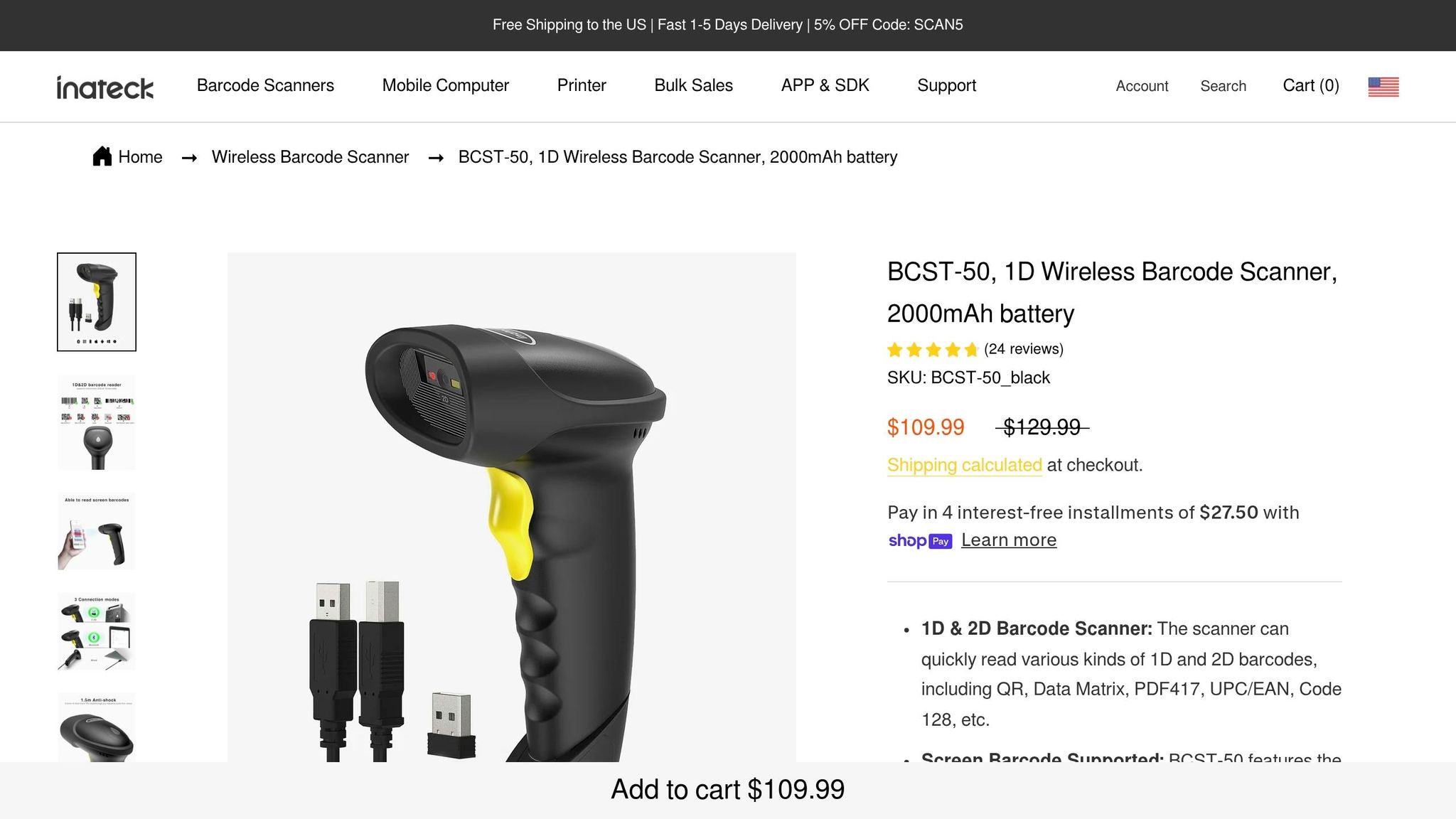
For teams that need 2D labels or a mix of barcode types, Inateck sits in that middle ground between basic 1D scanners and full mobile setups. The Inateck BCST-50 and BCST-73 add 2D scanning for QuickBooks Desktop. You can pair them over Bluetooth or with the included 2.4 GHz receiver, then scan straight into the active QuickBooks Desktop field as if you were typing on a keyboard.
The BCST-50 reads 1D barcodes along with QR Code, PDF417, and Data Matrix. The BCST-73 goes further and adds Aztec, MaxiCode, Han Xin Code, plus barcodes shown on phone or monitor screens. That matters if your team works with QR bin labels, vendor Data Matrix labels, or screen-based codes during picking, receiving, or stock checks.
Both models support:
- USB
- Bluetooth
- 2.4 GHz wireless
Range is solid for day-to-day warehouse or back-office use. The BCST-50 reaches about 98 ft over 2.4 GHz and about 33 ft over Bluetooth, while the BCST-73 reaches about 131 ft.
You’ll also want to program an Enter suffix from the manual so QuickBooks moves to the next field after each scan. That small setup step can save a lot of extra key presses.
In the U.S., the BCST-50 usually sells for $90–$130, and the BCST-73 usually lands around $110–$150.
If your scanning needs go past simple keyboard-style input, software starts to make more sense.
7. Zebra TC21 or TC26 Mobile Barcode Scanner
The Zebra TC21 and TC26 are rugged Android mobile computers with built-in barcode scanners. They’re not basic handheld scanners that plug into a USB port.
That difference matters.
Unlike the corded and Bluetooth models above, these devices run the scan workflow on the device itself. So instead of scanning into a nearby computer, your team can scan, enter data, and move through tasks right on the handheld.
Both models support 1D and 2D barcodes through built-in imaging engines, including common 1D and 2D labels. They also come with a 5-inch HD touchscreen, which works well for Android warehouse apps and on-device data entry.
TC21 is Wi‑Fi only; TC26 adds cellular. In plain English, the TC21 makes more sense for indoor stockrooms, while the TC26 is a better fit for teams working in the field.
These devices are built for mobile warehouse work, not desk-only scanning. They make sense when scanning happens away from a PC, such as:
- receiving
- cycle counts
- picking
Those are the kinds of jobs where walking back and forth to a workstation slows everything down.
If you need mobile scanning with QuickBooks sync, the software side matters just as much as the hardware. That’s where mobile inventory software comes in, with guided receiving, picking, and sync.
Rapid Inventory for Mobile QuickBooks Barcode Workflows
When Software Matters More Than the Scanner
A scanner can read a barcode. That's the easy part.
What usually matters more is what happens after the scan. Rapid Inventory sits between basic barcode input and a full warehouse setup by handling receiving, picking, counts, and QuickBooks sync. So if the goal is to update inventory, not just type a code into a field, the software starts to matter more than the hardware.
Core Features for QuickBooks Desktop Users
Rapid Inventory is a web-based platform for QuickBooks Desktop Pro, Premier, and Enterprise. It syncs items, orders, and locations with QuickBooks Desktop through a web connector. From there, it supports barcode receiving, transfers, cycle counts, FIFO/FEFO picking, and lot/serial tracking, with scan activity syncing back automatically.
This matters most when people are receiving stock, picking orders, moving inventory, or doing counts away from a desk. That's exactly the kind of mobile work the scanners above are built for.
Rapid Inventory Pricing in USD
Pricing includes training, onboarding, and support at no extra cost.
| Plan | Price (USD) | Best For | Included |
|---|---|---|---|
| Pro | $90/user/month | 1–9 users | All barcode features, unlimited locations, lot/serial tracking, training & onboarding |
| Unlimited | $900/month | 10+ users | Everything in Pro, custom inventory reports, dedicated account manager |
Here’s the short version:
- Pro: $90/user/month for 1–9 users
- Unlimited: $900/month for 10+ users
The table below compares these scanner options by use case, connection type, and barcode support.
Side-by-Side Comparison of All 7 Scanners
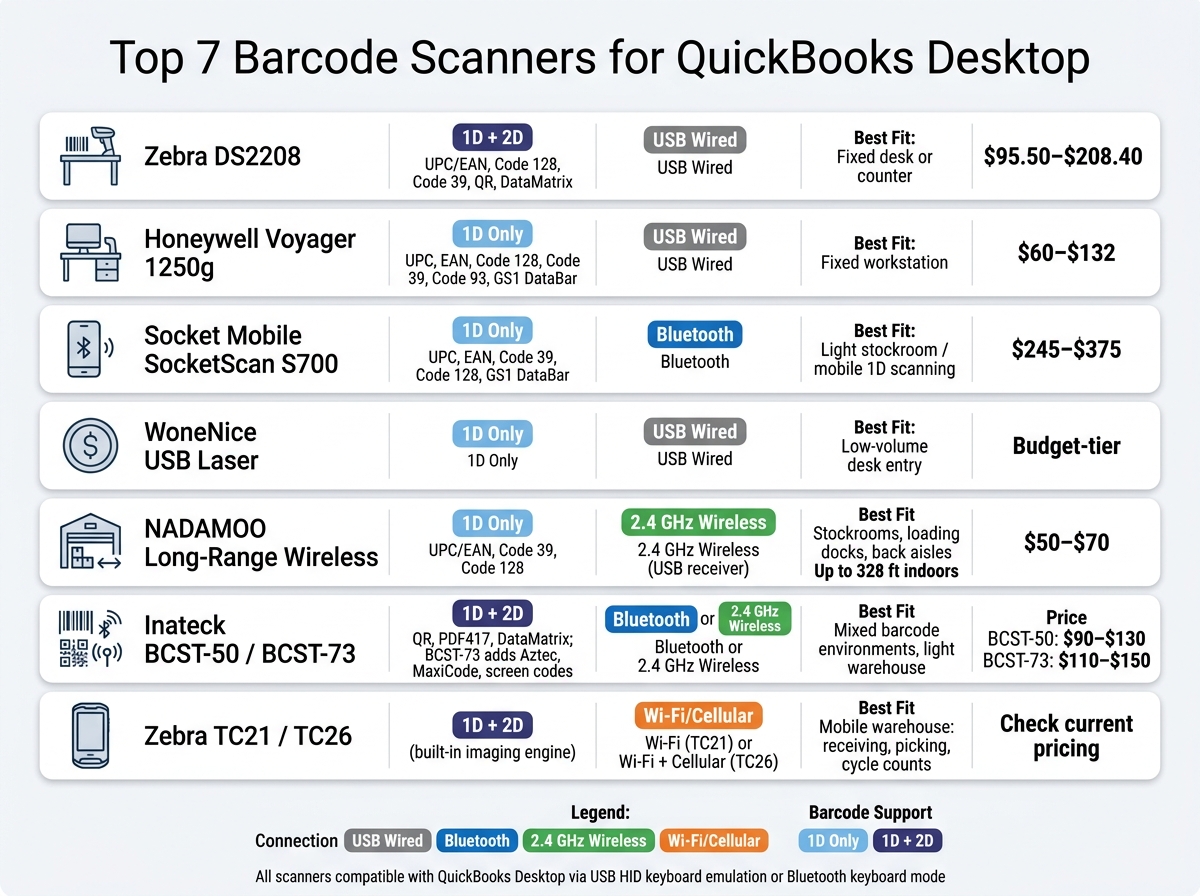
Top 7 Barcode Scanners for QuickBooks Desktop: Side-by-Side Comparison
Feature and Price Comparison Table
If you just need scan-to-field entry, this table helps you sort the seven options fast. The main things to look at are barcode support, connection type, and where each scanner makes the most sense.
| Scanner | Barcode Support | Connection | Best Fit | Price (USD) |
|---|---|---|---|---|
| Zebra DS2208 | 1D + 2D (UPC/EAN, Code 128, Code 39, QR, DataMatrix) | USB wired | Fixed desk or counter | $95.50–$208.40 |
| Honeywell Voyager 1250g | 1D only (UPC, EAN, Code 128, Code 39, Code 93, GS1 DataBar) | USB wired | Fixed workstation | $60–$132 |
| Socket Mobile SocketScan S700 | 1D only (UPC, EAN, Code 39, Code 128, GS1 DataBar) | Bluetooth | Light stockroom, mobile 1D scanning | $245–$375 |
| WoneNice USB Laser Barcode Scanner | 1D only | USB wired | Low-volume desk entry | Budget-tier; check current U.S. pricing |
| NADAMOO Long-Range Wireless | 1D only (UPC/EAN, Code 39, Code 128) | 2.4 GHz wireless (USB receiver) | Stockrooms, loading docks, back aisles | $50–$70 |
| Inateck BCST-50 or BCST-73 | 1D + 2D (QR, PDF417, DataMatrix; BCST-73 adds Aztec, MaxiCode, screen codes) | Bluetooth or 2.4 GHz wireless | Mixed barcode environments, light warehouse | BCST-50: $90–$130; BCST-73: $110–$150 |
| Zebra TC21 or TC26 | 1D + 2D (built-in imaging engine) | Wi-Fi (TC21) or Wi-Fi + cellular (TC26) | Mobile warehouse: receiving, picking, cycle counts | Check current U.S. pricing |
A simple pattern shows up here. If you're working at one desk, a USB wired model is often the easiest path. If your team moves around a stockroom or dock, wireless starts to look a lot better. And if there’s even a small chance you’ll run into QR codes, PDF417, or screen-based barcodes, going with a 2D imager can save you a headache later.
Pros and Cons by Scanner Category
Sometimes the better way to compare scanners is by workflow, not brand. That’s where category-level tradeoffs help.
| Category | Pros | Cons | Best Use Case |
|---|---|---|---|
| USB wired scanners | No battery to manage, simple plug-and-play setup | Tied to one workstation | Fixed desk entry |
| 2.4 GHz wireless scanners | Extended range (up to 328 ft indoors) | Battery management required | Stockroom receiving and light picking |
| Bluetooth scanners | Pair wirelessly with a host device | Pairing and setup can take more effort | Mobile workflows away from a PC |
| 1D scanners | Good for standard printed labels | Cannot read QR or other 2D codes | Simple desktop data entry |
| 2D imagers | Broader barcode compatibility, including QR and screen codes | Not necessary for linear-only workflows | Mixed barcode environments |
Here’s the short version:
- Choose USB wired if the scanner will stay at one counter or workstation.
- Choose 2.4 GHz wireless if staff need more range in stockrooms, back aisles, or receiving areas.
- Choose Bluetooth if the scanner needs to pair with a tablet, phone, or other host device.
- Choose 1D if you only scan basic printed labels.
- Choose 2D if your setup includes QR codes, screen barcodes, or a mix of label types.
That last point matters more than people think. A scanner can look like a bargain until it hits a barcode type it can’t read. At that point, the low price doesn’t help much.
Which Scanner Type Fits Your QuickBooks Setup?
The right scanner depends on how your team works day to day: front-desk entry, shelf-to-shelf movement, 2D labels, or receiving on the go. Start there, and the shortlist gets a lot easier.
Best for Low-Cost Desktop Data Entry
If your team scans from one Windows PC, go with a corded USB 1D scanner. WoneNice and the Honeywell Voyager 1250g are a good fit for this setup.
A small tweak makes a big difference here: set an Enter suffix so each scan jumps to the next QuickBooks field. It saves time and cuts down on extra keyboard taps. Most budget USB models fall in the $30–$150 range.
Best for Stockrooms and Light Warehouse Use
If staff move between shelves, receiving tables, and packing stations, wireless makes more sense. The NADAMOO long-range wireless scanner works well when you need more distance. The SocketScan S700 is a better match for Bluetooth mobility.
In most cases, wireless models cost $100–$300.
Best for QR Codes and 2D Labels
If you need to scan QR codes, Data Matrix, or PDF417 labels, use a 2D imager. The same goes for labels that store lot, expiration, or serial data.
Zebra DS2208 and Inateck BCST-50/BCST-73 fit this job well, and they can still read standard 1D barcodes.
Best for Mobile Warehouse Workflows
Once scanning leaves the desk, both the scanner and the workflow need to shift with it. If your team scans during receiving, picking, transfers, or cycle counts away from a PC, use a mobile computer like the Zebra TC21 or TC26.
Their built-in scan engine and touchscreen make them a better fit than PC-tethered scanners for mobile work.
With the scanner class lined up with the job, the next step is picking the model that fits your team.
Conclusion
After comparing features and prices, narrow your choice with three filters: barcode type, connectivity, and workflow.
Final Takeaways on Choosing a Scanner
Barcode type comes first. Pick a 2D scanner only if you need QR codes, Data Matrix, or labels scanned from a screen.
Then choose the right connection and range. Use USB at a fixed station, Bluetooth for short-range movement, 2.4 GHz wireless for broader stockroom coverage, and TC21/TC26 for fully mobile work.
Workflow depth decides whether hardware alone is enough. When scanning feeds receiving, picking, or counting, hardware alone stops being enough. Basic scan-to-field entry needs a scanner. Warehouse workflows need mobile inventory software. That’s where Rapid Inventory makes the biggest difference.
Match the scanner to today’s job, then go one step up in capability if your labels or workflow are likely to grow soon. That helps keep the scanner aligned with today’s workflow and the next stage of growth.
FAQs
How do I know if I need a 1D or 2D scanner?
Choose a 1D scanner if you only work with standard linear barcodes like UPC-A, EAN-13, or Code 128.
Choose a 2D scanner if you need to read QR codes or Data Matrix codes. A 2D imager can read both 1D and 2D formats, so it’s a smart pick if you also need extra data like lot numbers or expiration dates for better traceability.
Will any barcode scanner work with QuickBooks Desktop?
No. A barcode scanner has to meet QuickBooks Desktop’s technical requirements.
It needs to connect by USB or Bluetooth in keyboard emulation (HID) mode, support Code-128 and EAN-13, and send a single carriage return after each scan.
RS232 serial scanners do not work with QuickBooks Desktop’s native barcode features.
When do I need software instead of just a scanner?
A basic barcode scanner works a lot like a keyboard. It simply enters data for you.
You need inventory software like Rapid Inventory when you want real-time sync with QuickBooks Desktop and tighter inventory control.
That means things like:
- managing multiple warehouse locations
- using FIFO or FEFO picking
- tracking lot or serial numbers
- enabling mobile scanning that updates records instantly while cutting manual entry and errors



