

I recommend barcode checks at all 5 inventory handoffs - not just scanning items. Before saving a receipt, move, pick, pack, or count, check the item, location, quantity, and required lot or serial details against the task. Stop mismatches for review.
Here’s the workflow I’d use:
- Receiving and putaway: Check deliveries against the open purchase order balance, then verify the storage bin.
- Picking and packing: Match goods to the order and check each box before shipping. Choose single-order picking for simple orders, batch for shared SKUs, wave for shipping schedules, or zone for separate warehouse areas.
- Cycle counts: Compare physical stock with records, recount differences, and approve adjustments.
- Setup and testing: Define labels, units of measure, and scan rules. For QuickBooks Desktop, test Rapid Inventory’s supported features, postings, and sync - including retries that could create duplicates.
I’d start with a 2–4 week pilot in one location with a small SKU group. Measure pick time, inventory differences, and sync errors before expanding. <u>A successful scan is not the same as a verified transaction.</u>
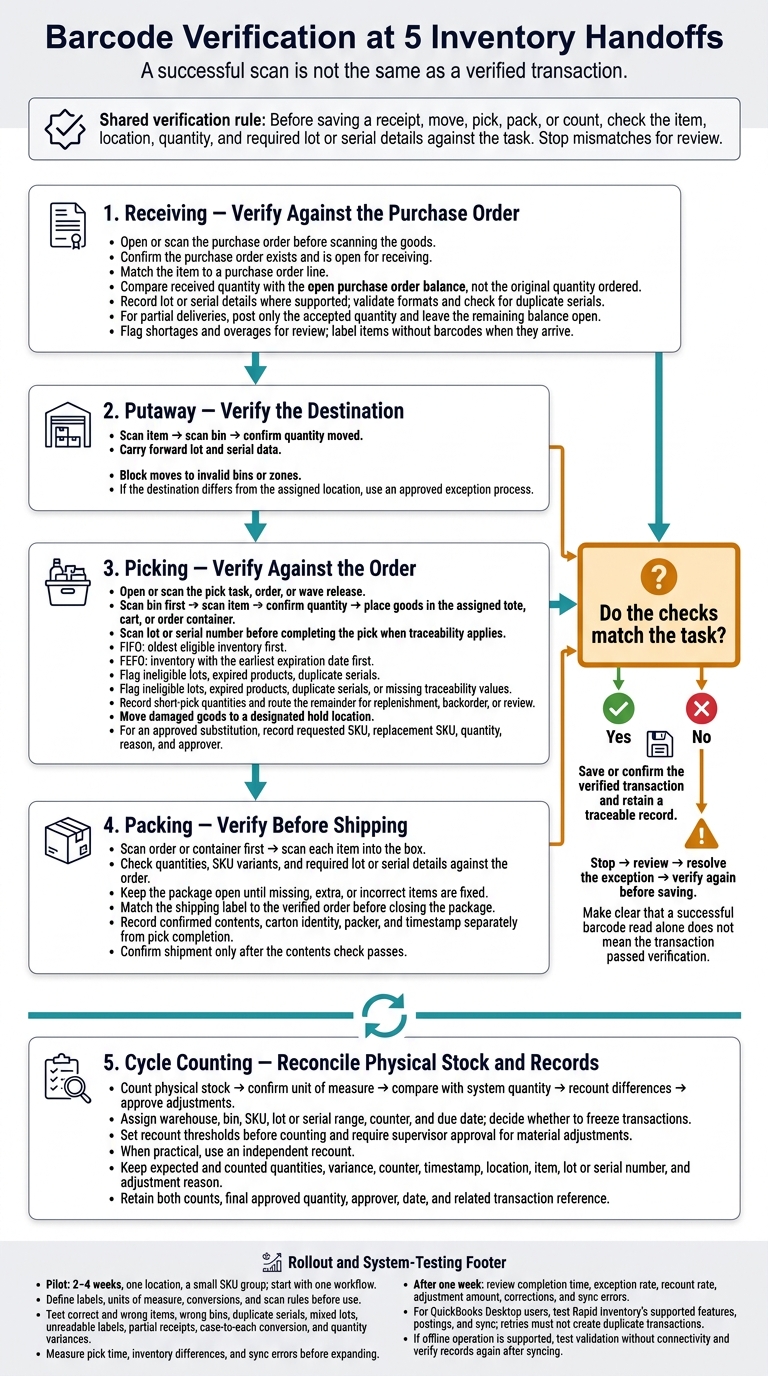
Barcode Verification at 5 Inventory Handoffs
Receiving and Putaway
Receiving: Check Items Against the Purchase Order
Open or scan the purchase order before scanning the goods. Check the received quantity against the open purchase order balance, not just the original quantity ordered. Record lot or serial details where supported, and label items without barcodes when they arrive.
Use these checks at the receiving gate:
| Receiving scan | System check | Mistake prevented |
|---|---|---|
| Purchase order barcode | Confirm the order exists and is open for receiving | Posting a receipt to the wrong or closed order |
| Item barcode | Match the item to a purchase order line | Accepting a substitution that hasn’t been approved |
| Quantity entry or count | Compare the receipt with the open order balance | Over-receipts or missed shortages |
| Lot or serial barcode | Validate the format and check for duplicate serials | Invalid tracking records or duplicate serials |
For partial deliveries, post only the accepted quantity and leave the remaining balance open. Flag shortages and overages for review.
Putaway: Verify the Item and Storage Bin
Scan the item, then the bin, and confirm the quantity moved. Carry forward lot and serial data, and block moves to invalid bins or zones.
If the destination differs from the assigned location, follow an approved exception process so the physical location matches the digital record.
Pilot one process first. Test over-receipts, duplicate serials, and destination mismatches before expanding. Check that accepted receipts and transfers update inventory correctly and retain an audit trail. Retrying a submission must not create duplicate postings.
If offline operation is supported, test validation without connectivity, then verify the records again after syncing.
The same scan-and-verify pattern continues in picking and packing.
sbb-itb-19ed50f
Picking and Packing
Picking: Check the Order, Bin, Item, and Quantity
After putaway, picking is the next control point. Open or scan the pick task, order, or wave release. Then scan the pick bin, item, and quantity, and place the goods in the assigned tote, cart, or order container.
Scan the bin first to confirm the location. The item scan tells similar SKUs apart, while the quantity check prevents short or excess picks. Together, these checks keep order records aligned with on-hand stock.
If traceability applies, scan the lot or serial number before completing the pick. FIFO selects the oldest eligible inventory first. FEFO selects inventory with the earliest expiration date first. Flag ineligible lots, expired products, duplicate serial numbers, or missing traceability values - don't rely on manual notes.
Keep exceptions separate from the requested order. For a short pick, record the quantity found and route the remaining quantity for replenishment, backorder, or review. Move damaged goods to a designated hold location. For an approved substitution, record the requested SKU, replacement SKU, quantity, reason, and approver.
Compare Single-Order, Batch, Wave, and Zone Picking
With the pick checks in place, choose a workflow that fits order volume, warehouse layout, shared SKUs, and shipping schedules. Wave picking is a scheduling layer, so it can support single-order, batch, or zone picking.
For batch work, verify each destination container during sorting. For zone work, scan every handoff between zones. All methods need the same scan checkpoints; what changes is how goods move between people and locations.
| Picking method | Best fit | Barcode checkpoints | Operational advantage | Primary risk |
|---|---|---|---|---|
| Single-order | Lower volume, simple layouts, one-of-a-kind or high-value orders | Scan order, bin, item, quantity, and destination tote | Simple training and clear order ownership | Excess walking and lower scalability |
| Batch | High-volume small orders with shared SKUs | Scan batch task, bin, item, quantity, and each destination tote or compartment | Reduces repeated travel and can improve picker productivity | Mixed orders during sorting or handoff |
| Wave | Defined carrier cutoffs, service levels, or scheduled shipping windows | Scan wave release, destination tote, bin, item, quantity, and completion handoff | Aligns labor and picking activity with outbound schedules | Backlogs or inflexibility when demand changes |
| Zone | Large warehouses with distinct product or storage zones | Scan zone bin, item, quantity, and every zone-to-zone or consolidation handoff | Limits travel and supports specialization | Bottlenecks, incomplete orders, or missed handoffs |
Packing: Check Contents Before Shipping
Packing is the final content check before shipment. Scan the order or container first, then scan each item into the box. This helps prevent a correct pick from turning into a wrong shipment.
Check quantities, SKU variants, and required lot or serial details against the order. Keep the package open until any missing, extra, or incorrect items are fixed. Before closing it, match the shipping label to the verified order.
Record the confirmed contents, carton identity, packer, and timestamp separately from pick completion. A completed pick doesn't prove that the correct goods were packed. Confirm shipment only after the contents check passes. Separate records help distinguish pick, sort, pack, and label errors.
These same scan rules also support cleaner cycle counts.
Stock Checks and Barcode Setup
The same scan-and-verify process applies to cycle counts and system setup.
Cycle Counting: Check Stock and Review Differences
Cycle counting checks selected inventory on a recurring schedule rather than through a full annual count. Select counts by location, item, ABC priority, recent variance, transaction volume, or known risk.
Start by counting A items weekly or monthly, B items quarterly, and C items annually or less often. Adjust that schedule based on variance history. For each count, assign the warehouse, bin, SKU, lot or serial range, counter, and due date. Also decide whether to freeze transactions.
| Count method | Trigger | Suitable inventory | Barcode sequence | Recordkeeping benefit |
|---|---|---|---|---|
| Location-based | Scheduled bin, aisle, or warehouse review | Inventory stored in a defined area | Scan location → scan each item → scan lot or serial when required → enter quantity | Creates a complete location-level record and helps identify misplaced stock |
| Item-based | Scheduled SKU review or repeated item variance | High-volume, high-value, or frequently adjusted SKUs | Scan item → scan each location containing the item → confirm quantity and tracking details | Shows total inventory for one SKU across locations |
| ABC-based | Value, criticality, or usage classification | A, B, and C inventory groups | Scan location → item → lot or serial → quantity, using a frequency based on class | Directs counting effort toward inventory with the greatest financial or operational impact |
| Variance-based | Mismatch, stockout, return issue, or unusual adjustment | Items or bins with known accuracy problems | Scan location → item → tracking identifier → recount quantity | Links the recount to the original discrepancy and supports root-cause analysis |
Count the physical stock, confirm the unit of measure, and compare your result with the system quantity. Record the expected and counted quantities, variance, counter, timestamp, location, item, lot or serial number, and adjustment reason.
Set recount thresholds before counting, and require supervisor approval for material adjustments. When practical, have someone else perform an independent recount. Keep both counts, the final approved quantity, approver, date, and related transaction reference.
For QuickBooks Desktop users, these controls depend on how the inventory system handles scan rules, approvals, and sync.
Use Rapid Inventory With QuickBooks Desktop
Rapid Inventory is designed for QuickBooks Desktop users. It connects barcode workflows and stock checks with inventory records through mobile barcode scanning, multi-location tracking, lot and serial tracking, FIFO/FEFO picking, cycle counting, partial shipping and receiving, label printing, backorder tracking, and two-way QuickBooks sync.
Before rollout, confirm that labels, scanner rules, and exception handling work as expected.
Set Up Labels and Test Scan Rules
Labels and scan rules help prevent errors at each handoff, from receiving through counting. Use separate, readable item and location labels that include plain text. Define which barcode represents a unit, case, pallet, lot, serial number, or license plate, and set up conversions before use.
Create stop-and-review procedures for duplicate serials, wrong locations, unrecognized barcodes, and missing tracking data. Recount quantity differences. If a label is unreadable, use the printed identifier only under approved access.
Start with one workflow, one location, and a small SKU group. Test correct items, wrong items, wrong bins, duplicate serials, mixed lots, unreadable labels, partial receipts, case-to-each conversion, and quantity variances.
After one week, review completion time, exception rate, recount rate, adjustment amount, corrections, and sync errors.
Conclusion: Check Every Inventory Handoff
Use the same check-and-confirm rule at every inventory handoff. Match receipts to the purchase order, confirm putaway destinations, verify picks against the order, and check packed contents before shipping. Reconcile stock differences through approved counts. A scan alone isn’t enough: confirm quantities, resolve exceptions, and keep a traceable record of each handoff.
Start with the workflow where scan checks fail most often. Run a 2–4 week pilot to measure variance rates and pick time before expanding.
For QuickBooks Desktop users, use Rapid Inventory during the pilot to verify mobile scans for receiving, picking, and packing. Also check QuickBooks postings and confirm that retries don’t create duplicate transactions.
FAQs
How do I handle stock movements during cycle counts?
In Inventory, select Cycle Count, then filter by site or items. For blind counts, use a mobile scanner to scan the location barcode first, followed by all item barcodes to reconcile quantities.
If quantities don’t match, the status changes to Pending Review. Use Batch Actions to adjust the quantity or value on hand. Once you’ve finalized the adjustments, mark the count Closed to lock the data and keep records accurate and synced with QuickBooks Desktop.
What accuracy targets should I set for a barcode pilot?
Record current error rates and audit times to set a baseline. During the pilot, aim for a scan success rate of at least 95%. Businesses often work toward inventory and picking accuracy of 99% or higher.
Track these metrics, adjust workflows, and deliberately test error scenarios. Before full deployment, confirm that hardware, software, and team processes work together as intended.
How can I prevent duplicate QuickBooks postings after sync retries?
Before connecting, reconcile inventory counts, remove duplicate SKUs, and standardize names so your data is clean and consistent.
Rapid Inventory’s two-way sync automatically updates data, keeping warehouse actions aligned with QuickBooks Desktop in real time. This cuts down on manual entry errors that can create duplicates. If the connection drops, the system queues transactions locally and syncs them automatically once the connection returns.



