

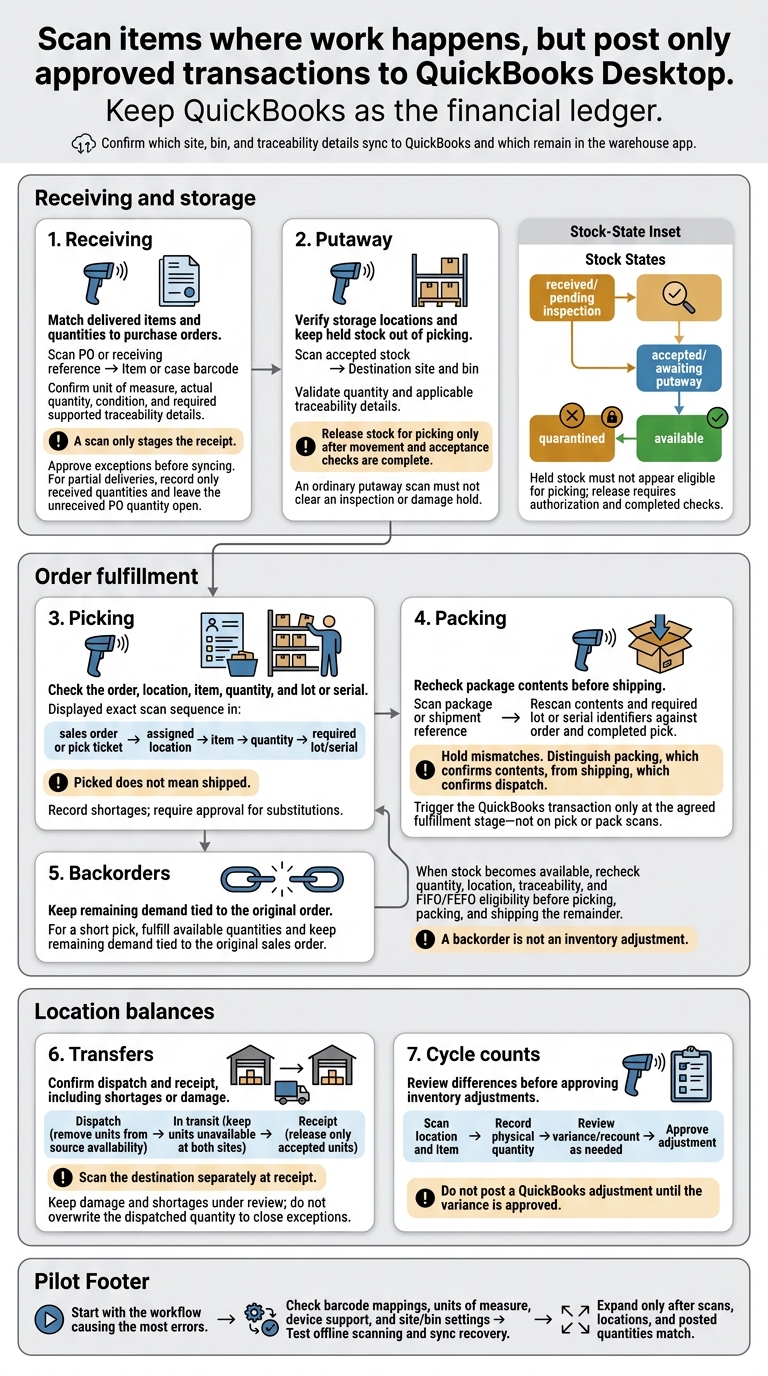
I recommend starting with one of these 7 workflows - the one causing the most errors - and testing it before rollout. Scan items where work happens, but post only approved transactions to QuickBooks Desktop.
Here’s what each workflow checks:
- Receiving: Match delivered items and quantities to purchase orders.
- Putaway: Verify storage locations and keep held stock out of picking.
- Picking: Check the order, location, item, quantity, and lot or serial.
- Packing: Recheck package contents before shipping.
- Backorders: Keep remaining demand tied to the original order.
- Transfers: Confirm dispatch and receipt, including shortages or damage.
- Cycle counts: Review differences before approving inventory adjustments.
Before you start, I’d check barcode mappings, units of measure, device support, and site/bin settings. Then test <u>offline scanning and sync recovery</u> - don’t assume they work. Keep QuickBooks as the financial ledger, and expand only after scans, locations, and posted quantities match.
7 Mobile Barcode Workflows for QuickBooks Desktop
Simplify inventory and fulfillment with mobile barcode scanning | QuickBooks Enterprise
sbb-itb-19ed50f
Receiving and Putaway: Check Arrivals and Storage
Receiving confirms what arrived. Putaway confirms where accepted stock is stored. Keep four separate stock states: received/pending inspection, accepted/awaiting putaway, available, and quarantined. Keep unapproved stock out of available inventory until inspection and putaway are complete.
1. Receiving: Match Items to Purchase Orders
Scan the PO or receiving reference, then each item or case barcode. Match the PO, packing slip, and physical goods. Confirm the unit of measure and actual quantity, and record lot, serial, expiration, and condition details when required and supported. Record discrepancies at the dock - not during putaway.
A scan only stages the receipt. Approve exceptions before syncing to QuickBooks Desktop. Goods that arrive before the vendor bill commonly use an Item Receipt; QuickBooks Desktop can also receive inventory on the bill. For partial deliveries, leave the unreceived PO quantity open.
After approval, move accepted stock to its storage location.
| Workflow | Scan | Validation | QuickBooks result | Exception handling |
|---|---|---|---|---|
| Receiving | PO or receiving reference; item; quantity | Match vendor, item, unit, and condition | Create or stage the receipt; sync after approval | Flag overages for buyer approval; isolate damaged goods. |
| Partial receiving | PO; items physically delivered | Compare actual quantity with the open PO balance | Record only the received quantity; leave the balance open | Keep undelivered stock out of available inventory. |
| Traceability receiving | Item; required lot, serial, and expiration | Check item relationship, required fields, and serial uniqueness | Store supported details in QuickBooks or the connected system | Stop duplicate serials; hold missing or conflicting data for review. |
| Unmatched delivery | Shipment documents; vendor identifier | Search for a matching open PO | Do not assume a receipt; wait for an approved accounting decision | Hold shipment for purchasing review; retain paperwork and condition details. |
| Putaway | Accepted stock identifier; destination site and bin | Confirm quantity, traceability, and permitted destination | Update supported site or inventory records; maintain bin detail as configured | Keep held stock blocked; require authorized release. |
2. Putaway: Confirm Where Stock Is Stored
Scan the accepted item, carton, or pallet identifier, then the destination site and bin. Before confirming placement, verify quantity, unit of measure, lot or serial details, and expiration where applicable.
Release stock for picking only after movement and acceptance checks are complete. An ordinary putaway scan must not clear an inspection or damage hold.
Document which location fields sync to QuickBooks Desktop and which stay in the warehouse app. QuickBooks supports bins within inventory sites, but confirm that the integration supports them too. For blocked stock, retain the receipt, quantity, traceability details, condition, location, employee, timestamp, and approval trail.
Picking, Packing, and Backorders: Check Order Fulfillment
3. Picking: Check Items, Locations, and Quantities
After putaway, move to the pick face and scan the sales order first. Follow this sequence: sales order or pick ticket → assigned location → item → quantity → required lot/serial.
Use FIFO to pick the oldest eligible stock or FEFO to pick stock with the earliest expiration date. These methods control pick order - not inventory valuation. Rapid Inventory supports both strategies and two-way QuickBooks Desktop sync. Confirm that sales orders become pick instructions and completed picks sync back to QuickBooks Desktop. Picked does not mean shipped.
Record the picked quantity, shortages, location, reason, and user. Never silently complete a short pick. Substitutions need approval: record the original SKU, replacement SKU, quantity, reason, and approver. Keep any remaining demand tied to the original sales order.
| Scan | Purpose | Stage | Exception response |
|---|---|---|---|
| Item | Match the SKU and quantity to the order | Picking and packing | Stop wrong-item scans; correct the pick or obtain substitution approval. |
| Location | Verify the assigned storage location | Picking | Flag a mismatch before confirming the pick. |
| Lot or serial | Verify the eligible batch or individual unit | Picking and packing | Hold missing, expired, ineligible, or duplicate serial identifiers. |
4. Packing: Check Package Contents
After picking, check the package against the completed pick before shipping. Scan the package or shipment reference first. Then rescan the contents and required lot or serial identifiers against both the order and completed pick. Hold any mismatches before closing the package.
Packing confirms contents. Shipping confirms dispatch and records the carrier, tracking number, ship date, and package reference. Trigger the QuickBooks transaction only at the agreed fulfillment stage - not on pick or pack scans.
5. Backorders: Track Remaining Order Quantities
If the pick is short, leave the original sales order open and track the remaining demand. Fulfill available quantities, keeping the original sales-order reference for the remainder. QuickBooks Desktop workflows can keep partially fulfilled orders and their remaining quantities open.
| Quantity | Meaning |
|---|---|
| Ordered | Quantity requested on the sales order. |
| Available | Stock currently eligible to allocate or pick; not necessarily reserved for this order. |
| Picked | Quantity physically selected and scan-confirmed. |
| Packed | Picked quantity verified inside a package. |
| Shipped | Quantity dispatched and recorded as shipped. |
| Backordered | Remaining demand that cannot currently be supplied. |
| Fulfilled | Quantity completed through the configured fulfillment process. |
When incoming or transferred stock becomes available, resume the original order. Before issuing the next pick, recheck quantity, location, lot or serial details, and FIFO or FEFO eligibility. Process the remainder through pick, pack, and ship scans.
A partial shipment leaves demand open. A backorder is not an inventory adjustment. Do not change on-hand inventory just to clear an unfulfilled order.
Transfers and Cycle Counts: Check Location Balances
6. Transfers: Confirm Dispatch and Receipt
After fulfillment, use barcode scans to track stock movements and keep location balances accurate.
Against the transfer number, scan the source location, item, quantity, lot/serial, and destination. Record the operator, timestamp, and reason. Use site transfers for moves between sites and bin transfers for moves within a site. Record bin moves in the warehouse system. In QuickBooks’ bin-transfer workflow, enter the same site as both source and destination.
| Stage | Capture | Balance control |
|---|---|---|
| Dispatch | Transfer number, source and destination sites/bins, item, quantity, lot/serial, operator, timestamp | Remove units from source availability and mark them as in transit. |
| In transit | Outstanding quantity, expected arrival, carrier if relevant, exception notes | Keep units unavailable at both sites. |
| Receipt | Destination, item, lot/serial, accepted quantity, damage or shortage, receiver, timestamp | Release only accepted units. |
Scan the destination separately at receipt. If QuickBooks doesn’t track in-transit stock, keep that status in the connected workflow until posting. For partial receipts, keep the original dispatch and linked receipt records.
Hold damage and shortages for review, and assign every open transfer an owner and resolution date. Close exceptions only after an approved receipt, return, write-off, or re-dispatch - never by overwriting the dispatched quantity. Reflect resolved transfer discrepancies in the next count cycle.
7. Cycle Counts: Review Variances Before Adjustments
Use cycle counts to check balances changed by transfers, picks, and receipts. Reconcile the same item, location, and quantity data used in receiving, picking, and backorder fulfillment.
Assign recurring counts by site, zone, bin, item, or risk. Follow a risk-based schedule: count A-items weekly or biweekly, B-items monthly, and C-items quarterly.
Scan the location first, followed by the item, unit of measure, physical quantity, and required lot, expiration, or serial details. Keep the counter, device, timestamp, and exception notes or images. Freeze assigned stock during counting where practical. Otherwise, reconcile receipts, picks, transfers, and other movements against the count cutoff time.
| Method | What the counter sees | Required control |
|---|---|---|
| Blind count | Item and location only | Compare with the recorded balance after submission. |
| Expected-quantity count | Item, location, recorded quantity | Require an explanation for differences. |
| Recount | Disputed item and location | Use a second counter where possible and keep both results. |
| Approved adjustment | Reviewed variance | Record approver, reason, adjustment account, date, and audit reference. |
Set quantity and value thresholds before counting.
One policy is to recount any A-class difference and B/C differences exceeding 2 units or 1%; these are operating limits, not accounting rules.
Review movement logs, unit-of-measure errors, misplaced stock, and traceability details. Keep the variance and resulting transaction reference. Do not post a QuickBooks adjustment until the variance is approved.
Conclusion: Choose and Test Your First Workflow
Start with the process that causes the most delays or errors. Keep the pilot focused on scan accuracy, location handling, and verified QuickBooks sync.
Evaluate Rapid Inventory for QuickBooks Desktop
Test one workflow from start to finish before rolling out others. Rapid Inventory supports two-way QuickBooks Desktop sync, mobile barcode scanning, multi-location and lot/serial tracking, FIFO/FEFO picking, backorders, cycle counts, and web reporting. Onboarding, training, and continued support come at no additional charge.
Implementation typically takes about 7 days, from discovery to go-live. Test offline scanning in poor-signal areas, then check that queued scans sync correctly when the connection returns.
Match Your First Workflow to Your Main Problem
Choose your starting point based on transaction volume, error frequency, traceability needs, number of locations, backorders, and count variances. If cycle counts are your biggest bottleneck, a scan-driven pilot can also cut count hours by 30% to 40%.
Use the table below to select the receiving, picking, transfer, backorder, or count process covered above that causes the most friction.
| Need | Recommended workflow | Pilot validation criteria |
|---|---|---|
| Receiving speed | Receiving and putaway | Accurate dock scans; correct item and quantity capture |
| Order accuracy | Picking and packing | Fewer mispicks; package contents match the order |
| Site visibility | Transfers | Source and destination balances reconcile in QuickBooks |
| Partial fulfillment | Backorders | Shipped and remaining quantities stay accurate after partial shipments |
| Count-entry accuracy | Cycle counts | Less variance and fewer manual entry hours |
| Traceability | Lot/serial scanning | Item identifiers verify during scans |
Use lot and serial scans to check traceability across workflows. Expand only after scan accuracy and QuickBooks sync pass testing.
FAQs
Which QuickBooks Desktop editions support these workflows?
QuickBooks Desktop Enterprise Platinum and Diamond editions offer advanced barcode scanning and warehouse workflows through Advanced Inventory. These features require version 18.0 or later.
Pro and Premier don’t include these built-in tools, but both work with Rapid Inventory. Connecting Rapid Inventory to QuickBooks Desktop Pro, Premier, or Enterprise adds mobile barcode scanning, two-way synchronization, and advanced inventory workflows.
Can I scan barcodes with my phone?
Yes. Rapid Inventory’s mobile-friendly interface lets you scan barcodes with a smartphone or tablet when receiving items, fulfilling orders, or counting stock.
Scan item and bin barcodes to check quantities and locations in real time, keep inventory data synced with your QuickBooks Desktop company file, and avoid manual entry errors - all while managing inventory from anywhere.
How can I prevent duplicate transactions after syncing?
Before connecting to QuickBooks Desktop, merge duplicate item entries, fix SKUs, and fill in missing product details. Assign barcodes using fields that identify each item, such as Part Number or Item Name. Keep naming conventions consistent across warehouse locations to prevent duplicate records.
Use Rapid Inventory’s two-way sync to keep inventory adjustments and transactions aligned in real time - without manual entry.



