I’d start with one item catalog and a separate stock balance for each warehouse - not another spreadsheet. Before opening a new site, I’d test transfers, barcode scans, picking rules, and QuickBooks Desktop sync at 1 pilot warehouse.
Here’s what I’d check:
- Stock records: Set clear SKUs, units, bin labels, and staff responsibilities.
- Transfers: Track dispatch, in-transit stock, partial receipts, and differences under one reference.
- Picking: Use scans, lot and serial checks, and FIFO or FEFO rules to select eligible stock.
- Reports and counts: Check what each site can ship, plan replenishment, and investigate count errors.
- Accounting: Confirm sync mappings, reconcile quantities and value, and assign owners to failed transactions.
My go-live rule: <u>test the full stock journey before adding another site</u>. Software connects the records; clear workflows and checked results keep them reliable.
QuickBooks Enterprise Multiple Inventory Locations | Advanced Inventory Tutorial (Part 1)
sbb-itb-19ed50f
Track Warehouse Transfers From Dispatch to Receipt
Warehouse Transfer Workflow: Dispatch to Receipt
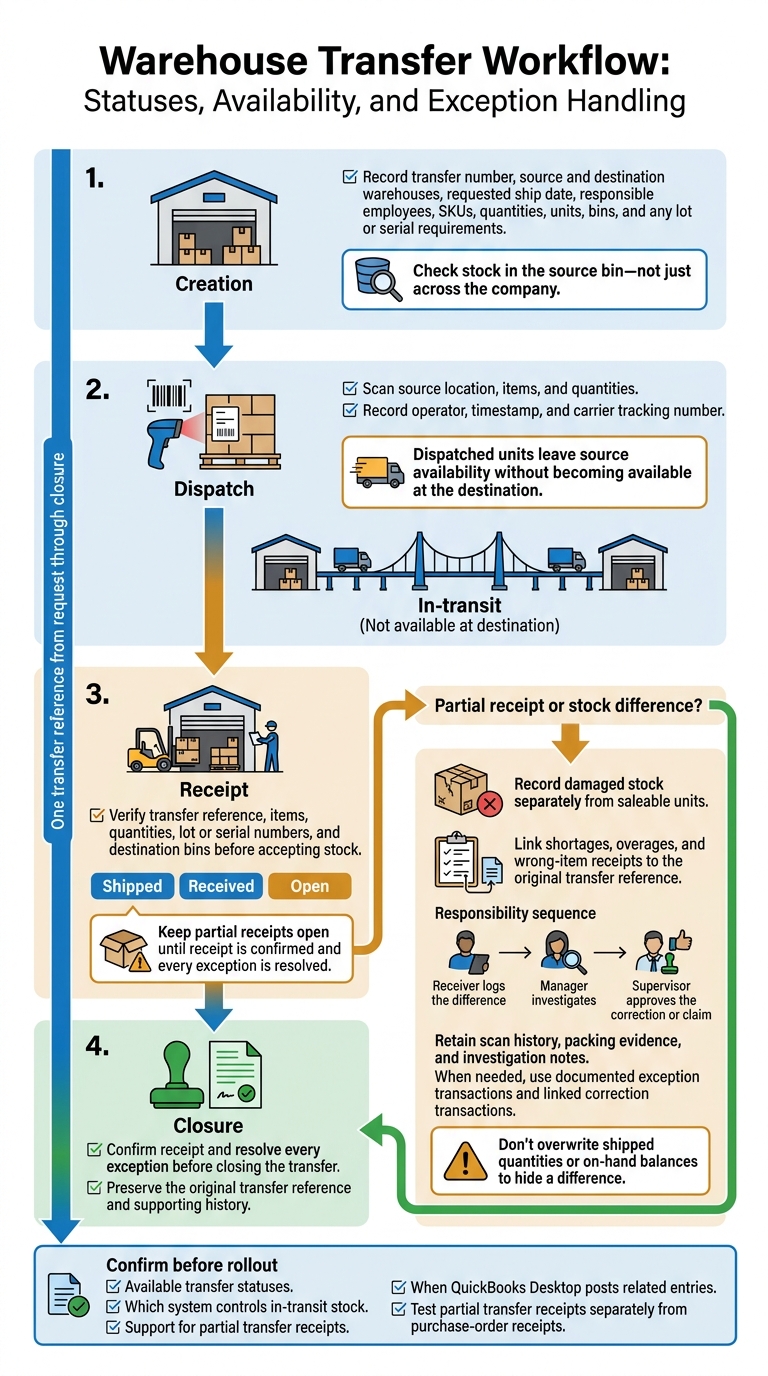
Use one transfer reference from request through closure, or try Rapid Inventory for free to see how it manages multi-warehouse workflows. Rapid Inventory supports transfer tracking and mobile barcode scanning for locations, items, and quantities. During onboarding, confirm the available transfer statuses, how the system handles in-transit stock, and whether it supports partial transfer receipts.
Record Each Transfer Step
Before picking, record the transfer number, source and destination warehouses, requested ship date, responsible employees, SKUs, quantities, units, bins, and any lot or serial requirements. Check stock in the source bin, not just across the company. At dispatch, scan the source location, items, and quantities. Record the operator, timestamp, and carrier tracking number, too.
Make creation, dispatch, receipt, and closure separate status steps. Dispatched units should leave source availability without becoming available at the destination. Before accepting stock, the receiver should check the transfer reference, items, quantities, lot or serial numbers, and destination bins.
Confirm these rules during setup, including which system controls in-transit status and when QuickBooks Desktop posts the related entries.
Handle Partial Transfer Receipts and Stock Differences
Track shipped, received, and open quantities separately. Keep partial receipts open until receipt is confirmed and every exception is resolved. Record damaged stock separately from saleable units, and link shortages, overages, and wrong-item receipts to the original transfer reference. The receiver logs the difference, the manager investigates, and a supervisor approves the correction or claim.
Don't overwrite shipped quantities or on-hand balances to hide a difference. Keep scan history, packing evidence, and investigation notes. When needed, use documented exception transactions and linked correction transactions.
Before rollout, test partial transfer receipts separately from purchase-order receipts.
Track Bins and Set Picking Rules
After transfer control, bin rules keep stock accurate within each warehouse. As you add warehouses, bin-level control keeps location errors from becoming stock errors. Bin records tie each quantity - and any lot or serial number - to a physical storage location. This control relies on label printing, mobile scanning, and FIFO/FEFO picking rules.
Label Bins and Check Stock Movements
Give every warehouse and bin a distinct code, and follow the same naming structure across all warehouses: warehouse, zone or aisle, rack, and bin. Label staging areas, carts, and pack stations, too. Use durable labels and place them within scanning reach.
Item labels should include the SKU barcode. For lot-controlled products, add the lot number and, when relevant, the expiration date. For serialized products, include the individual serial number.
During putaway, scan the destination bin, item, quantity, and any required lot or serial identifier. For bin moves, verify both the source and destination. During picking, scan the assigned bin first, followed by the item and quantity.
If a scan fails, stop the transaction. Check the label and item, then send the exception to a supervisor for review. For each approved exception, record the user, timestamp, locations, quantity, and reason.
Use FIFO, FEFO, Lot, and Serial Controls
FIFO selects eligible stock by receipt age; FEFO selects it by expiration date. Both rules help move the right stock from the right warehouse. Record receipt and expiration dates at receiving, and exclude expired, damaged, held, or unavailable stock before selection.
Minimum shelf life may need its own rule. Picking the stock with the earliest expiration date does not guarantee that it meets a customer’s delivery requirements.
Lot and serial tracking identify stock; FIFO and FEFO set the picking order. Apply lot and serial controls only where required, then scan to verify that the stock matches the FIFO or FEFO selection.
Before go-live, pilot the scan-and-pick workflow. Test an expired lot, a serial mismatch, a partial pick, and insufficient shelf life. Check that rejected scans leave quantities unchanged, approved picks update the correct bin, and identifier history stays intact.
Monitor Stock Across Warehouses
Once transfers and bin moves are under control, reports show where stock is ready to use. Use network totals to plan purchases and site-level availability to decide what each warehouse can ship. These views help separate actual shortages from stock sitting at the wrong warehouse.
Use Stock Reports to Plan Orders and Replenishment
Check that reports include warehouse, bin, SKU, lot/serial, on-hand, allocated, available, damaged/quarantined, on-order, and in-transit quantities. Before relying on the numbers, test the calculations. Confirm which reservations reduce availability, how partial receipts change quantities, and whether transfers are counted only once across the network.
Purchase orders show expected supply - not proof that goods have shipped. Check reorder reports and backorder data before buying more stock. Open sales-order quantities represent stock reserved for customer orders.
Before choosing a ship-from site, check usable availability, customer deadlines, transfer lead times, and lot restrictions. Compare each site’s demand and replenishment threshold with network availability. Transfer surplus stock when the timing and freight cost make sense.
Keep quantity planning separate from accounting valuation. A current warehouse report does not prove that the QuickBooks Desktop sync is complete. Use these reports to spot repeated count errors and shrinkage patterns, too.
Schedule Cycle Counts and Review Stock Errors
Use Rapid Inventory’s cycle-counting workflow to prioritize high-value, serialized, fast-moving, and frequently backordered items. Counts check whether reported quantities match physical stock across sites. Count high-risk items more often and lower-risk stock less often.
Pause movements in the bin being counted when possible. If movements must continue, record their times and reconcile quantities to one cutoff. Before approving an adjustment, recount the stock and check nearby bins, receipts, picks, transfers, returns, damage records, duplicate scans, and unit-of-measure conversions.
Track inventory-record accuracy, pick accuracy, transfer discrepancy rate, receiving-to-availability time, and backorder rate. Give each metric one owner. Review unresolved variances weekly, document root causes, assign due dates, and escalate repeat errors.
Set Up QuickBooks Desktop Sync and Test the New Warehouse
Once warehouse controls are stable, connect them to QuickBooks Desktop. Keep warehouse activity in the inventory system and financial records in QuickBooks Desktop. Assign one owner to each shared record. Rapid Inventory offers two-way QuickBooks Desktop sync, but confirm which records it supports, which way data moves, when it syncs, and how warehouses map before turning it on.
Configure and Test Two-Way Sync
Back up the company file. Then confirm your QuickBooks Desktop edition, version, license, and file access. If you need site-level inventory in QuickBooks Desktop, verify that Enterprise Advanced Inventory is supported and enabled.
Map supported warehouses and accounts. For each record, document its source, sync trigger, approver, and owner responsible for errors. Reconcile quantities and inventory value before going live.
Use a test file or pilot period to test receiving, sales, returns, transfers, partial receipts, and adjustments - one at a time. Check sync direction, quantity and value changes, accounts, and timestamps. Record expected results alongside actual results. Before retrying a failed sync, check whether it already posted.
Run a Pilot at One New Warehouse
After sync testing passes, try the process in one new warehouse before expanding. Use the platform’s free onboarding, training, and support to check that warehouse activity and QuickBooks balances stay aligned.
Set written targets for location accuracy, picking accuracy, transfer completion, and open sync errors. Reconcile daily warehouse activity with QuickBooks quantities, inventory value, and general ledger balances before opening the next site.
Conclusion: Multi-Warehouse Readiness Checklist
Before adding the next warehouse, confirm that you have:
- Separate warehouse and bin codes, reconciled opening counts, and matched transfer dispatches and receipts.
- Approved picking rules, required lot and serial controls, and tested QuickBooks mappings.
- Scheduled cycle counts, backup procedures, and named owners for open issues.
FAQs
How can I prevent overselling across warehouses?
Keep one source of truth across locations with Transfer Orders. Scan items out and mark them “In Transit” when shipped. Add them to the destination only after receipt and reconciliation so the same stock doesn’t appear available at two locations.
For reordering, use available quantities in Inventory Stock Status by Site - not committed or in-transit stock. Set reorder points for each site, standardize Site/Bin names, require Site on every transaction, and run regular cycle counts.
When should I transfer stock instead of reordering?
Transfer stock before placing new purchase orders when one warehouse has extra units and another is running short. Track inventory across locations and set reorder points for each site to spot imbalances early.
Always use your system’s Transfer Inventory workflow. It keeps stock counts and financial records accurate and prevents stock in transit from being counted twice.
How do I resolve inventory mismatches with QuickBooks Desktop?
Compare your physical stock count with the Quantity on Hand by Site report in your system. Fix any differences in the Adjust Quantity/Value on Hand window. Select the correct Inventory Site so your changes apply only to that location.
Assign adjustments to an expense account, such as Inventory Shrinkage or Damage and Loss, to keep a clear audit trail.
Don't use manual adjustments for vendor stock or routine transfers. They bypass established tracking workflows and can lead to more errors.