

I start with three stock figures at each location: on-hand, available, and in transit. Before buying more, I check customer commitments, open purchase orders, and incoming transfers - not just the company-wide total.
My daily checklist is simple:
- Keep records consistent: Use the same SKUs, units, and stock rules across locations.
- Check the data: Review sync status, track transfers through receipt, and compare physical counts with on-hand stock.
- Plan replenishment: Set each location’s reorder point using lead-time demand + safety stock.
- Act on problems: Assign an owner and deadline to shortages, overdue transfers, and count errors.
For QuickBooks Desktop teams, I’d test Rapid Inventory’s web reports and two-way sync with controlled transactions before rollout. The goal: <u>know what each location can supply before promising stock or placing another order</u>.
Build Accurate Inventory Reports by Location
Accurate location reports start with one item record, one location record, and shared stock rules. Use one SKU per sellable item across all locations. Keep descriptions, categories, primary units of measure, pack conversions, and cost methods consistent. Document pack conversions clearly, such as 1 case = 12 each.
Set up each warehouse or store as a separate location. Add bins only when picking or counting calls for more detail. Require the correct location and effective date on every receipt, shipment, transfer, and adjustment.
Live reports include only processed transactions. Display the last sync time and status so users can see how current the data is. Together, these rules keep location reports tied to the same item and stock-status logic.
Understand On-Hand, Available, and In-Transit Stock
Committed units are reserved for unfulfilled demand, such as a customer order, work order, or transfer. Quarantined units are physically present but unavailable because of damage, inspection, quality concerns, expiration, or another hold.
Available stock depends on your configured rules. A common calculation subtracts commitments, quarantine, and safety stock from on-hand quantities. Committed and quarantined quantities can be subsets of on-hand stock, so don’t add them to the physical total.
Match Reports to Inventory Decisions
Give each report a clear purpose rather than using it as a catch-all view. Choose the report that supports the action you need to take.
| Report | Required data | Users and actions | Filters |
|---|---|---|---|
| Quantity by location | SKU, unit, location, on-hand, committed, available, quarantined, in-transit quantities | Planners: review shortages and surplus | Location, SKU, category, date |
| Stock-status report | SKU, location, reason for hold, lot or serial number, expiration or hold date | Warehouse and quality teams: release, quarantine, or investigate stock | Location, SKU, status, date |
| Valuation report | SKU, quantity, unit cost, costing method, location, as-of date | Finance: reconcile inventory assets | Location, SKU, category, date |
| Bin/location detail | SKU, location, bin, lot or serial number, quantity, count status | Warehouse teams: pick, put away, and count units | Location, bin, SKU, lot, serial, status |
| Sales by location | SKU, units sold, net sales, returns, date, location | Replenishment teams: set reorder levels and transfer stock to demand | Location, SKU, category, date |
Label each report by its source: native QuickBooks, customized QuickBooks, or web-based software. QuickBooks report names and availability vary by edition, Advanced Inventory settings, and company-file configuration. Rapid Inventory’s web-based reports for day-to-day inventory work are not native QuickBooks outputs. Check their last sync time and status before reconciling them with accounting reports.
sbb-itb-19ed50f
Keep Transfers and Stock Counts Accurate
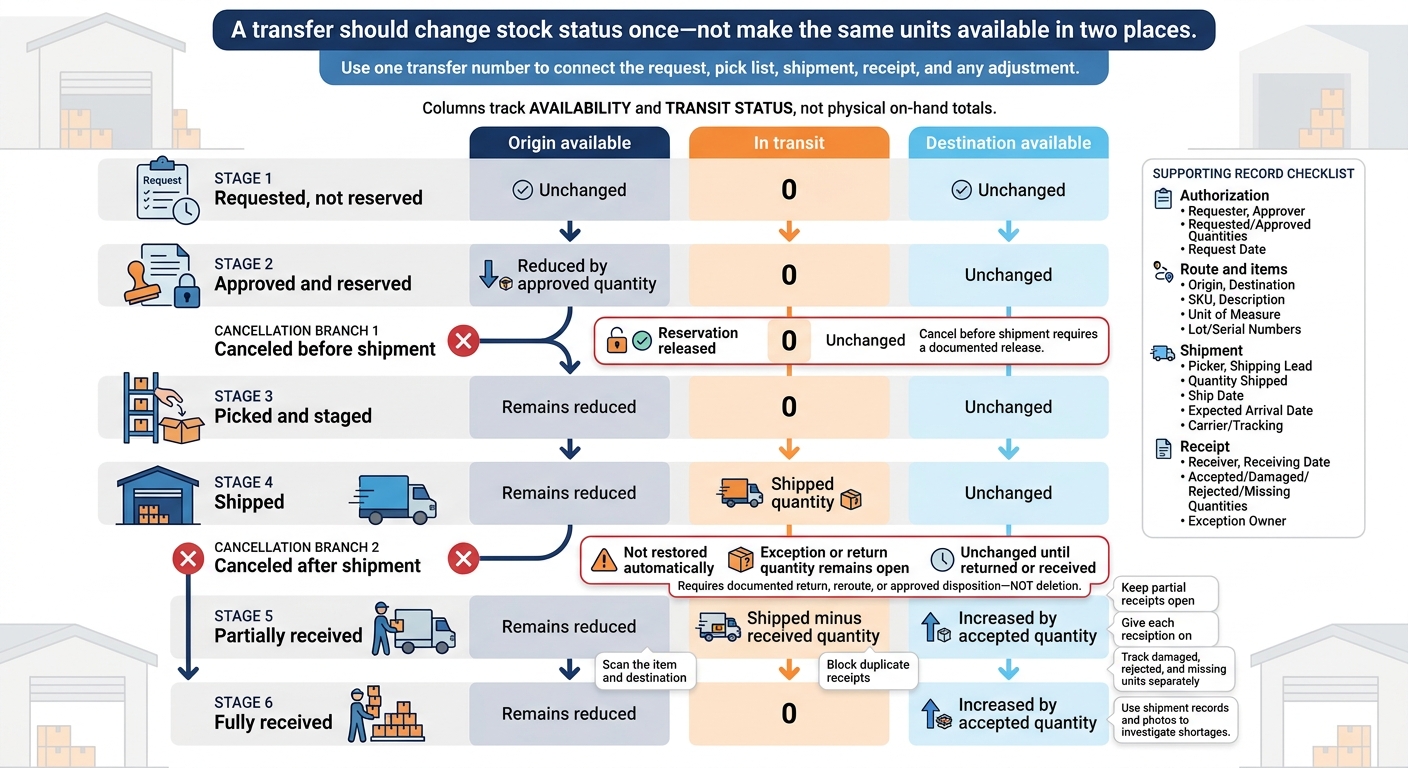
Inventory Transfer Workflow: Track Stock Without Double Counting
Live reports are only accurate when receiving, shipping, and transfer transactions are posted as they happen. These controls keep on-hand, available, and in-transit quantities aligned across locations.
Track Transfers From Request to Receipt
A transfer should change stock status once - not make the same units available in two places. Use one transfer number to connect the request, pick list, shipment, receipt, and any adjustment.
- Authorization: requester, approver, requested and approved quantities, and request date.
- Route and items: origin, destination, SKU, description, unit of measure, and lot or serial numbers when applicable.
- Shipment: picker, shipping lead, quantity shipped, ship date, expected arrival date, and carrier or tracking reference.
- Receipt: receiver, receiving date, accepted, damaged, rejected, and missing quantities, plus an owner for exceptions.
Stick to one reservation model: reserve stock at the origin once, move it to in transit when shipped, and make it available at the destination only after receipt. Track every transfer from approval through receipt so location totals change at the right time.
| Transfer status | Origin available | In transit | Destination available |
|---|---|---|---|
| Requested, not reserved | Unchanged | 0 | Unchanged |
| Approved and reserved | Reduced by approved quantity | 0 | Unchanged |
| Picked and staged | Remains reduced | 0 | Unchanged |
| Shipped | Remains reduced | Shipped quantity | Unchanged |
| Partially received | Remains reduced | Shipped minus received quantity | Increased by accepted quantity |
| Fully received | Remains reduced | 0 | Increased by accepted quantity |
| Canceled before shipment | Reservation released | 0 | Unchanged |
| Canceled after shipment | Not restored automatically | Exception or return quantity remains open | Unchanged until returned or received |
At receipt, scan the item and destination, block duplicate receipts, and keep partial receipts open. Give each exception an owner and due date. Track damaged, rejected, and missing units separately, and use shipment records and photos to investigate shortages. Once stock has shipped, cancellation must create a documented return, reroute, or approved disposition - not delete the transfer.
Verify Stock With Cycle Counts
Use cycle counts to check errors flagged by live reports. Start with high-value, fast-moving, and lot- or serial-controlled items, and set count frequency based on risk and past variances. Count every location and bin, including receiving, staging, returns, quarantine, and damaged-goods areas.
Freeze stock movement in the count area or record it before a cutoff time. Keep expected quantities hidden, scan the bin before the item, check the unit of measure, and record required lot or serial details.
Compare counts with on-hand stock - not available stock. Check pending receipts, picks, transfers, returns, duplicate scans, unit-of-measure conversions, wrong-bin placements, and transactions waiting to sync. Require a second count and separate approval for material adjustments. Retain the original count, reason code, approver, timestamp, and before-and-after quantities.
Review count history weekly by SKU, bin, shift, and process. Repeated wrong-bin errors point to labeling or put-away gaps; transfer shortages point to shipping and receiving gaps. Correct stock balances so reorder and transfer decisions use actual quantities rather than stale records.
Use Live Reports to Reorder and Move Stock
Set Reorder Rules by Location
Once location counts are accurate, use live reports to decide what to buy, transfer, or hold. Calculate each location’s reorder point: lead-time demand + safety stock.
Use the same unit of measure for demand and stock. Update assumptions when demand, lead time, seasonality, promotions, or service targets change. Base safety stock on demand and lead-time variability - not an arbitrary percentage.
Before ordering, compare on-hand, committed, backorder, open PO, and inbound transfer quantities. Count each quantity once. Inbound stock helps with planning, but it isn’t available until received. Check arrival dates against demand dates, then size orders to fit storage capacity, minimum order quantities, and case packs.
| Decision | Use when | Required checks | Limits |
|---|---|---|---|
| Supplier purchase | No location has enough surplus to cover demand | Supplier lead time, open POs, price, budget, minimum order quantity, case pack | May arrive too late or create excess stock |
| Transfer | Another location can supply stock sooner or at lower cost | Source available quantity, reservations, transfer lead time, lot or serial requirements, transportation capacity | Doesn’t create new stock; may shift the shortage |
| Expedited replenishment | Standard replenishment will miss demand | Quantity, delivery date, premium freight, margin, approval | Requires an approved cost ceiling |
| No action | Supply covers demand through the next replenishment | Transaction status, receipt timing, forecast, how current the report is | Monitor until receipt |
With reorder rules in place, use exceptions to spot where the plan is slipping.
Review Daily Stock and Transaction Exceptions
Check daily for stockout risk, low stock, backorders, excess or aging stock, overdue transfers, negative balances, and large variances. Give each exception an item, location, quantity, financial impact, owner, and deadline.
Purchasing follows up on supplier receipts for affected locations. Logistics handles delayed transfers, warehouse leads investigate local discrepancies, and customer service updates backorder commitments.
Set response times by risk. Escalate critical items facing a stockout within 48 hours the same day. Review transfers that are one business day overdue, and schedule weekly decisions on transferring or reducing aging stock. Record each action, approval, expected completion date, and outcome.
Define metrics before setting targets. Use one definition of a stockout event across locations and state the unit-cost basis:
- Stockout frequency = stockout events ÷ item-location periods reviewed.
- Excess inventory value = units above the approved coverage threshold × unit cost.
- Transfer aging = shipment-to-receipt time vs. expected transfer lead time.
- Count accuracy = counted records within tolerance ÷ total counted records.
Review results by location and item class to prioritize replenishment, surplus transfers, overdue receipts, and count investigations. Reducing shortages and surplus takes accurate records, reliable demand and lead-time data, and completed follow-up - not just a look at the report.
Use Rapid Inventory With QuickBooks Desktop
Live reports help teams turn location-level stock data into purchase and transfer decisions. Rapid Inventory gives QuickBooks Desktop teams web access to multi-location stock and live reports covering on-hand, on-order, on-sales-order, value, and reorder data. Two-way QuickBooks sync, barcode scanning, cycle counting, backorder tracking, lot and serial tracking, and FIFO/FEFO picking support daily inventory control.
Before relying on these reports, validate location records and starting balances, test two-way sync, and set role-based permissions for receiving, transferring, adjusting, and viewing stock. During onboarding, confirm the edition, version, and hosting setup so teams can use reports, sync, and access controls to base purchase and transfer decisions on current location records.
Conclusion: Make Inventory Reports a Daily Routine
A consistent report structure makes daily work simpler. For daily reports to work, standardize item IDs, units, location/bin records, transaction statuses, and exception ownership across locations.
Once those rules are in place, pilot one location, then add a second. Check transfers, counts, and sync before expanding. If your team uses QuickBooks Desktop, test Rapid Inventory with controlled receipts, transfers, sales, and adjustments before rollout.
After validation, assign one owner per exception and review open items daily so they don’t pile up. After a few weeks of demand and lead-time data, reset reorder thresholds by location to help reduce shortages and overstock.
FAQs
How can I prevent overselling during sync delays?
Connect your sales channels and warehouses through a centralized, real-time inventory management system. An “Available to Promise” calculation factors in physical stock and customer commitments, so only inventory you can sell appears in your listings.
Automatically reserve items or mark them unavailable when a customer places an order or picking starts. Use mobile barcode scanning to record stock movements, receipts, and transfers instantly, keeping inventory data accurate across locations.
How do I set reorder points for a new location?
Open your Inventory Site List and use the Set Reorder Points activity to set thresholds based on each location’s demand and lead times.
Configure each site separately. Site-specific reorder points don’t automatically combine into a global threshold.
Calculate each site’s reorder point using this formula:
Reorder point = (lead time to the location × average daily demand at that site) + site-specific safety stock
When should I transfer stock instead of buying more?
Transfer stock when real-time inventory reports show excess stock at one warehouse and low supplies at another. Moving surplus stock balances inventory without new purchase orders. It also cuts carrying costs, lowers stockout risk, and keeps capital from sitting in idle products.
Rapid Inventory shows real-time stock quantities at each location, so you can act quickly.



