
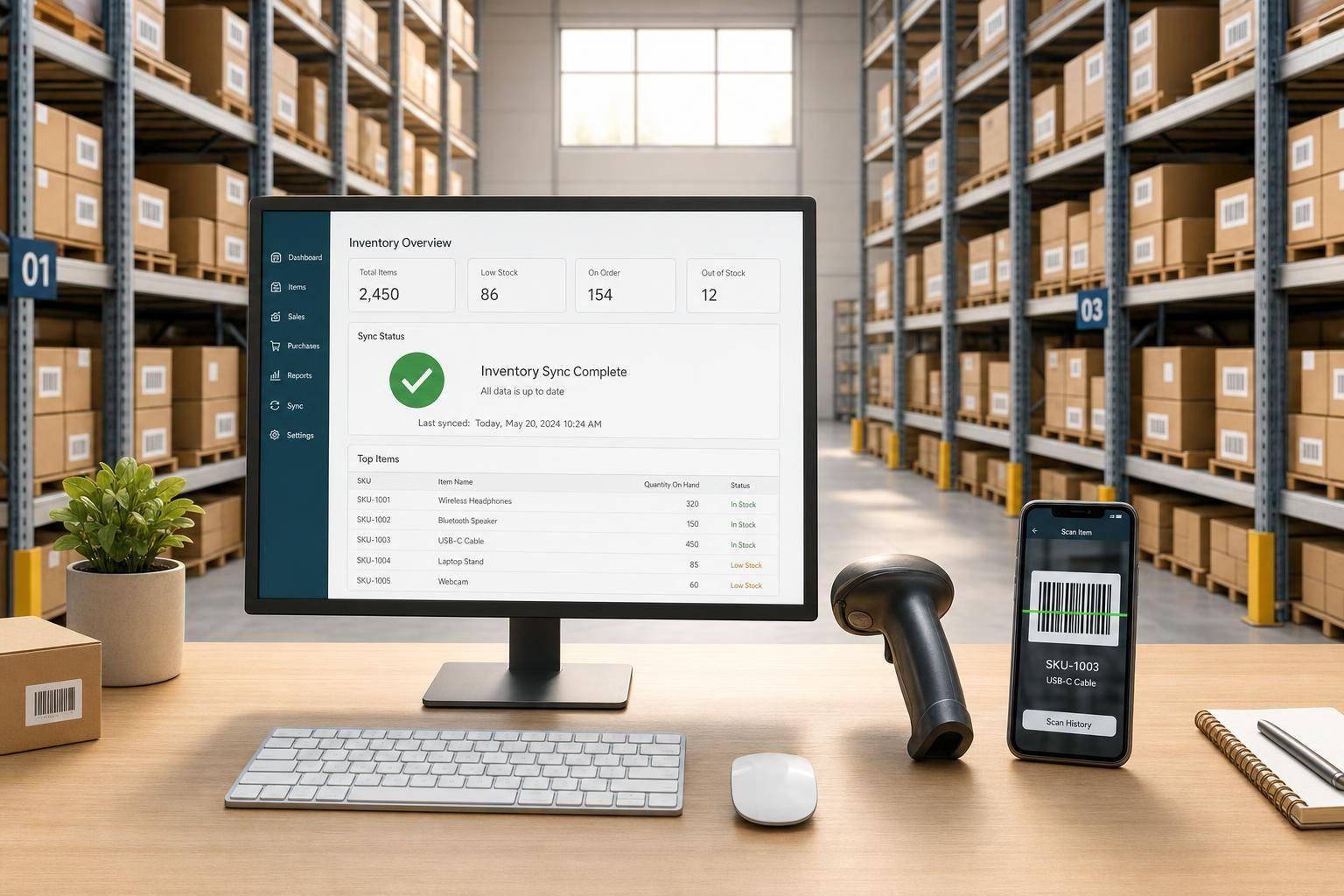
If mobile inventory sync is set up the right way, I can scan work on the warehouse floor and send it back to QuickBooks Desktop without typing it twice. The short version is simple: I need QuickBooks Desktop Enterprise with Advanced Inventory, clean site/bin/barcode setup, controlled device access, and a set sync schedule.
Here’s what matters most:
- QuickBooks Desktop is the system of record
- Mobile devices handle scans for receipts, picks, transfers, and counts
- Sites, bins, and barcodes must match the physical warehouse
- Counts should be reviewed before posting when variances are large
- Syncs often work best every 1–2 hours for busy teams
- Daily cycle counts can improve accuracy - one example in the article shows inventory accuracy moving from 88% to 97% in six months
- Web access helps managers review receipts, backorders, transfers, and count progress without opening QuickBooks
In plain terms, I’d think about this process in four parts:
-
Set up QuickBooks first
Turn on multi-site inventory, bin tracking, and barcodes. Make sure each item and location has the right code. -
Run warehouse work on mobile
Use handhelds to receive purchase orders, pick sales orders, move stock, and count inventory. -
Control sync timing
Sync after large receiving or picking waves, or every couple of hours, so quantities do not drift too far from what is on the floor. -
Watch for errors
Check failed or pending syncs, avoid reposting the same batch, and use batch IDs and daily cutoffs to keep data clean.
The article also makes one point very clear: mobile scanning alone is not enough. If locations are messy, barcodes do not match, or sync review is skipped, duplicate posts, stale quantities, and wrong-bin picks can follow.
If I were summarizing the whole guide in one sentence, it would be this: set up locations and barcodes cleanly, scan each warehouse move at the point of work, sync on a schedule, and review exceptions the same day.
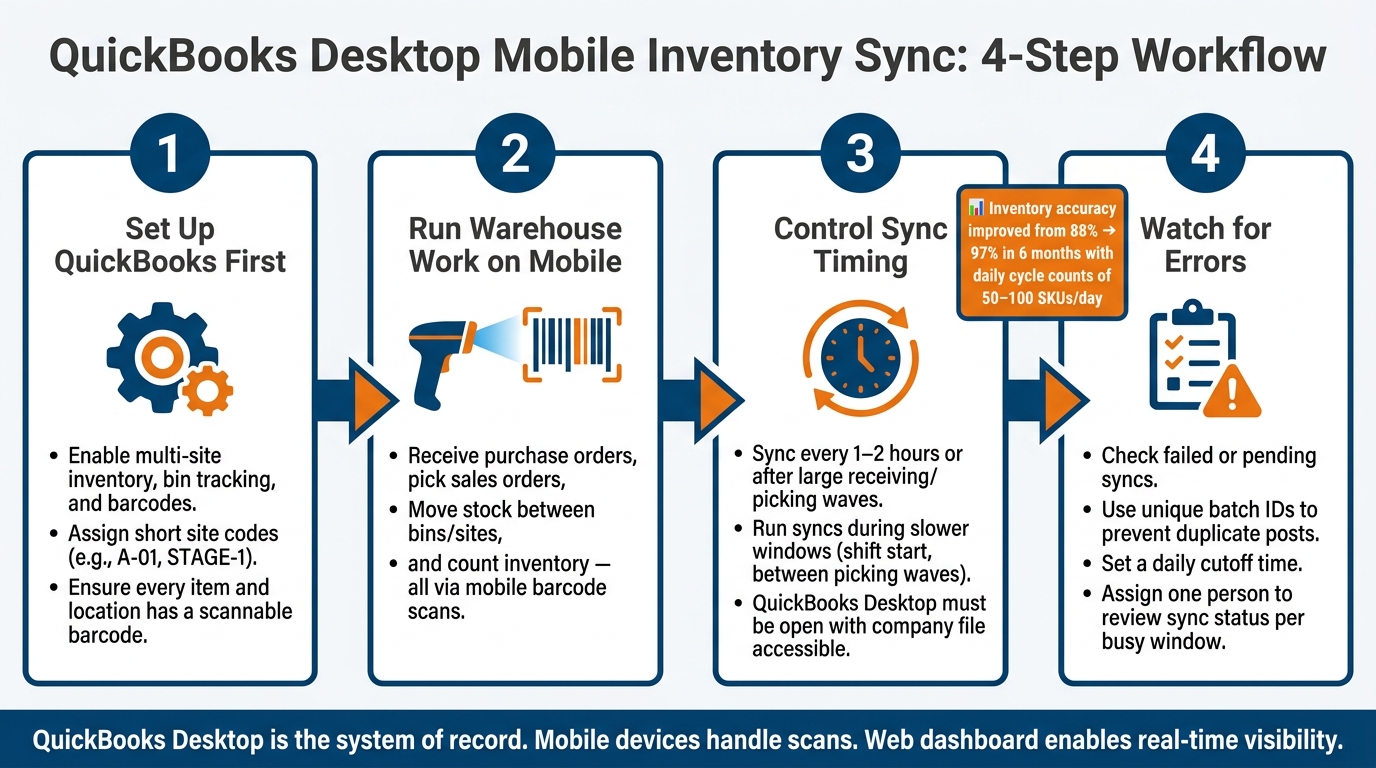
QuickBooks Desktop Mobile Inventory Sync: 4-Step Workflow
Simplify inventory and fulfillment with mobile barcode scanning | QuickBooks Enterprise
sbb-itb-19ed50f
Set up devices, sites, bins, and barcode scanning
Reliable mobile sync starts with lining up QuickBooks locations, barcodes, and device access with how your warehouse is set up on the floor.
Enable barcodes and organize inventory locations
Use one item field as your barcode key. In most cases, that’s Item Name or Part Number. Then create short site and bin codes like A-01 and STAGE-1.
Every physical spot where inventory can sit should have a scannable code. That said, keep the naming system short and easy to learn. If a picker or receiver can get it in one training session, you’re in good shape.
Once barcodes and locations are in place, the next move is to match each mobile device to the right warehouse task.
Connect mobile devices to the QuickBooks workflow
Pair each device with the Site Operations passcode, set user permissions, and test a small batch before go-live. It’s a simple step, but it can save a lot of cleanup later.
Also check that your scanner sends a line break after each scan. That lets the workflow move forward without extra keystrokes. If staff only need receiving, picking, transfers, or counts, give them access to those tasks only. There’s no need to hand out full desktop access.
After the devices are paired, the floor team can start receiving, picking, transferring, and counting stock.
Where Rapid Inventory fits
Rapid Inventory fits into this setup by linking mobile barcode scanning to QuickBooks Desktop through web-based warehouse access. It adds mobile barcode scanning, two-way QuickBooks Desktop sync, multi-warehouse and bin tracking, and native web access.
Run core warehouse workflows on mobile
Once devices are paired and locations are mapped, the warehouse team can handle day-to-day work on mobile and sync it back to QuickBooks Desktop. The three main workflows are receiving, picking, and transferring stock.
Receive purchase orders and sync item receipts
Receiving starts when a user opens an open purchase order on the mobile device. The receiver sees the expected items and quantities, scans each item barcode to confirm the correct SKU, enters the quantity received, and picks the destination bin or location.
After the task is submitted, QuickBooks Desktop creates an Item Receipt tied to the original PO. That receipt updates on-hand quantity, average cost, and the vendor bill match. If there are shortages or damaged goods, log them before submitting so the PO balance stays right.
If your business tracks lot or serial numbers, record those during receiving so you have traceability later.
Pick sales orders with barcode scans
Open Sales Orders create pick lists on the device. Each list shows the customer, item, quantity, and bin location. The picker scans the bin barcode first, then the item barcode, and then enters the quantity. That scan order helps catch wrong-bin and wrong-item mistakes before shipment.
If a line can't be filled in full, the picker records the partial quantity and chooses a reason, such as out of stock, damaged, or reserved. That status syncs back to the Sales Order, so shipping and customer service can see which lines are complete, partial, or still open.
Rapid Inventory supports FIFO and FEFO picking: oldest stock first, or the lot that expires soonest first.
Transfer stock between warehouses and bins
Transfers begin with a request that sets the source location, destination, items, and quantities. On the device, the user scans the items being moved, confirms the quantity, and then scans the destination bin to finish the move. Scanning both the source and destination helps keep location data accurate.
When the sync runs, QuickBooks Desktop posts an Inventory Transfer entry that reduces quantity at the source site and increases it at the destination. Skip that step, and pickers may pull from the wrong site and miss ship dates.
From here, mobile counts help keep inventory accurate between transactions.
Next, use cycle counts and sync timing to catch the changes these transactions miss.
Update counts and manage sync timing
After receiving, picking, and transfers, cycle counts help catch the gaps those transactions can leave behind.
Run cycle counts and quantity updates from mobile devices
On mobile, cycle counts follow a straightforward process: choose a site or bin, scan the bin, scan each item, and enter the count. The variance then posts to QuickBooks Desktop as either an inventory adjustment or an on-hand update, depending on the workflow.
The warehouse team records the count on mobile, and then a back-office user reviews it before anything posts. For high-value or fast-moving items, it’s smart to review large variances before approval. If a variance looks off by too much, do a recount first.
It also helps to count in small daily batches during normal operations. For smaller warehouses, that usually means 15–30 SKU-location counts per day. For mid-size operations, it’s often 40–80. Smaller batches are easier to track, and they make it simpler to find and fix discrepancies.
Once the counts are in, sync timing decides when those updates reach QuickBooks Desktop.
Choose a sync schedule that fits warehouse flow
A good rule of thumb is to sync every 1–2 hours, or after big receiving and picking waves, so QuickBooks Desktop stays close to what’s actually on the floor. Try to run syncs during slower windows, like the start of a shift or between picking waves, so syncing doesn’t get in the way of active warehouse work.
QuickBooks Desktop also needs to be open, with the company file available, during each sync window. If the file isn’t accessible, the sync can’t post changes.
| Sync schedule | Inventory accuracy | Team workload | QuickBooks performance |
|---|---|---|---|
| Daily sync | Lower same-day visibility; higher risk of stale quantities between updates | Fewer sync events to manage, but more cleanup if issues build up | Less frequent impact on the QuickBooks workstation, but larger sync batches |
| Hourly sync | Better same-day accuracy and faster updates for receiving, picking, and transfers | More frequent review and coordination during the day | More frequent system activity, but smaller sync batches each time |
A small warehouse with low daily transaction volume can often live with daily syncs. A busy multi-shift operation, especially one with frequent receiving and same-day fulfillment, usually does better with hourly synchronization.
One warehouse case study found that inventory accuracy improved from about 88% to 97% within six months after moving from infrequent full counts to daily cycle counting of 50–100 SKUs per day.
Prevent duplicate or stale inventory updates
After a network interruption, check the sync log or dashboard before resubmitting. If you skip that step, the same transaction can post twice.
It also helps to put one person in charge of sync status during each busy window. That person should review pending, failed, or queued transactions after each sync batch and clear exceptions the same day. Use unique batch IDs so both systems can catch duplicates before posting.
Set a cutoff time for same-day posting so late transactions don’t slip into the next accounting day. Without a cutoff, desktop users pulling quantities from QuickBooks Desktop may end up working from stale data while mobile transactions are still waiting to sync.
A live dashboard helps surface pending exceptions before they turn into cleanup.
Use web access for warehouse visibility and wrap up
Review inventory activity from anywhere
Once your sync schedule is set, web access gives supervisors a live view of what’s happening in the warehouse. A web dashboard makes it easy to watch receipts, picks, transfers, and count progress from anywhere.
Supervisors can log in from any browser and catch delayed transfers, slow-moving counts, or backorders that start to climb the very same day. No need to wait for an end-of-day report to see that something’s off.
That kind of visibility matters even more when the warehouse team does the work in the same browser-based system they use to review it.
How Rapid Inventory supports web-based warehouse work
Rapid Inventory runs in a browser and syncs receipts, picks, transfers, and count updates back to QuickBooks Desktop through the Web Connector. That means warehouse teams can do their work in the browser instead of inside the desktop app, while QuickBooks stays the system of record.
From the web interface, managers can:
- Monitor real-time on-hand quantities by site and bin
- Review open backorders with expected receipt dates
- Track cycle count progress across locations
Lot and serial number tracking is also available on the web. So if a supervisor needs to confirm which lots were used for a pick or counted during a cycle count, they can do that without opening QuickBooks.
When mobile capture, scheduled syncs, and web visibility work together, the process stays accurate from start to finish.
Conclusion: Key steps for accurate QuickBooks Desktop mobile sync
Accurate mobile sync comes down to a steady process. Set up Advanced Inventory with the right sites, bins, and tracking options. Organize locations with clear names and labels. Capture receipts, picks, transfers, and counts at the point of activity with barcode scans. Run syncs on a set schedule, and avoid manual QuickBooks edits between syncs. Then use the web dashboard to spot issues before they hit fulfillment or inventory balances.
That chain is simple: scan on mobile, sync to QuickBooks Desktop, review in the web dashboard, and fix issues fast. When each step happens the same way every time, the warehouse stays accurate and runs with less friction.
FAQs
What if my sync fails mid-day?
Don’t worry - your data is usually queued and will sync on its own once the connection comes back.
If your internet cuts out or your PC restarts, you may need to reopen your sync tools or reconnect to the service. That part is pretty normal.
If the problem keeps happening, check the integration logs for error codes like inactive items, missing data, or closed periods. And if you’re handling setup tasks, make sure your system is in Single-User Mode.
How do I avoid duplicate inventory posts?
Before you sync, clean up duplicate item entries in QuickBooks Desktop. That gives you a cleaner starting point and helps cut mix-ups later. It also helps to keep naming rules and data formats the same in both systems, then map each QuickBooks item to its matching record in Rapid Inventory.
Use mobile barcode scanning to cut down on manual entry mistakes. On top of that, compare QuickBooks reports with Rapid Inventory on a regular basis so you can spot and fix mismatches fast.
When should I choose hourly syncs?
Hourly syncs usually aren’t needed when real-time integration is in place. Rapid Inventory uses automatic, two-way syncing to update QuickBooks Desktop as transactions happen - like when items are received or picked.
That means you don’t have to wait for batch updates to catch up. Real-time syncing cuts down on delays that can lead to overselling, stock mismatches, and stale reports. It also helps keep inventory counts, costs, and warehouse activity aligned across both systems.



