
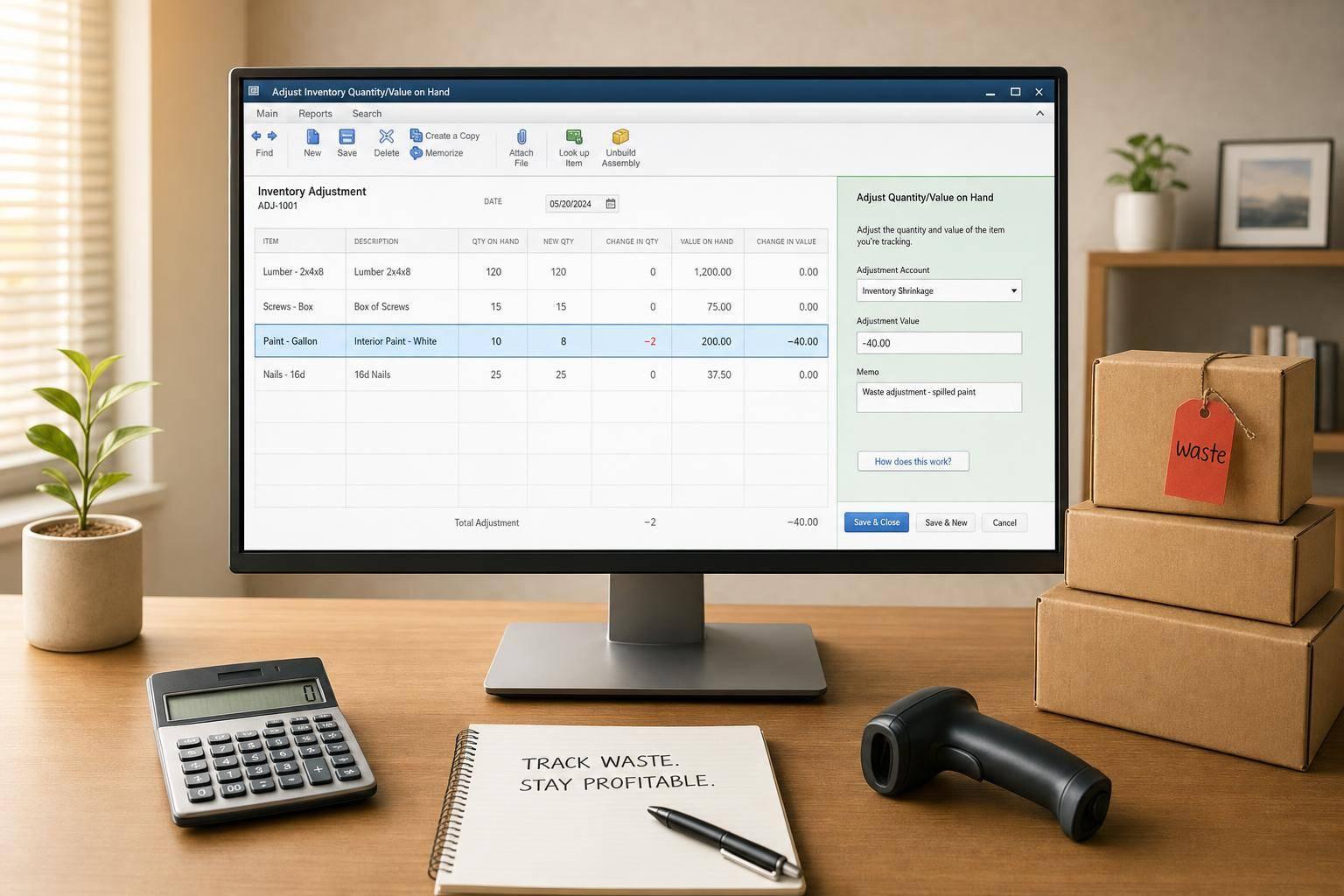
If inventory leaves your shelf without a sale, I record it as a separate inventory adjustment in QuickBooks Desktop. That keeps Inventory Asset from staying too high and keeps waste costs from being buried. In plain terms: I set up a spoilage or shrinkage account, use Adjust Quantity/Value on Hand, enter a negative quantity, and match the entry to the warehouse record.
Here’s the short version:
- Waste is not a sale or return
- I post waste to a separate COGS or expense account
- I use the Memo field for fixed reason codes like Damaged, Expired, Spoiled, or Missing/Shrinkage
- I choose the right adjustment type:
- Quantity for unit write-offs
- Quantity and Total Value when count and dollar amount both change
- Total Value when only value changes
- I confirm the entry in:
- Inventory Valuation Summary
- Inventory Stock Status by Item
- Profit & Loss
A missed waste entry can distort margins and inventory totals by 100% of that item’s lost value. For example, if $2,500 of expired stock is never written off, inventory stays overstated by $2,500 and the loss stays off the P&L.
| Task | What I do | Why it matters |
|---|---|---|
| Set up account | Create Inventory Spoilage or Inventory Shrinkage | Keeps write-offs separate |
| Record waste | Use Adjust Quantity/Value on Hand | Lowers stock in QuickBooks |
| Add reason | Use a fixed memo format | Makes entries easier to review |
| Match records | Tie QuickBooks to warehouse notes | Keeps book stock and shelf stock aligned |
| Review reports | Check valuation and P&L | Confirms the write-off posted right |
Bottom line: I treat every waste event like a tracked inventory loss, not a side note. That gives me a clear trail, cleaner reports, and stock counts that match what’s on hand.
How to Manage Inventory Loss in QuickBooks Desktop
sbb-itb-19ed50f
Set Up Accounts and Reason Codes Before Making Adjustments
Once you know waste needs to be tracked on its own, do one simple thing before posting any write-offs: set up a dedicated account and a fixed memo format. If you skip that step, entries tend to get scattered, and reports turn messy fast.
Create a Spoilage or Inventory Adjustment Account
In QuickBooks Desktop, go to Lists → Chart of Accounts, click Account → New, and choose Cost of Goods Sold as the account type. Give the account a clear name, such as Inventory Spoilage or Inventory Shrinkage. If you want the loss grouped with other inventory costs, check Subaccount of and select your main Cost of Goods Sold account.
Standardize Reason Codes for Warehouse and Accounting Teams
QuickBooks Desktop doesn’t include a built-in reason code field, so the Memo field does that job. The key is to use the same wording every time. A short fixed set usually works best:
- Damaged
- Expired
- Spoiled
- Missing/Shrinkage
Those labels cover the most common write-off cases for U.S. businesses.
For the memo itself, stick to one format: waste type, SKU or lot, quantity, and date. For example: "Waste – Expired – 10 units of Lot #ABC123, past 09/15/2026 expiration." If notes are vague, your reporting becomes much harder to sort through.
Table: Adjustment Account Options and Their Reporting Impact
Use the table below to line up the account type with where you want waste to show on the Profit & Loss.
| Account Name | Account Type | P&L Section | Best Use Case |
|---|---|---|---|
| Inventory Adjustments | Cost of Goods Sold | Cost of Goods Sold | General-purpose write-offs; covers all adjustment types in one account |
| Inventory Spoilage | Cost of Goods Sold | Cost of Goods Sold | Perishable products that regularly expire or spoil; shows true gross margin |
| Inventory Damage | Expense | Operating Expenses | Highlights avoidable handling or storage damage as a separate operating cost |
| Inventory Shrinkage | Expense or COGS | Operating Expenses or COGS | Isolates theft, miscounts, and missing stock; supports loss prevention reviews |
Where you put the account changes where the waste appears on the P&L. A COGS subaccount keeps waste inside cost of goods sold. An Expense account puts it below gross margin.
Record Spoiled, Damaged, or Expired Stock in QuickBooks Desktop
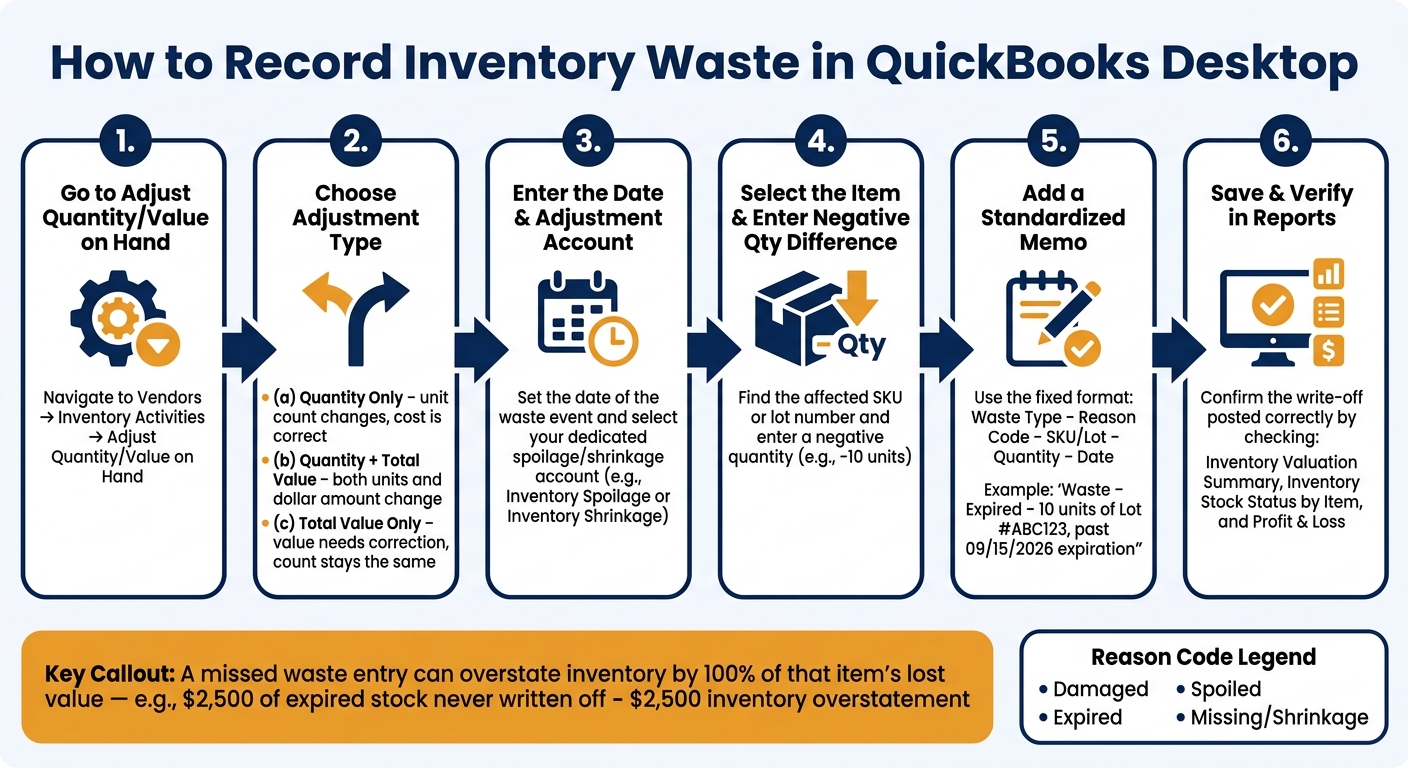
How to Track Waste in QuickBooks Desktop: Step-by-Step Workflow
Use Adjust Quantity/Value on Hand for Item-Level Write-Offs
If you're writing off stock at the item level, use Adjust Quantity/Value on Hand.
Go to Vendors → Inventory Activities → Adjust Quantity/Value on Hand. Select Quantity for a simple write-off, Quantity and Total Value if both the unit count and dollar value need to change, or Total Value if only the value needs to be updated. Enter the date, choose the spoilage or shrinkage account you set up earlier, find the item, enter a negative Qty Difference, add the memo, and save.
Once the entry is saved, check the item quantity and confirm the posting on your Profit and Loss report.
Handle Expired Lots, Partial Damage, and Value-Only Changes
Use a quantity-only adjustment when the number of units on hand changes, but the per-unit value in QuickBooks is already right. For spoiled, damaged, or expired stock, this is usually the right move.
Use a quantity plus value adjustment when both the quantity and inventory value need to change. This fits cases where stock is only partly damaged and some units can still be sold for less, or when an earlier entry used the wrong cost.
Use a Total Value adjustment when the quantity stays the same but the inventory value needs to be fixed. A common example is a cost-entry mistake or an approved revaluation. This updates the average cost of the remaining units without changing the count.
For expired lots, write off only the affected units by using the lot number. In QuickBooks Desktop Enterprise with Advanced Inventory, choose the lot number tied to the expired or damaged stock, enter a negative quantity, and post it to the spoilage account. Add the lot ID and expiration date in the memo. Then run a lot-number report to make sure that lot was reduced or cleared out.
Table: Quantity-Only vs. Quantity-and-Value Adjustments vs. Journal Entries
| Method | What It Changes | When to Use It | Key Tradeoff |
|---|---|---|---|
| Quantity-only adjustment | Units on hand; value is based on the current cost | Routine spoilage, damage, or expiration when the per-unit cost is already right | Easy to enter and keeps item-level detail |
| Quantity plus value adjustment | Units on hand and total inventory value | Partial damage write-downs, cost corrections, or approved revaluations | Gives more control over the dollar amount, but you need the right value |
| Journal entry | General ledger balances only | Period-end estimates or unusual cases where item-by-item detail isn't practical | Does not update item quantities or lot details |
Journal entries affect the general ledger only. They do not update item quantities or lots.
After posting the adjustment, compare it with the warehouse count so your books and physical inventory match.
Keep Warehouse Records and QuickBooks Desktop in Sync
After you post the adjustment, tie the warehouse write-off back to the matching entry in QuickBooks Desktop. That final check matters. If the floor says one thing and the books say another, small errors can pile up fast.
Use a Basic Waste Reporting Workflow
When waste is found, move it to a hold area first. Then record the item, quantity, location, lot or serial number, date, and reason code. Before anyone posts the adjustment in QuickBooks, get supervisor approval. In the QuickBooks memo, use the same reason code and the same lot or serial ID so both records line up.
Once the item is logged and approved, verify the loss in your reports before the next count. That gives your team a clean trail and helps stop the same issue from showing up again later.
Review Reports to Confirm Books Match Physical Stock
Review Inventory Valuation Summary, Inventory Stock Status by Item, and Profit & Loss to make sure the write-off lowered inventory and increased spoilage expense by the same amount. If those numbers don’t match, treat it as a sign to dig in before the next reconciliation cycle.
Use Rapid Inventory to Cut Manual Waste Tracking Steps
If your team is still retyping waste details by hand, inventory management software for QuickBooks Desktop can reduce errors right where they start. Rapid Inventory lets staff record waste at the shelf with mobile barcode scanning and sync approved adjustments to QuickBooks Desktop.
That also helps when you manage more than one site. Multi-location tracking makes sure each write-off goes to the right location, while FIFO/FEFO and lot tracking help your team pinpoint the exact stock that needs to be written off.
Conclusion: Build a Repeatable Waste Tracking Process
Posting the write-off is only part of the job. For this to work day after day, every inventory adjustment needs to follow the same rules.
That means using dedicated adjustment accounts like Inventory Spoilage or Inventory Shrinkage so each write-off stays visible in its own account. It also means using the same reason codes every time, so your team can spot patterns in recurring loss types. When you combine clear accounts, consistent reason codes, disciplined use of Adjust Quantity/Value on Hand, and regular reconciliation, waste stops being a vague problem. It becomes something you can track and cut down.
The aim is simple: traceable write-offs and matching reports. Every physical loss in the warehouse should have a matching entry in QuickBooks Desktop. Your Inventory Valuation Summary and Profit & Loss should match what’s actually sitting on the shelf.
Start by setting up the right accounts and reason codes. Then train your team on the adjustment workflow and put a reconciliation schedule on the calendar - weekly for high-volume operations, monthly for everyone else.
FAQs
Should waste go to COGS or an expense account?
Waste should be recorded to a COGS account, ideally a dedicated one like Inventory Adjustments. That's the best way to track shrinkage, damage, and expired stock.
This keeps inventory losses visible on your Profit and Loss statement and leaves a clear audit trail. Do not post these adjustments straight against the Inventory Asset account.
When should I use a journal entry instead of an inventory adjustment?
You should never use a manual journal entry to adjust inventory in QuickBooks Desktop.
A journal entry can change the Balance Sheet, sure. But it won't update the item-level data that feeds the Inventory Valuation Summary. And that's where things start to go sideways.
Instead, use Adjust Quantity/Value on Hand under Vendors > Inventory Activities.
That tool updates inventory the right way, so your inventory reports and financial statements stay aligned.
How often should I reconcile waste entries with warehouse records?
Reconcile waste entries on a regular schedule. Do cycle counts at least weekly to keep a close eye on day-to-day stock movement, and complete a full physical reconciliation at month-end before financial reporting.
After each count, fix any quantity or value gaps in QuickBooks with Adjust Quantity/Value on Hand. Then check your inventory reports to make sure the totals line up.



