
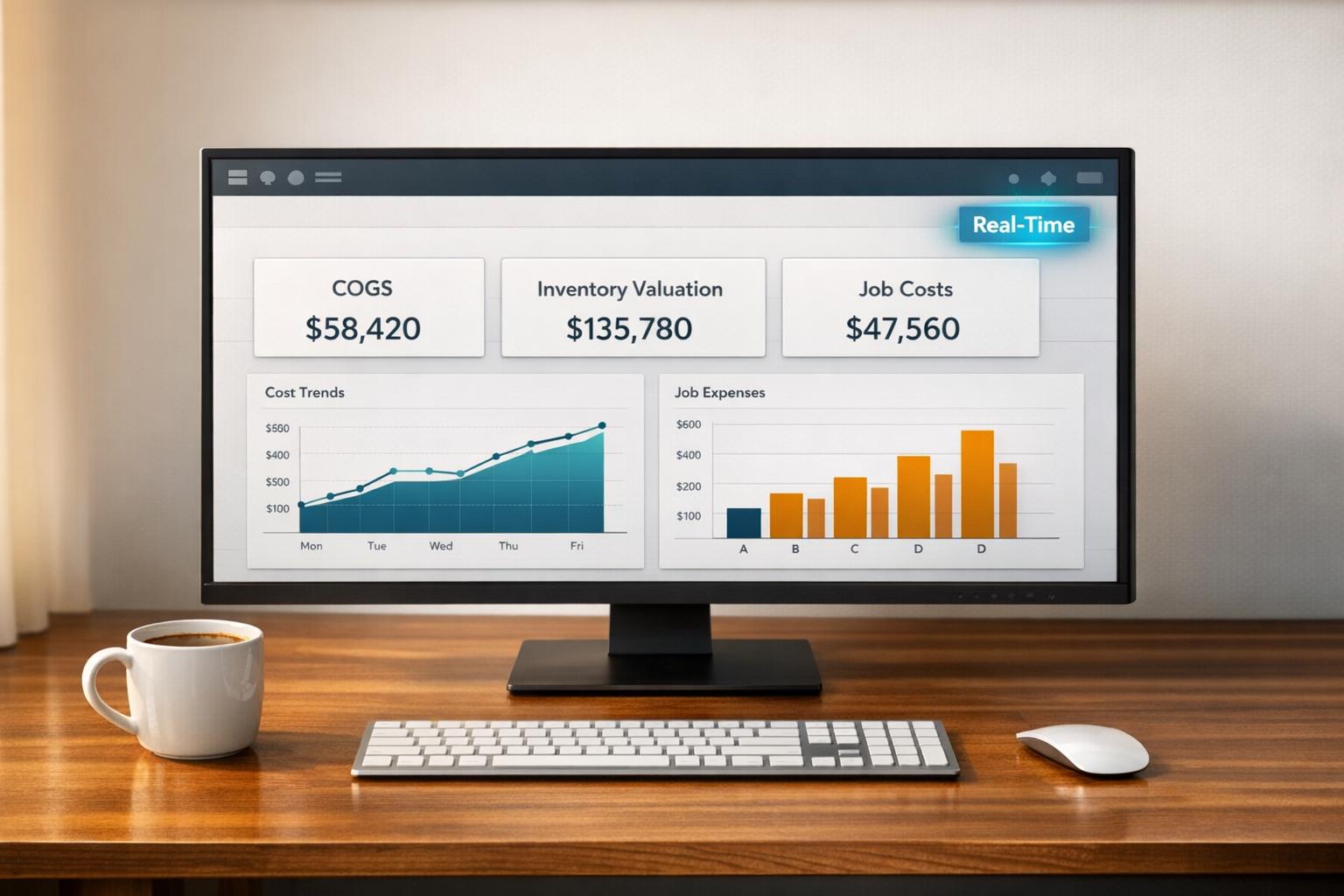
Real-time cost reporting in QuickBooks Desktop ensures your inventory costs and financial data are updated immediately using the Moving Average Cost (MAC) method. This system recalculates inventory costs automatically after every purchase, providing accurate insights into your Cost of Goods Sold (COGS) and Inventory Asset accounts.
Key Takeaways:
- Why It Matters: Up-to-date cost data helps identify profitable products, avoid errors, and make informed decisions without waiting for month-end reports.
- Challenges: Issues like non-posting timesheets, manual expense matching, and limited reporting tools in some versions can hinder cost visibility.
- Setup Steps: Enable job costing, configure inventory items, and use the Items tab for accurate tracking of costs and revenues.
- Advanced Tools: Add-ons like Rapid Inventory can automate tracking and improve real-time visibility for businesses with complex inventory needs.
This guide explains how to set up real-time cost tracking, tackle limitations, and use reports for better inventory and job profitability management.
Average Cost vs. FIFO Cost with QuickBooks Inventory
To manage these costs effectively, you can try Rapid Inventory for free and see how it integrates with QuickBooks Desktop.
sbb-itb-19ed50f
Setting Up Real-Time Cost Reporting in QuickBooks Desktop

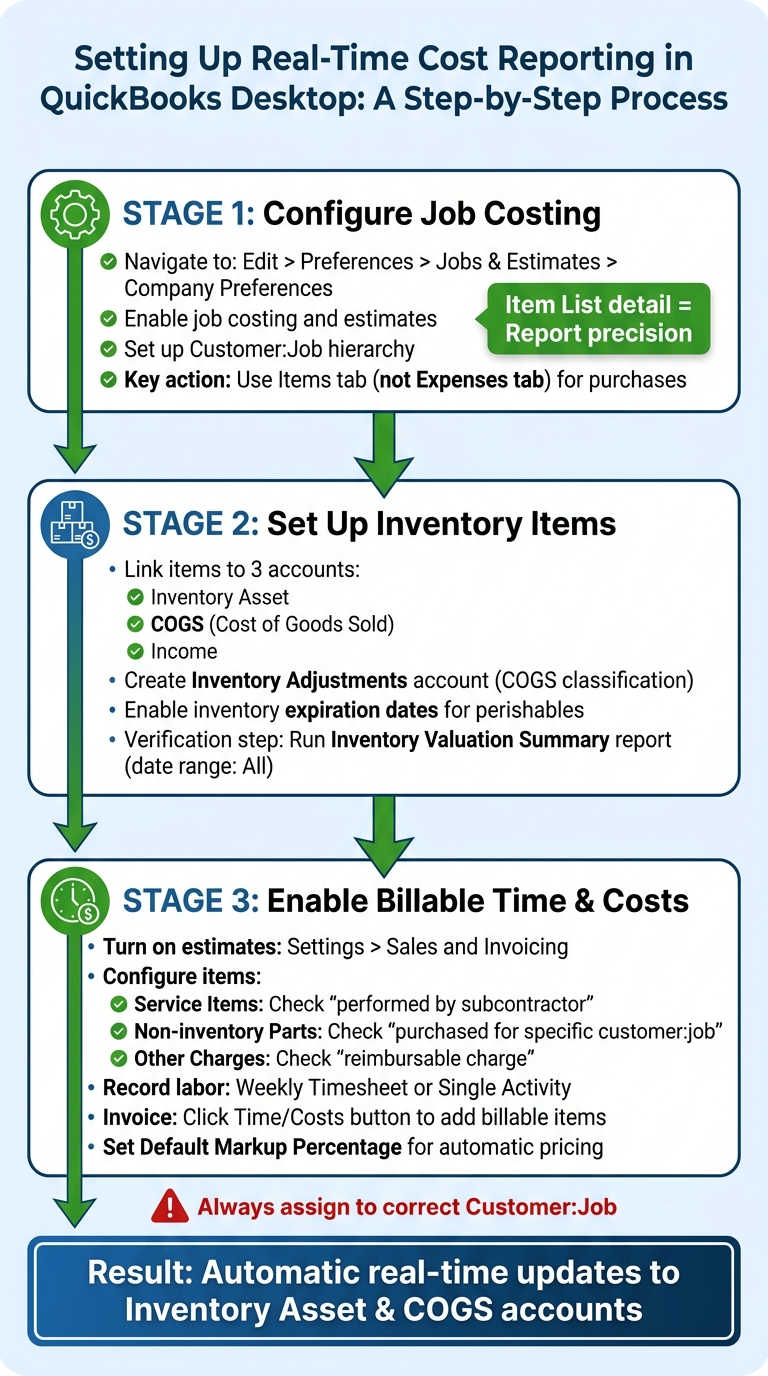
QuickBooks Desktop Real-Time Cost Reporting Setup Guide
Configuring Job Costing in QuickBooks Desktop
To get started with job costing in QuickBooks Desktop, head to Edit > Preferences > Jobs & Estimates > Company Preferences. Here, activate job costing and estimates, and set up a Customer:Job hierarchy for each project. This approach ensures that every transaction linked to a specific job updates the cost reports instantly. When recording bills, checks, or credit card charges, assign them to the appropriate Customer:Job.
For purchases tied to a job, always use the Items tab instead of the Expenses tab. This step ensures materials and subcontracted services are accurately tracked against the job. As Intuit highlights:
The level of detail in your Item List will determine the preciseness of your job cost reports.
If the Billable column isn’t active because of a COGS classification, reclassify job material accounts under Expense instead.
Setting Up Inventory Items for Cost and Revenue Tracking
Once job costing is in place, it's time to configure inventory items to track costs and revenues effectively. Link each inventory item to appropriate accounts: Inventory Asset, COGS, and Income. These connections are essential for QuickBooks to recalculate inventory costs in real time. When inventory is purchased, QuickBooks debits the Inventory Asset account. On selling an item, it credits the asset account and debits COGS.
To keep things organized, create a dedicated Inventory Adjustments account (classified as COGS) to log changes like spoilage or breakage. If your business deals with perishable goods, enable the Inventory expiration date feature. This allows you to assign mandatory expiration dates to serial or lot numbers, helping with timely sales and discounting decisions. You can also use inventory categories to group similar items, making stock reports easier to understand.
To confirm that inventory costs are being calculated correctly, generate the Inventory Valuation Summary report, setting the date range to "All." For a deeper dive into an item's cost history, double-click its entry in the report.
Enabling Billable Time and Costs
After setting up job and inventory tracking, you can integrate labor costs into your reports by enabling billable time and costs. Start by turning on the estimates feature under Settings > Sales and Invoicing. Then, configure your items to reflect both costs and revenue. For Service Items, check the box for "This service is performed by a subcontractor." For Non-inventory Parts, select "This item is purchased for and sold to a specific customer:job." For Other Charges, choose "This is a reimbursable charge."
Record labor hours via the Weekly Timesheet or Single Activity options, marking them as Billable and assigning them to the correct Customer:Job. When you're ready to invoice, select the relevant Customer:Job, then click the Time/Costs button. This opens a window where you can add all pre-assigned billable expenses, time, mileage, and items.
To streamline pricing, set a Default Markup Percentage in Settings > Sales & Invoicing. This ensures QuickBooks automatically calculates the sales price based on the entered costs.
Tracking Costs in Real Time
This section focuses on how to dynamically record and adjust costs to maintain accurate real-time reporting.
Recording Billable Time and Material Costs
Timesheets are essential for tracking labor costs, but they don't impact reports until they're imported into a bill or invoice. To ensure proper tracking, mark each timesheet entry as billable and link it to the correct Customer:Job so it appears during invoicing.
For material costs and job-related expenses, such as subcontracted services, record these using a bill, check, or credit card charge. Use the Items tab on the transaction form to assign costs to the appropriate Customer:Job. Overhead expenses, like freight or postage, should instead be logged on the Expenses tab, but still linked to the relevant job. If you need to track owner or partner time without affecting the Profit & Loss (P&L) statement, write a zero-amount check. On the Items tab, enter the service item and job, then offset it with a negative amount on the Expenses tab for the person’s equity account.
To allocate payroll costs directly to jobs during payroll runs, enable the "Job Costing, Class and Item tracking for paycheck expenses" option under Edit > Preferences > Payroll & Employees > Company Preferences.
Next, let’s look at managing inventory assemblies and adjustments to keep cost data accurate.
Managing Inventory Assemblies and Adjustments
QuickBooks uses the weighted average cost method to calculate inventory value. The Cost of Goods Sold (COGS) account is debited only when inventory is sold through invoices or sales receipts. If an item is sold while out of stock, QuickBooks adjusts the COGS and Inventory Asset accounts once the next purchase is recorded.
For physical losses or breakage, use Quantity adjustments. For changes in asset value due to spoilage or seasonal demand, use Total Value adjustments. When making these adjustments, link them to specific customers, jobs, or classes to ensure accurate, real-time reporting. If you need to dismantle a finished assembly item, use the unbuild function to return individual component costs and quantities to the inventory asset account. Avoid selling items that haven’t been entered into the system, as this forces QuickBooks to retroactively adjust COGS based on the next purchase price, which can distort profit reporting temporarily.
Using the Items Tab for Non-P&L Costs
To maintain real-time insight, tracking non-P&L costs through the Items tab ensures that asset values are correctly updated when items are sold.
When inventory items are purchased using the Items tab on bills, checks, or credit card charges, QuickBooks debits the Inventory Asset account (a Balance Sheet account) rather than a P&L expense account. These costs remain as assets on the Balance Sheet until the items are sold. At that point, QuickBooks transfers the cost from the Inventory Asset account to the COGS account, where it appears on the P&L.
To monitor the total value of inventory costs still on the Balance Sheet, use the Inventory Valuation Summary or Detail reports. If inventory values need adjusting due to spoilage or breakage, use the Adjust Quantity/Value on Hand feature to reallocate the value from the asset account to an adjustment account. For deeper insights, use QuickZoom in job reports to view detailed transactions tied to any cost figure.
Generating and Customizing Cost Reports
QuickBooks Desktop provides over 100 built-in reports, enabling users to track inventory and job costs in real-time. Among these, the Job Profitability Summary and Detail reports stand out as essential tools for evaluating which jobs are generating profit. They allow you to analyze financial progress and compare costs against revenue. To assess how well your cost estimates align with actual expenses, the Item Estimates vs. Actuals report is particularly helpful, offering a side-by-side comparison of projected and actual amounts.
When it comes to inventory management, the Inventory Valuation Summary and Detail reports give you a clear picture of inventory value and quantities for each item. Additionally, the Inventory Stock Status by Item report highlights items on sales orders or those requiring reordering, with a For Assemblies column to track inventory tied up in pending builds. For assembly production, the Pending Builds Report displays which items are currently locked in unfinished builds. These reports not only provide up-to-date insights but also serve as a foundation for deeper cost analysis.
Key Cost Reports in QuickBooks Desktop
These reports are designed to help you monitor costs effectively and make informed decisions as transactions occur.
| Report Name | Purpose | Key Columns/Filters to Use |
|---|---|---|
| Job Profitability Detail | Tracks financial progress for each job in detail | Filter by "Paid Status = Closed" to focus on completed jobs |
| Item Estimates vs. Actuals | Compares estimated vs. actual costs and revenue | Est. Cost, Act. Cost, and ($) Diff columns |
| Inventory Valuation Detail | Analyzes line-item costs over time | Filter by date range for specific periods |
| Inventory Stock Status | Manages inventory ordering and assemblies | Use the "For Assemblies" column for pending builds |
| Custom Transaction Detail | Tracks individual transactions | Filter by "Transaction Type = Build Assembly" to analyze production costs |
For a broader overview, you can create a Custom Summary Report and select "Job" or "Item" from the Row Axis drop-down to assess profitability by specific jobs, items, or classes. QuickZoom enables you to drill down into the details by double-clicking any amount. If you're working with sub-jobs or sub-classes, the Collapse Columns feature helps you view totals without unnecessary clutter.
Customizing Reports for Real-Time Analysis
QuickBooks Desktop offers four tabs for report customization: Display, Filters, Header/Footer, and Fonts & Numbers. For instance, if you want to focus only on realized profit, you can customize the Job Profitability Detail report by setting the Paid Status filter to "Closed", showing only paid invoices. To analyze unbilled costs or pending production, apply filters like "Paid Status = Open" or "Transaction Type = Build Assembly".
The Advanced button in the Modify Report window provides additional options, such as including only "In Use" accounts or setting the Open Balance/Aging to "Report Date" for historical insights. To streamline your reports, you can remove empty rows and columns by selecting the "Non-Zero" option. Switching between Cash and Accrual bases offers flexibility in viewing costs either when paid or when incurred. The Sort By option is useful for identifying high-cost drivers by organizing data by "Total." Once tailored, these reports can serve as a springboard for more advanced analysis after export.
Exporting and Combining Data for Advanced Reporting
Every QuickBooks Desktop report includes an Excel export option at the top of the screen. Exporting reports to Excel allows you to combine data from multiple reports for deeper insights. For example, to view actual inventory costs instead of averages in job profitability, you can merge the Job Profitability Detail report with the Purchases by Item Detail report in Excel. Similarly, exporting and merging the Time by Job and Payroll Item Detail reports provides a complete picture of billable costs.
As QuickBooks Moderator Kurt_M explained:
The option you're trying to access [real-time updates in Excel] isn't available inside the program. That said, you'll need to export them to refresh or get updated data whenever you want to view business reports.
Once in Excel, you can use tools like Auto Filtering for tasks such as linking payments to specific open invoices. You can also add custom formulas and create sub-columns for analyses that go beyond QuickBooks' standard features.
Improving Real-Time Cost Reporting with Rapid Inventory

QuickBooks Desktop's cost reporting has some limitations, particularly when it comes to real-time visibility across multiple locations and automated inventory updates. It wasn’t designed to handle the fast-paced nature of warehouse operations where costs can shift throughout the day. Enter Rapid Inventory - a tool that bridges these gaps by automating real-time tracking and syncing directly with QuickBooks Desktop. This eliminates the need for constant manual updates, keeping your cost data accurate and up-to-date.
Features of Rapid Inventory for Real-Time Reporting
One of the standout features of Rapid Inventory is its two-way sync with QuickBooks, which ensures that any inventory activity in the warehouse is immediately reflected in QuickBooks. This eliminates delays between physical transactions and financial updates. The platform also supports FIFO and FEFO picking strategies, which are particularly helpful for businesses dealing with perishable goods or requiring strict inventory rotation.
Another key feature is lot and serial number tracking, which allows for precise batch cost assignment. Real-time inventory reports provide a clear view of costs, quantities, and values across all locations at any given moment. Businesses using these capabilities have seen impressive results: mid-sized distributors report 40% faster cost reconciliation and a 25% reduction in inventory shrinkage. One notable example is a wholesaler who saved $10,000 monthly by automating multi-location cost updates.
Using Rapid Inventory to Simplify Cost Tracking
Rapid Inventory takes the complexity out of daily cost tracking with several practical tools.
Mobile barcode scanning transforms how inventory is managed. Employees can scan items during receiving, picking, or transfers, with cost data instantly updated in both Rapid Inventory and QuickBooks Desktop. As Fernanda C., Director of Operations, shared:
Rapid Inventory helps us run our warehouse operations. Easy to use and reliable... we especially love the barcode scanning and mobile picking.
The platform also excels in multi-location tracking, consolidating cost data across all warehouses and bin locations in real-time. For example, a retailer with multiple stores can monitor inventory costs specific to each site while also viewing consolidated profit and loss reports in QuickBooks - no manual reconciliation required.
Another helpful feature is cycle counting, which automates periodic inventory audits. Employees use mobile scanners for quick counts, with costs adjusted immediately. This process has helped businesses achieve 97% inventory accuracy. Additionally, backorder tracking ensures costs for pending orders are allocated correctly, so profitability calculations aren’t skewed by unfulfilled sales.
Rapid Inventory Pricing and Plans
Rapid Inventory offers two pricing options tailored for businesses of different sizes.
- The Pro Plan is priced at $90 per user per month and is ideal for teams with 1–9 users. It includes features like unlimited warehouses, lot and serial tracking, mobile barcode scanning, real-time reports, and free onboarding (valued at $600).
- The Unlimited Plan costs $900 per month flat, regardless of the number of users. It’s designed for larger teams and includes everything in the Pro Plan plus custom inventory reports (a $2,000 value), a dedicated account manager, and priority support.
Here’s a breakdown of the features included in each plan:
| Feature | Pro Plan ($90/user/month) | Unlimited Plan ($900/month) |
|---|---|---|
| User Limit | 1–9 users | Unlimited users |
| Warehouses/Locations | Unlimited | Unlimited |
| Two-Way QuickBooks Sync | Yes | Yes |
| Mobile Barcode Scanning | Yes | Yes |
| Lot/Serial Tracking | Yes | Yes |
| Real-Time Reports | Standard | Custom reports included |
| Support | Email & help center | Priority phone/email & dedicated manager |
| Onboarding/Migration | Free ($600 value) | Free ($2,100 value) |
Both plans include a 7-day onboarding process, which covers everything from demo sessions to action planning, staging, and go-live support. Nicholas G., a long-time user, praised the platform:
Rapid Inventory with QuickBooks Desktop is exactly what we need to run our company. We've been using it for 6 years and love it. Simple and straightforward, very easy to use.
As a web-based solution, Rapid Inventory allows managers to access real-time inventory data from anywhere, while warehouse teams stay efficient using mobile scanners on-site.
Best Practices for Analyzing Profitability and Managing Costs
Interpreting Estimate vs. Actual Costs
To keep your reporting accurate throughout a project, it's essential to compare estimated costs with actual expenses regularly. The Job Estimates vs. Actuals report is a key resource for evaluating whether you're staying within budget. This report pulls estimated costs from the "Cost" field in your estimate and compares them with actual expenses logged in QuickBooks. Always record vendor bills and expenses using the Items tab instead of the Expenses tab. Otherwise, costs may either show up as "No Item" or fail to appear in job-specific reports altogether.
"Job Estimates vs. Actuals report details costs and revenues for the selected job. It compares estimated and actual costs and estimated to actual revenue for each job that you invoiced." - LieraMarie_A, QuickBooks Team
When reviewing the report, pay close attention to three key metrics:
- Difference: This is the actual revenue minus the actual cost.
- % Actual Markup: Calculated as (Actual Revenue - Actual Cost) / Actual Cost.
- % Actual Margin: Determined by (Actual Revenue - Actual Cost) / Actual Revenue.
For example, if an item costs $250.00 and is sold for $400.00, the markup is 60%, and the profit margin is 37.5%. Negative values in these metrics indicate you're selling at a loss. If you notice missing estimates in your reports, adjust the filters and set Estimate Active to "Either" to ensure all project budgets are included.
Accurate cost estimation is critical for precise invoicing, ensuring that all billable time and expenses are accounted for seamlessly.
Invoicing with Time and Costs
When it's time to create invoices, the Time/Costs button is your go-to tool. It allows you to pull in all recorded billable hours, expenses, mileage, and items. This ensures every cost tied to a job is billed and tracked against the estimate. You can even apply markups directly in the "Time/Costs" window by using the "Markup amount or %" field, without altering your default item settings. To maintain a polished look, use the "Options" feature to combine multiple time activities into a single line item, instead of listing every hour separately.
Be cautious to avoid double billing. Ensure that work is recorded under either "Time" or "Items", but not both. If a cost is incurred but won't be billed to the customer, use the "Hide" column in the Time/Costs window to exclude it from the invoice while still recording it as a job cost in your reports. Also, remember that timesheets must be imported into bills or invoices for them to appear in reports.
Tips for Accurate Cost Tracking
Accurate cost tracking is essential for analyzing profitability over time. When entering bills, checks, credit card charges, or timesheets, always assign expenses to the correct Customer:Job. The accuracy of job cost reports depends heavily on the detail in your Item List. Items should be set up as "purchased for a specific customer:job" to enable tracking of both costs and revenue.
"The level of detail in your Item List will determine the preciseness of your job cost reports." - Intuit
For tracking costs that are committed but not yet billed, use Purchase Orders tied to a Customer:Job. This gives you insight into pending expenses. It's a good idea to run your Estimate vs. Actual reports throughout the project rather than waiting until the end. This allows you to identify and address problem areas before they impact profitability.
Conclusion
Real-time cost reporting transforms how businesses handle inventory management and analyze profitability in QuickBooks Desktop. With every transaction, your Inventory Asset account and Cost of Goods Sold (COGS) are updated simultaneously, ensuring financial accuracy across both the Balance Sheet and Profit & Loss reports. This instant synchronization reduces the delays and errors often seen with manual tracking, providing the clarity needed to make smarter decisions about pricing, purchasing, and inventory management.
The key to effective cost tracking lies in selecting the right costing method - whether it’s Moving Average Cost (MAC) or FIFO - as these methods are usually locked in once chosen. Combine this with strategies like accurate expense categorization, leveraging the Items tab for billable costs, and running regular Inventory Valuation reports to keep your financial data dependable and actionable. These steps help build a solid foundation for better decision-making and smoother inventory processes.
For businesses dealing with complex inventory needs - like managing multiple warehouses, lot tracking, or high transaction volumes - QuickBooks Desktop's built-in features may require extra manual effort. That’s where tools like Rapid Inventory step in to bridge the gap. By eliminating double entry and reducing human error, Rapid Inventory streamlines operations while integrating seamlessly with QuickBooks Desktop. Flexible pricing options make it adaptable to businesses of various sizes.
"Automatic 2 way sync with Quickbooks means that your items and orders are synced to Rapid Inventory and Rapid Inventory actions are synced back to Quickbooks. Say goodbye to spreadsheets and manual entry." – Rapid Inventory
FAQs
Why don’t my job costs update in real time?
Job costs might not reflect updates immediately if inventory adjustments are handled manually or if QuickBooks Desktop isn't configured for real-time syncing. To avoid this, make sure inventory tracking is both enabled and correctly set up. Tools like Rapid Inventory can simplify the process by automating updates, ensuring job costs stay accurate in real time.
When should I use the Items tab vs. the Expenses tab?
Use the Items tab to manage inventory products. This includes keeping track of quantities, costs, and sales information. On the other hand, the Expenses tab is designed for recording non-inventory expenses or purchases. These might include things like utility bills or office supplies that don’t require detailed inventory tracking.
How can I get real-time inventory costs across multiple locations in QuickBooks Desktop?
To keep tabs on real-time inventory costs across multiple locations in QuickBooks Desktop, start by enabling Advanced Inventory in QuickBooks Desktop Enterprise. This feature lets you set up multi-location tracking, making it easier to manage stock across different sites.
For seamless updates, consider using inventory management tools like Rapid Inventory. These tools can sync stock levels and costs instantly across all locations, ensuring your data stays current.
Additionally, take advantage of reports like the "Quantity on Hand by Site" and "Inventory Valuation Summary". These reports give you a clear view of inventory quantities and costs at each location, helping you stay on top of your inventory management.



