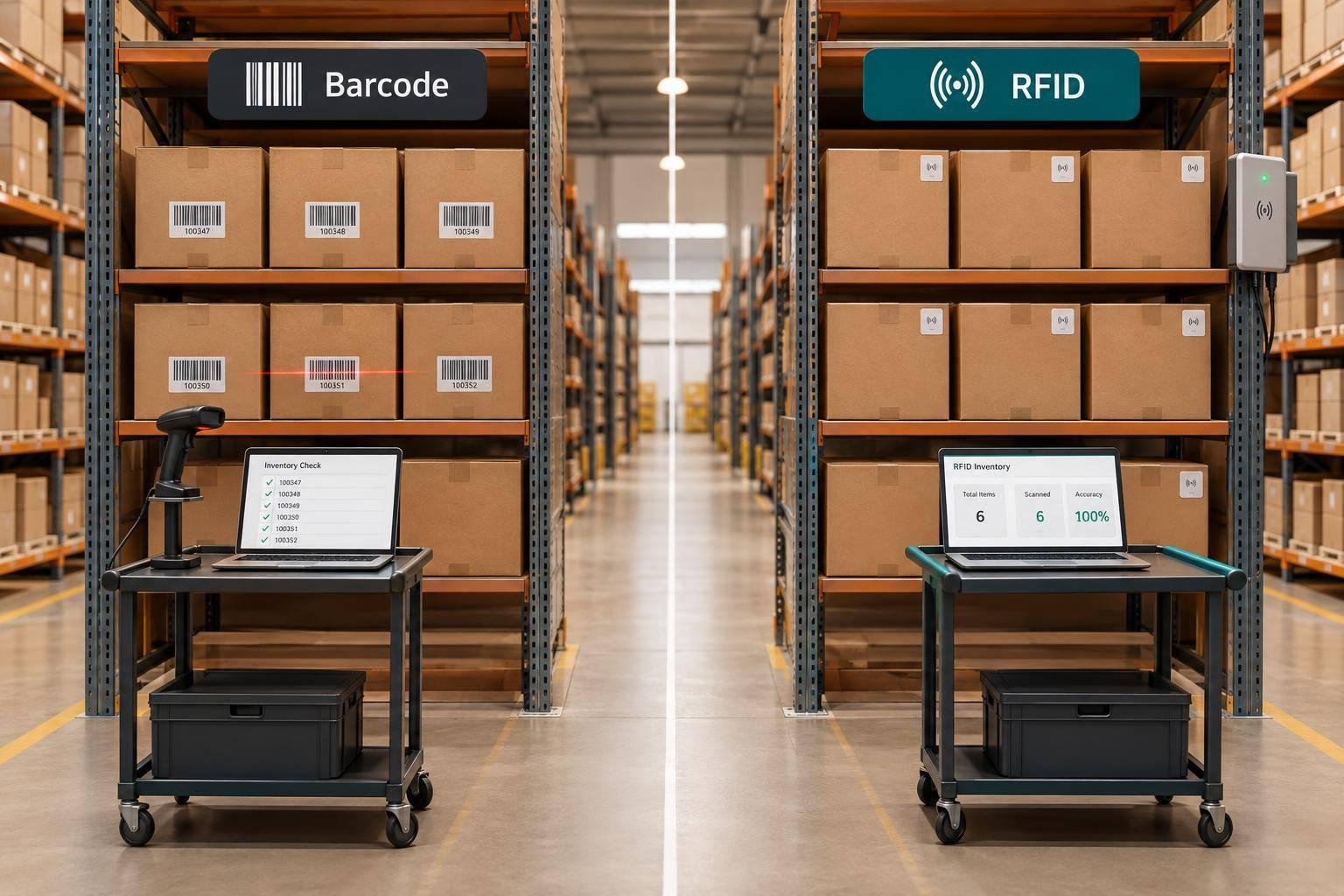
Barcodes are the lower-cost choice when staff can scan items one at a time. RFID is worth testing when bulk counts could cut enough labor to cover its higher costs. For businesses using QuickBooks Desktop, either method needs to turn scans or reads into correct inventory transactions - not just collect item data.
Barcodes require line of sight. RFID can read multiple tags without it, but needs testing around metal, liquids, and nearby stock. Neither method guarantees accuracy: item records, quantity checks, and error handling still matter.
Quick Comparison
| Factor | Barcode | RFID |
|---|---|---|
| Setup | Labels, scanners, and item mapping | Tags, readers, antennas, and read-zone testing |
| Scanning | One barcode at a time | Multiple tags per read |
| Accuracy | Depends on readable labels and quantity checks | Depends on tag detection and filtering duplicate or stray reads |
| Labor | More hands-on scanning | Less counting work, with time needed to resolve errors |
| Item volume | Suits workloads staff can scan individually | Suits frequent bulk counts; no fixed volume cutoff |
| Costs | Lower label and hardware costs | Higher tag, equipment, and setup costs |
| QuickBooks Desktop | Requires compatible software and transaction checks | Also requires rules that turn filtered reads into transactions |
Before buying equipment, check QuickBooks Desktop compatibility and test one warehouse zone. Compare count time, inventory variance, transaction errors, and total costs. Payback in months = setup costs ÷ net monthly savings. Expand only when savings hold up and inventory records match physical stock.
How Barcode and RFID Tracking Work
Barcode Setup and Scanning
Link each barcode to the correct item record and print clear labels. Then choose a scanner or mobile device that supports your code format.
A barcode scan identifies a product or case - not necessarily each unit. Use separate scans for unit-level tracking, and record case quantities when the outer label represents a full case.
Keep scans tied to an active receiving, picking, transfer, or count document. Confirm the warehouse, scan the bin and item, and enter or verify the quantity. Post only when the item matches that document. RFID follows the same inventory rules, but replaces manual scans with read-zone control and filtering.
RFID Setup and Reading
RFID moves the workflow from individual scans to bulk reads, so setup centers on tag placement and read zones. Passive UHF RFID tags contain a chip and antenna powered by the reader. Handheld readers handle mobile counts, while fixed readers cover defined zones. A UHF RFID system can read many tags at once.
Define the read zone before enabling automatic updates. Test tag placement, packaging, antenna angle, and reader power with actual stock. Metal and liquids can interfere with reads.
Filter out duplicate and stray reads. Then post only when the item, quantity, location, and workflow match the active document.
sbb-itb-19ed50f
RFID vs Barcode - Key Differences & How to Choose
RFID vs Barcode: Inventory Tracking Comparison
Compare each method against the work your team needs to do.
| Factor | Barcode | RFID |
|---|---|---|
| Setup | Simpler label and scanner setup | More reader and read-zone configuration |
| Scanning | Individual scans confirm items | Bulk reads reduce handling |
| Accuracy | Depends on readable labels and transaction checks | Depends on tag detection and read filtering |
| Labor | More hands-on scanning | Less data collection work, but exceptions still need attention |
| Item volume | Fits workloads staff can scan individually | Fits frequent, labor-intensive bulk counts |
| Costs | Lower label and hardware costs | Higher tag, equipment, and integration costs |
The workflow determines the result. Accuracy depends on item data, label placement, reader settings, transaction checks, and exception handling. Set up a process to resolve unreadable identifiers and transaction discrepancies before they reach inventory adjustments.
Item Volume and Counting Workload
Measure units, locations, count frequency, and staff-hours together. SKU count alone doesn't tell you how much work is involved. Repeated counts across several locations can matter more than the number of product records. There's no fixed volume threshold where RFID becomes the better choice.
| Process | SKU-level barcodes | Individually tagged RFID units |
|---|---|---|
| Receiving | Identify the SKU and verify quantity separately. | Identify tagged units in bulk and reconcile them against the expected receipt. |
| Picking | Confirm the selected SKU one scan at a time. | Support bulk verification only when reads match the pick. |
| Cycle counting | Require label access and manual quantity counting. | Reduce handling by reading tagged units in a sweep. |
SKU-level barcodes identify SKUs; individually tagged RFID units can distinguish one unit from another. But faster counting doesn't make every transaction faster. Picking still requires confirmation that staff selected the right stock. Receiving still requires resolving shortages or unexpected items.
Setup Costs and Labor Savings
Compare the total cost - not just the tag price. Include the work needed to turn scans or reads into valid QuickBooks Desktop transactions.
| Cost component | Barcode budget | RFID budget |
|---|---|---|
| Labels or tags | Label stock and replacements | Tags matched to products and conditions |
| Scanners or readers | Scanning devices | Readers, antennas, and infrastructure |
| Printing or encoding | Label printer and supplies | Encoding equipment or pre-encoded tags |
| Integration | Item mapping and transaction checks | Filtering stray reads, item mapping, and transaction rules |
| Configuration and training | Label setup and scan procedures | Read-zone tuning and exception procedures |
| Maintenance | Device cleaning and label replacement | Tag replacement, equipment upkeep, and RF tuning |
Estimated monthly labor savings = monthly hours saved × loaded hourly rate. Use measured receiving and counting time, including exception handling, rather than advertised reading speed. Scans or reads must still map to valid inventory transactions in QuickBooks Desktop.
Subtract added recurring costs to estimate net monthly savings. Then divide one-time setup costs by net monthly savings to estimate payback in months. If net savings are zero or negative, labor savings alone won't cover the investment.
Use the cost result to choose how inventory records will flow into QuickBooks Desktop, then map item records and transaction rules.
QuickBooks Desktop Integration
Check compatibility before buying equipment. Make sure the scanning software, device OS, connection type, and drivers work with your QuickBooks Desktop edition and version. Then check how each scan or read posts to QuickBooks Desktop.
Prepare Item Records and Test Transactions
Standardize item records, units of measure, storage locations, and barcode or tag mappings before setup. For RFID, set business rules that keep stray reads from creating unintended transactions.
Test receipts, picks, transfers, counts, and lot or serial tracking before rollout. Re-sync, then check for quantity mismatches, duplicate entries, and missing location or lot/serial data. Once those tests pass, compare how a barcode workflow handles the same tasks in QuickBooks Desktop.
Barcode Tracking With Rapid Inventory
Rapid Inventory supports two-way QuickBooks Desktop sync and mobile barcode scanning. It also offers multi-location and warehouse tracking, lot and serial tracking, cycle counting, backorder tracking, web access, and free onboarding and support.
Use your test results to set the pilot scope for receiving, picking, transfers, and counts before a full rollout.
Test a Pilot Before Expanding

RFID vs Barcode: Pilot Before You Expand
Once the QuickBooks Desktop tests pass, run a pilot in one warehouse zone or product category. Document the current workflow and measure baseline count time, labor hours, inventory variances, and transaction errors. Set success criteria before testing so you can judge repeatable results - not just a faster count.
Test receipts, putaway, picks, transfers, and counts, then compare scan results with a manual count. Include unreadable labels, damaged tags, stray RFID reads outside the zone, and tag placement near metal or liquids. Track time spent handling exceptions as well as scanning. Use the same metrics for barcodes and RFID to keep the comparison direct.
Print a barcode and human-readable text on every RFID label. Check that the barcode can complete the transaction when RFID fails. Then confirm that a later RFID read won't duplicate that transaction.
Enter your measured results in the table below. After each test session, compare QuickBooks Desktop inventory reports with the physical activity and record any corrections needed.
| Measurement | Barcode result | RFID result |
|---|---|---|
| Count time for the pilot area (minutes) | ||
| Total labor, including exception handling (hours) | ||
| Inventory variance (%) | ||
| Transaction errors (count) | ||
| Unreadable labels/tags (% of items tested) | ||
| One-time hardware, integration, and training costs ($) | ||
| Recurring labels/tags, software, and maintenance costs ($) | ||
| QuickBooks reconciliation mismatches and corrections |
Use these results to decide whether the workflow is ready for another zone. Expand only when transactions reconcile reliably and labor savings hold up. If stray reads or manual corrections erase those savings, fix the workflow and retest before adding another zone.
Conclusion: Choose Based on Workload and Budget
After the pilot, compare count time, variance, and exception rates with your targets. Use barcodes when scan volume is within your team’s capacity and checking each unit is still practical. Test RFID when frequent counts or handling labor cause bottlenecks. Move ahead only if measured labor savings exceed the costs of readers, tags, integration, and training.
Choose the workflow that meets your accuracy and throughput targets at the lowest total cost. Expand only after QuickBooks Desktop reconciliation is stable. Faster processing matters only if it posts correct inventory transactions.
FAQs
Can I use barcodes and RFID in the same warehouse?
Yes, barcodes and RFID can work together in the same warehouse. Use RFID for high-volume tasks, such as bulk receiving, pallet tracking, and inventory audits. Use barcode scanning for individual item checks, shipping exceptions, and low-cost products where RFID tags don’t justify the cost.
Integrating both into your workflow keeps QuickBooks Desktop records accurate and in sync without manual data entry.
How do I prevent duplicate transactions in QuickBooks Desktop?
Validate warehouse events through middleware before posting to QuickBooks. Don’t post raw tag reads. Set a duplicate-read window and assign each movement its own event ID. Before retrying a failed or timed-out sync, check transaction history or logs to see whether the event already posted.
Use standard accounting procedures to void or reverse duplicates - don’t replay the original event. After sync errors, reconcile quantities before resuming automatic posting.
Which items should I tag first when testing RFID?
Start with a small group of high-value items or critical inventory in one warehouse zone and one workflow, such as receiving, shipments, or cycle counting. Before expanding, check that physical inventory matches your system records.
Rapid Inventory supports this phased approach by helping you map existing QuickBooks Desktop items and barcodes to RFID tags. This helps keep inventory records accurate as you update your current workflows.