
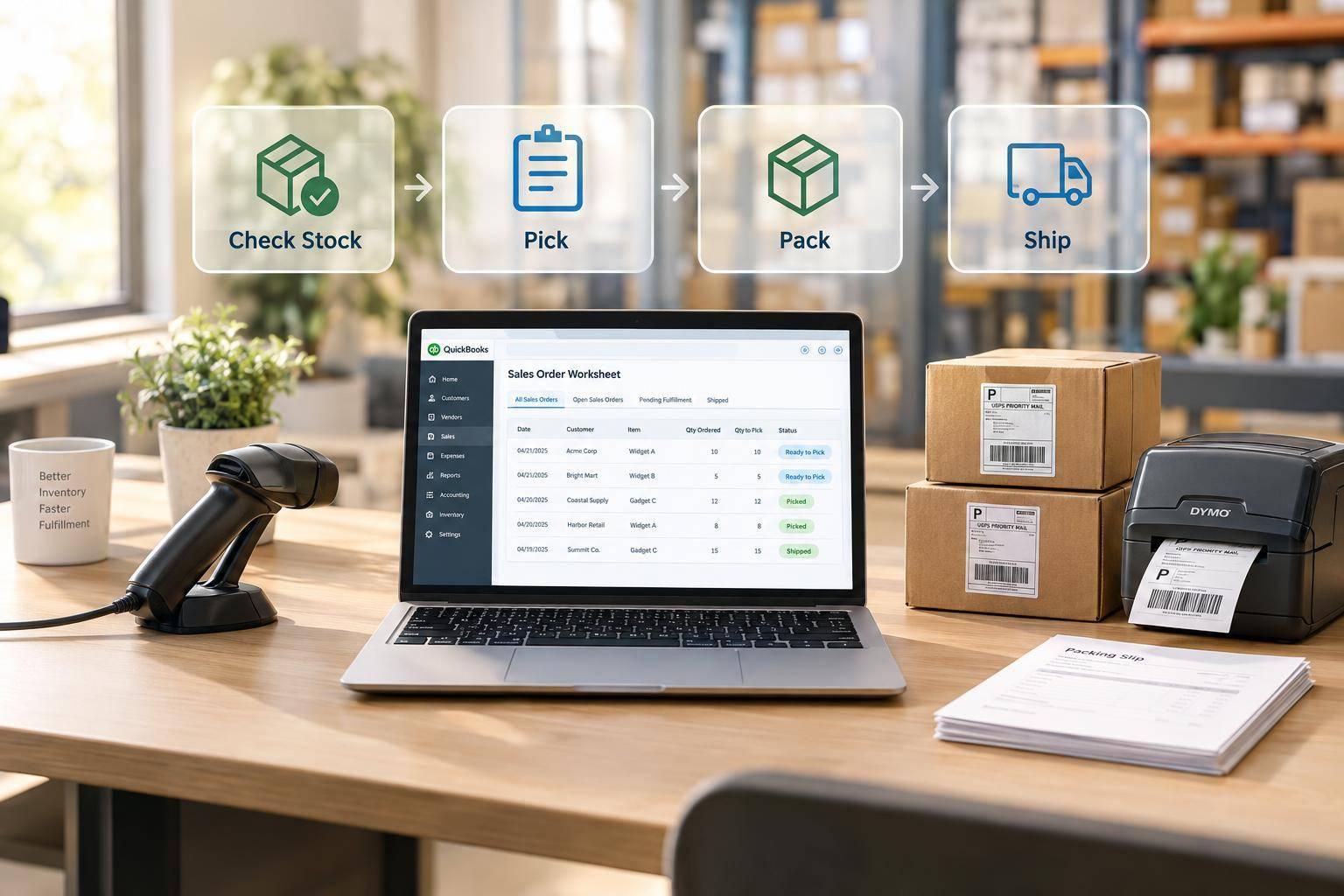
I use the Sales Order Fulfillment Worksheet in QuickBooks Desktop to check orders, confirm stock, and track picking, packing, and shipping. Start at Customers → Sales Order Fulfillment Worksheet, then review open orders by ship date.
My daily checklist is simple:
- Check before picking: Confirm order details, remaining quantities, and stock at the picking location.
- Track each step: Verify picked and packed quantities. Mark shipments shipped only after dispatch - not when labels are printed.
- Review unfinished orders: Follow up on shortages, missing ship dates, and partial shipments.
One detail matters: open quantity isn’t always the quantity left to ship. For example, 10 ordered units minus 6 invoiced units leaves 4 open units - but I still check shipment records.
<u>Available fields and actions depend on your QuickBooks setup.</u> If you need barcode scanning, lot tracking, or backorder controls, the article also covers Rapid Inventory.
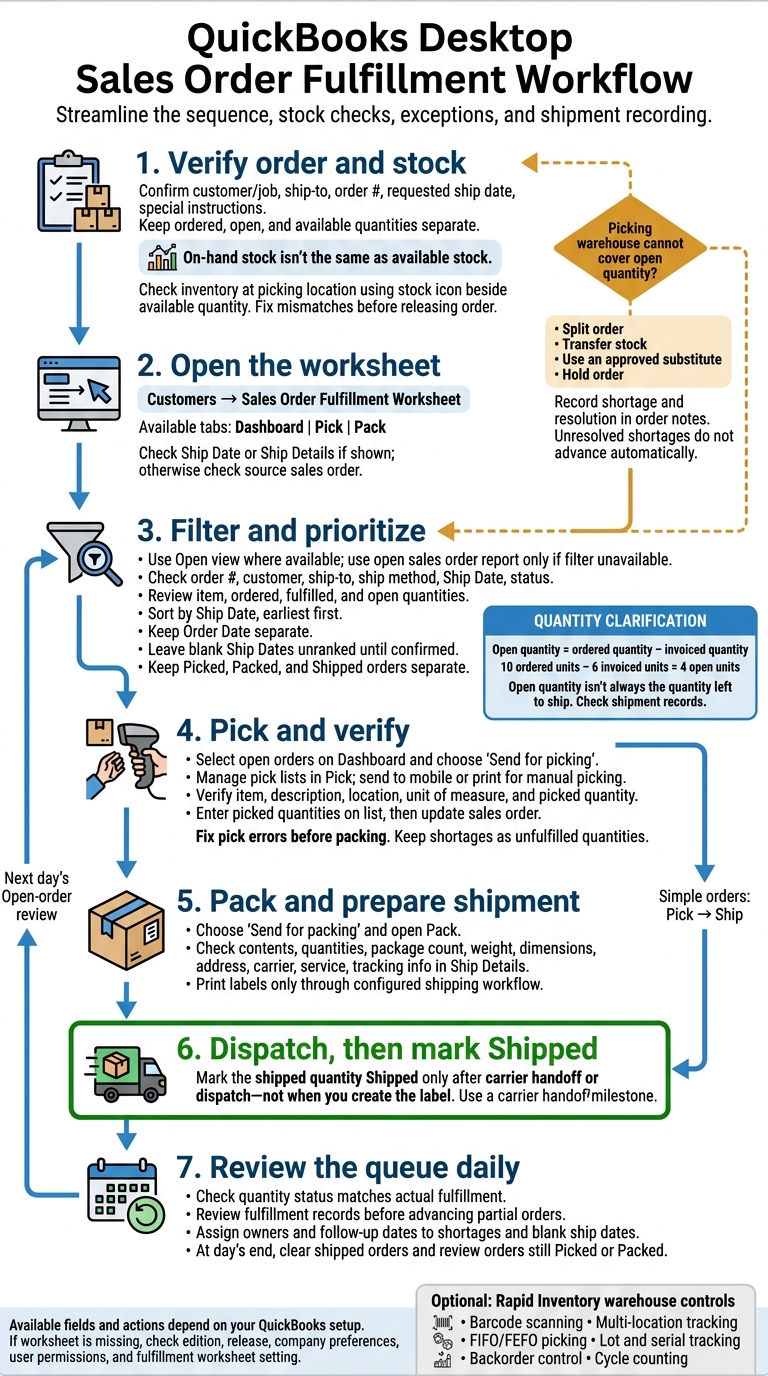
QuickBooks Desktop Sales Order Fulfillment Workflow
1. Check Orders and Open the Worksheet
Verify Order Details and Available Stock
Open the sales order and confirm the customer or job, ship-to address, order number, requested ship date, and special shipping instructions. Fix any mismatch before releasing the order.
Review the items and their details. Keep ordered, open, and available quantities separate. Use the stock icon beside the available quantity to check inventory at the picking location with inventory management software for QuickBooks Desktop.
On-hand stock isn’t the same as available stock. If the picking warehouse can’t cover the open quantity, split the order, transfer stock, use an approved substitute, or hold the order. Record the shortage and how it was resolved in the order notes.
Once the order details are correct, move it into the fulfillment queue.
Open the Worksheet and Check Its Tabs
Select Customers → Sales Order Fulfillment Worksheet. If you don’t see it, check your QuickBooks Desktop edition, release, company preferences, user permissions, and fulfillment worksheet setting.
Use the tabs available in your worksheet: Dashboard to review order status, Pick to view pick lists and warehouse assignments, and Pack to manage packed orders. Check Ship Date or Ship Details if shown. If neither appears, check the source sales order.
With the worksheet open, filter for open orders and sort the queue by ship date.
sbb-itb-19ed50f
2. Filter Open Orders and Prioritize Ship Dates
Filter for Open Orders
Use the Open view, where available, to show only orders that still need action. This keeps the warehouse focused on orders due to ship next.
Before adding an order to the queue, check its order number, customer, ship-to address, ship method, Ship Date, and status. Keep Picked, Packed, and Shipped orders separate to avoid duplicate warehouse work.
Use an open sales order report only if the worksheet filter is unavailable. Then review each order line by line.
Review Line Items and Unfulfilled Quantities
Check each line’s item description, ordered quantity, fulfilled quantity, and open quantity. Review shortages separately from fulfillment progress. Once you’ve confirmed the quantities, prepare the order for the pick queue.
Sort Orders by Ship Date
Where supported, sort by Ship Date, earliest first. Check those dates against customer commitments. Keep Order Date and Ship Date separate, and leave blank Ship Dates unranked until they’re confirmed.
Send the earliest orders in the sorted queue to picking.
3. Pick, Pack, and Ship Orders
Send Orders for Picking and Check Quantities
On the Dashboard, select open orders and choose Send for picking. In the Pick tab, manage pick lists, send a list to a mobile device, or print it for manual picking.
Before moving an order forward, check the item, description, location, unit of measure, and picked quantity against the sales order. Enter picked quantities on the pick list, then update the sales order. Fix pick errors before packing, and keep shortages listed as unfulfilled quantities.
Once you’ve verified the pick, move the order to packing.
Pack Orders and Record Shipments
Choose Send for packing, then open the Pack tab. For simple orders, use the Pick → Ship flow.
In Ship Details, check package contents, quantities, package count, weight, dimensions, address, carrier, service, and tracking information. Print labels only through a configured, compatible shipping workflow. Mark the shipped quantity Shipped only after carrier handoff or dispatch - not when you create the label.
Add Warehouse Controls with Rapid Inventory
For tighter warehouse control, Rapid Inventory adds barcode scanning, multi-location tracking, FIFO/FEFO picking, lot and serial tracking, and backorder control to support QuickBooks Desktop fulfillment.
QuickBooks Enterprise: Advanced Inventory - Sales Order Fulfillment | Pick, Pack, and Ship Overview
Conclusion: Check the Fulfillment Queue Daily
Review the queue daily after picking, packing, and shipping are complete. Start each day with Open orders: confirm details, check remaining quantities, sort by ship date, and move only eligible orders through fulfillment.
Next, check that quantity status matches actual fulfillment. Open quantity is the ordered quantity minus the invoiced quantity - not necessarily the quantity left to ship. Review fulfillment records before advancing partial orders.
Assign owners and follow-up dates to shortages and blank ship dates so unresolved issues remain visible in the queue. At the end of the day, clear shipped orders and review those still marked Picked or Packed.
If daily reviews reveal gaps in cycle counting or backorder tracking, Rapid Inventory adds those controls to support fulfillment and give you more warehouse control.
FAQs
How do I reconcile open quantities with partial shipments?
Use the Sales Order Fulfillment Worksheet in QuickBooks Desktop to track progress without closing the order too soon.
For a partial shipment, create an invoice for only the selected items, not the entire order. Manually enter the quantity shipped in the Invoiced or To Invoice column.
QuickBooks automatically updates the original sales order and moves the remaining quantity to the Backordered column, keeping inventory records and billing accurate.
How should I prioritize orders with stock shortages?
Sort open orders by ship date in the Sales Order Fulfillment Worksheet. Then use the Inventory Stock Status by Item report to compare quantities on hand with pending sales and purchase orders.
Fulfill items from available stock, create a partial invoice, and mark the remaining items as backordered. When stock arrives, prioritize backorders based on your business criteria, such as order date, customer priority status, or order value.
How does Rapid Inventory sync fulfillment updates with QuickBooks Desktop?
Rapid Inventory automatically syncs data both ways through a web connector, updating QuickBooks Desktop with inventory levels, sales order status changes, and shipment data in real time. This covers partial picking, packing, shipping, and backorders. Fulfillment actions completed through mobile scanning sync back to your QuickBooks company file and appear immediately.



