
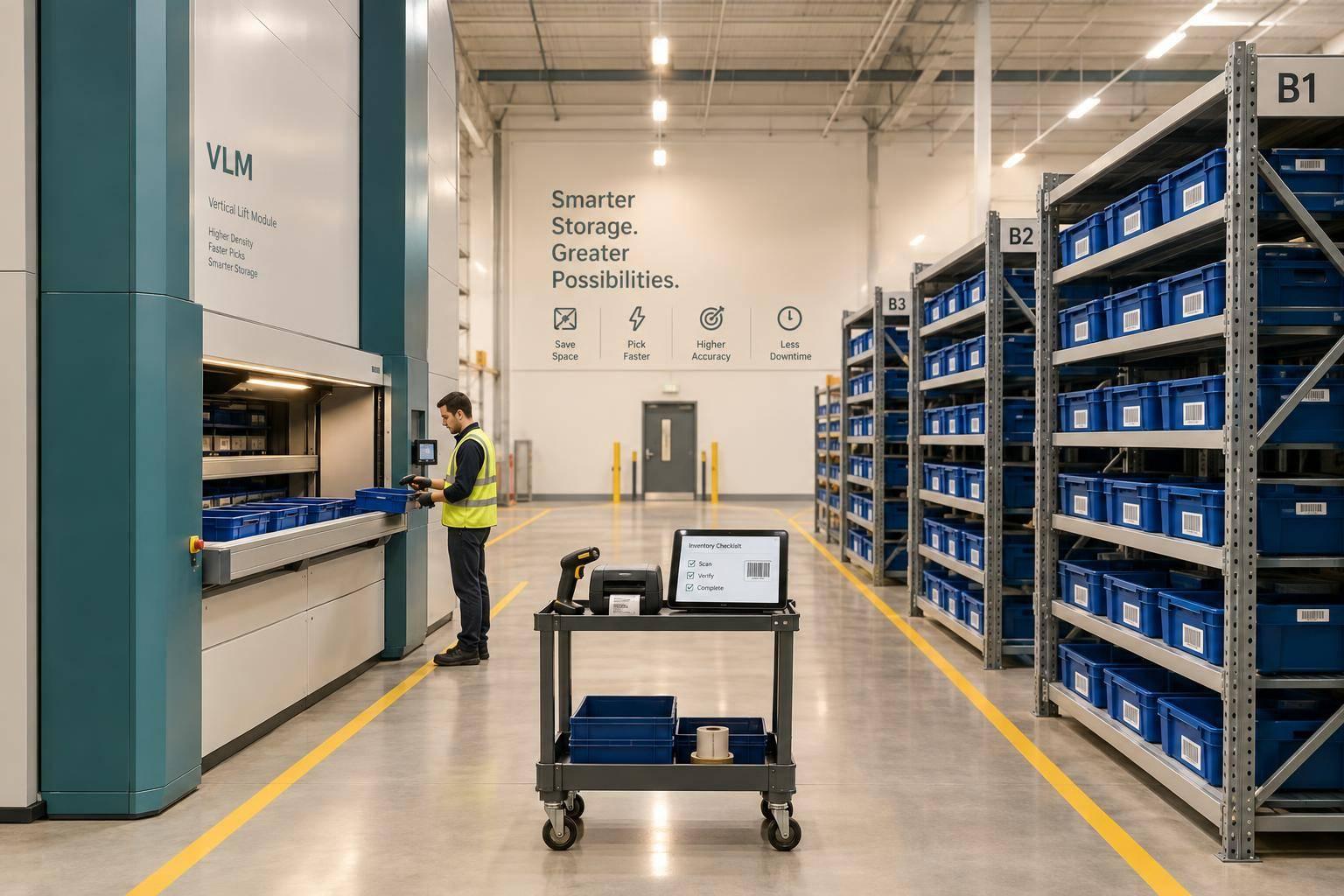
I’d evaluate VLMs for tight floor space and repeated small-part picks; shelving for lower upfront cost and direct access. Before buying, measure your busiest picking period - not just your daily average. A VLM’s 1 access window can create a queue even when it cuts walking.
I compare both options by space, pick time, stock accuracy, labor flow, item access, barcode scanning, expansion, installation, replenishment, downtime, and total cost. Less walking does not always mean faster orders.
Quick Comparison
| What I compare | VLMs | Standard shelving |
|---|---|---|
| Space and item fit | Uses ceiling height; check tray limits and floor loading | Needs shelves and aisles; check shelf load limits |
| Picking and labor | Brings trays to workers; retrieval and queues affect speed | Workers walk to stock; several pickers can use separate locations |
| Access and replenishment | Stock arrives at an access station; restocking uses the same equipment | Direct access for picking and restocking |
| Accuracy and scanning | Needs tray records and scans at the station | Needs bin records and scans at the shelves |
| Installation and growth | Requires equipment setup; growth depends on capacity and clearance | Simpler setup; sections can be added or moved |
| Cost and downtime | Include installation, maintenance, energy, and service interruptions | Include assembly, inspections, repairs, and walking time |
For QuickBooks Desktop, I’d <u>set location codes and barcode rules before changing storage</u>. Then I’d test receiving, picking, transfers, counts, and sync. Rapid Inventory supports barcode scanning and two-way QuickBooks Desktop sync, but I’d verify software, scanner, and VLM interface compatibility rather than assume it.
My final check: compare peak throughput, errors per order line, and total cost - including a mixed layout.

VLMs vs Shelving: Warehouse Storage Tradeoffs
Vertical Lift Modules: Optimizing Warehouse Storage (The Deep Dive - Episode 1)
sbb-itb-19ed50f
VLMs vs. Shelving: Space, Picking, and Access
Compare working space, pick speed, access, and uptime - not just rack footprint. For QuickBooks Desktop users, the question is which layout supports faster, cleaner inventory updates. Count operator space, replenishment access, and shelving aisles in your comparison.
| Factor | VLMs | Standard shelving |
|---|---|---|
| Floor space | Uses vertical storage to reduce floor footprint. | Needs floor space for shelves and access aisles. |
| Pick time | Cuts walking, but tray delivery affects pick speed. | Requires walking to items and may add search time. |
| Stock accuracy | Automated retrieval can reduce mispicks; accuracy still depends on count procedures. | Barcode scanning can support accurate manual counts. |
| Labor flow | Brings work to one access window. | Spreads workers across picking locations. |
| Item access | Delivers items to the operator. | Allows direct shelf reach. |
| Barcode scanning | Check which scanning tasks the system supports during picking and putaway. | Mobile scanning can verify items and locations. |
| Scalability | Expansion depends on unit capacity and installation space. | Sections can be added or rearranged within floor plan and load limits. |
| Implementation | Requires equipment installation and workflow planning. | Easier to install, followed by location labels and slotting. |
Place fast-moving SKUs at waist height on shelving and at the VLM access window.
Include replenishment and downtime. Compare how quickly each option can be restocked and whether workers can reach inventory during power loss or equipment faults. Shelving stays usable; VLMs rely on power and maintenance.
Weigh these tradeoffs against your SKU mix and picking demand.
Match Storage to Items and Pick Demand
Check SKU size and weight, pick frequency, replenishment rate, and how many pickers need access at once. VLMs may suit repetitive small-part picks, tight floor space, and controlled access. Shelving may suit irregular inventory within shelf limits, changing layouts, and workers who need separate access points.
Test peak demand, not just daily averages. Frequent tray requests or replenishment can change how much a VLM helps. The storage fit also affects how location data flows into QuickBooks Desktop.
QuickBooks Desktop and Barcode Workflows
Once you choose storage, record every stock movement consistently for QuickBooks Desktop. VLMs need accurate tray records; shelving needs accurate bin records.
Storage equipment moves stock. Inventory software records those moves. Keep quantities, locations, and movement history in the inventory system, then sync item, order, and accounting data with QuickBooks Desktop. Before changing equipment, standardize SKU numbers, location codes, barcode labels, and receiving rules.
Track Locations and Stock Movements
Record each SKU’s site, bin or tray, quantity, and lot or serial number. Track receiving, picks, transfers, and adjustments so each move has a record.
Scan items, locations, and quantities at shelves and VLM stations. Follow the same process for replenishment and cycle counts, and resolve any differences before posting adjustments.
Rapid Inventory for QuickBooks Desktop
A QuickBooks Desktop workflow tool can help manage these records.
Rapid Inventory supports two-way QuickBooks Desktop sync, warehouse and location tracking, mobile barcode scanning, lot and serial tracking, and cycle counting. Web access, onboarding, training, and support help teams follow standard workflows.
Before implementation, verify your QuickBooks Desktop version - Enterprise, Pro, or Premier - and test receiving, picks, transfers, and adjustments through the sync process. Confirm VLM controller compatibility and how tray requests will work. Do not assume VLM integration. Both storage systems need accurate movement records; software cannot fix unrecorded moves or vague locations.
Choose Storage by Facility Needs and Cost
After reviewing workflow and location control, compare storage options by space, throughput, and total cost.
Use the table below to narrow your options. Then check SKU size, load limits, ceiling height, floor loading, and equipment specs. Oversized, long, or heavy items may need pallet racking, cantilever racking, or other specialized storage rather than standard shelving or VLM trays.
| Facility or inventory condition | Option to evaluate | What to validate |
|---|---|---|
| Limited floor space | VLM | Footprint within available clearance |
| Frequent small-part picks | VLM | Tray capacity for the SKU mix |
| Too much walking per order | VLM | Travel saved versus retrieval and queue time |
| Difficult working heights | VLM | Access height and lift demands |
| Controlled access needed | VLM | Access controls |
| Irregular or low-volume stock | Shelving | Item fit within shelf limits |
| Tight aisle space or a limited budget | Shelving | Layout fit within budget |
| Multiple pickers working at once | Shelving or mixed layout | Queue time at a single VLM station |
| Barcode-driven picking already in place | Either | Scanning at pick locations |
A single VLM access window can become a bottleneck when multiple pickers need it at once. Evaluate shelving or a mixed layout when concurrent access matters.
Measure Space, Pick Time, and Errors
Record floor area and ceiling clearance, then track SKU size, walking distance, pick time in seconds, peak order lines, and labor hours. Include receiving, replenishment, peak periods, and queue time - not just time spent picking. Use these measurements to compare layouts that support your QuickBooks Desktop workflow.
Compare picking errors, receiving errors, and cycle-count adjustments across representative periods. Use the same definitions and denominators for both layouts, such as picking errors per order line. Otherwise, a quieter test period could make one option look better than it is.
Compare Total Cost and Payback
Once you know which options fit, compare installed cost alongside labor, maintenance, energy, and downtime.
| Cost category | VLM evaluation | Shelving evaluation |
|---|---|---|
| Equipment and installation | Automated machinery, delivery, and installation | Shelves, delivery, and assembly |
| Facility changes | Floor-loading checks, clearance, and site work | Aisle layout and site work |
| Software and integration | Automation setup and system integration | Location setup and barcode workflow setup |
| Maintenance | Scheduled mechanical service and repairs | Inspections and replacement of damaged components |
| Energy | Powered retrieval equipment | No power for shelf storage |
| Downtime | Service interruptions | Repairs and temporary location closures |
For a small or mid-sized business, estimate payback by weighing upfront equipment and site costs against net labor savings, maintenance, energy, downtime, and the value of freed floor space. Price a mixed layout too: VLMs for small parts and shelving for the rest.
Conclusion: Match Storage to Inventory and Workflow
Choose VLMs when floor space and a consistent access height matter most. Choose shelving when low cost, direct access, and a flexible layout take priority.
Use measured picking performance, error rates, labor costs, and facility requirements to guide your decision. After selecting a layout, standardize location names and barcode rules before changing storage. Check scanner coverage at every picking and putaway point.
For QuickBooks Desktop users, Rapid Inventory supports mobile barcode scanning and two-way QuickBooks Desktop sync with either layout. Verify compatibility with your QuickBooks Desktop version, scanners, and any VLM interface.
FAQs
How do I test whether a VLM can handle peak demand?
Compare your Vertical Lift Module’s (VLM) throughput with your highest expected order volume. Test batch picking under peak conditions to measure how many order lines or units it processes per hour. Goods-to-person performance depends on elevator speed and retrieval cycle time.
Keep your inventory software, such as Rapid Inventory, synced with QuickBooks Desktop. This keeps stock levels accurate and gives you real-time inventory visibility during peak activity.
How do I calculate payback for a mixed storage layout?
Add up all upfront costs - hardware, track installation, floor preparation, and professional labor. Then compare that total with savings from avoiding facility expansion, paying less rent per stored unit, and cutting energy and labor expenses. A well-planned storage system typically pays for itself within 12 to 18 months.
For QuickBooks Desktop users, Rapid Inventory can help shorten that payback period by simplifying workflows and improving picking efficiency.
How can I change storage without disrupting QuickBooks Desktop records?
Keep your digital inventory map in step with your warehouse layout. Map new areas, bins, and staging zones to the QuickBooks Inventory Site List. Record moves with Transfer Inventory, including source and destination sites, bins, reference numbers, and classes.
Rapid Inventory’s two-way QuickBooks Desktop sync updates inventory levels, locations, and lot data in real time. Verify moves with mobile barcode scanning to keep warehouse and accounting records aligned.



